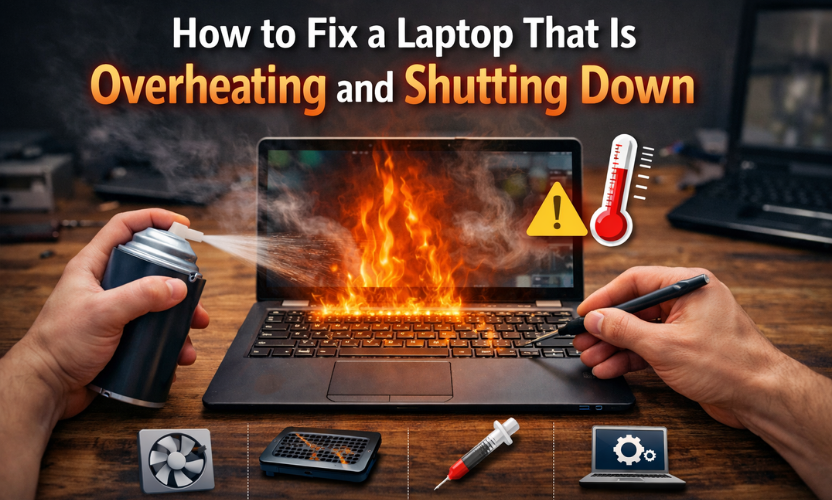
Could your laptop overheating and shutting down be a sign of a bigger hardware problem?
If your laptop overheating and shutting down is interrupting work, study, gaming, or everyday use, you are not alone. This is one of the most common laptop problems people face, and it often starts with warning signs like loud fan noise, a hot keyboard, slow performance, or random restarts before the laptop powers off completely. In some cases, the problem is caused by blocked vents, dust buildup, heavy software use, or poor airflow. In other cases, an overheating laptop may point to a failing fan, dried thermal paste, battery issues, or a deeper internal hardware fault.
The good news is that not every overheating problem means your laptop is beyond repair. Sometimes a few simple checks can reduce heat quickly. However, if the laptop overheating and shutting down issue keeps coming back, it may need professional diagnosis. In this guide, Gadgets n Repair explains the most common causes, what to check first, and when it is time to get help.
Why Is My Laptop Overheating and Shutting Down?
When a laptop overheating and shutting down becomes a repeated problem, the cause usually falls into one of two categories: airflow and cooling problems, or internal hardware and performance problems.
A laptop depends on proper airflow to remove heat from components like the CPU, GPU, battery, and motherboard. If the vents are blocked or the fan cannot push out hot air properly, temperatures rise quickly. Once the internal temperature becomes too high, the laptop may enter thermal shutdown mode to protect itself from permanent damage.
Common causes include:
- blocked air vents
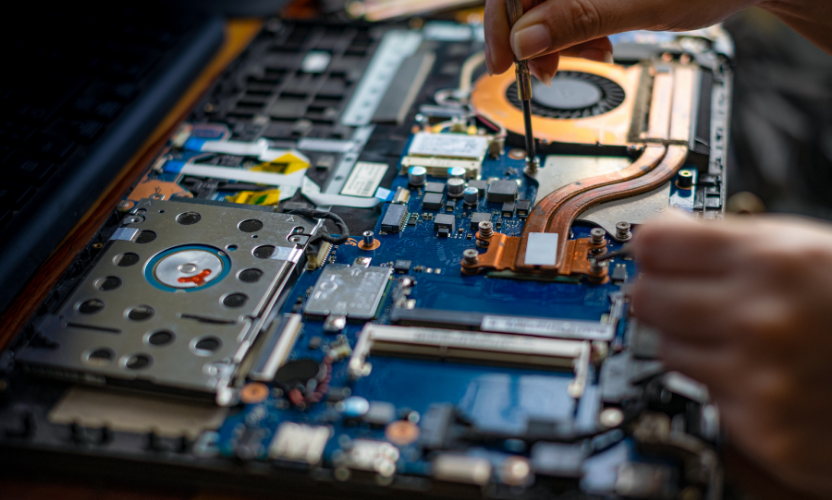
- dust buildup inside the fan or heatsink
- using the laptop on a bed, sofa, or blanket
- too many heavy programs running at once
- outdated drivers or software
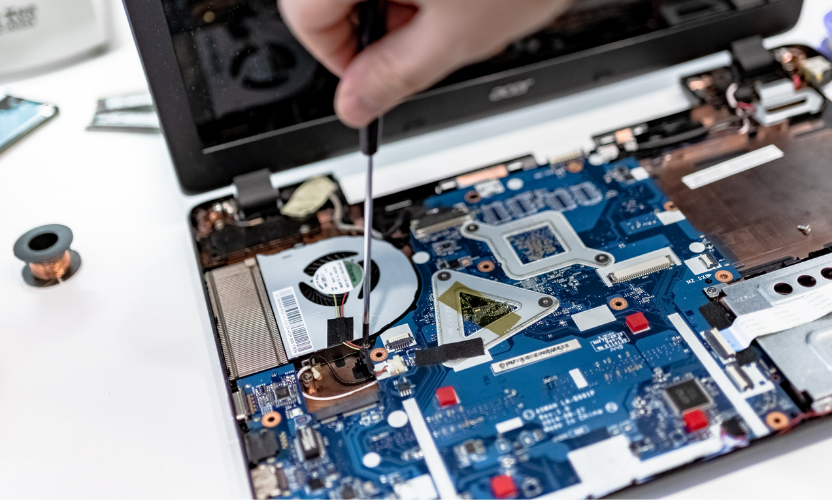
- failing cooling fan
- dried thermal paste
- battery or charging issues
- internal motherboard faults
In many cases, an overheating laptop starts as a small maintenance issue and becomes more serious when ignored for too long.
10 Things to Check If Your Laptop Is Overheating and Shutting Down
Before assuming your device needs major repair, go through these checks first.
1. Move the Laptop to a Hard, Flat Surface
If you use your laptop on a bed, pillow, blanket, or sofa, the vents may be blocked. This traps hot air and makes the laptop get hotter much faster. Move it to a desk or table and test again.
2. Check the Air Vents
Look around the sides and underside of the laptop. If the vents are clogged with dust, lint, or dirt, the cooling system cannot work properly.
3. Listen to the Fan
A healthy fan usually spins faster when the laptop gets hot. If the fan is unusually loud, grinding, rattling, or completely silent, that may point to a fan issue.
4. Close Heavy Programs
Open Task Manager on Windows or Activity Monitor on a Mac and check for apps using too much CPU or memory. Video editing, gaming, browser tabs, and background processes can all increase heat.
5. Restart the Laptop
A restart can reduce background processes and temporary software load. If the laptop cools down after rebooting, the issue may be linked to heavy usage rather than permanent damage.
6. Update Software and Drivers
Outdated operating systems, graphics drivers, and BIOS settings can sometimes cause poor thermal performance. Installing updates may improve stability.
7. Test With and Without the Charger
If the laptop overheats more while charging, the issue may involve the battery, charger, or power delivery system rather than the cooling system alone.
8. Lower Performance Demands
Reduce high graphics settings, close unused apps, and stop running heavy tasks at the same time. This is especially useful if the laptop shuts down randomly during gaming or editing.
9. Check the Room Temperature
Using a laptop in a hot room or direct sunlight can make overheating worse. Warm environments reduce cooling efficiency.
10. Back Up Important Data
If your laptop overheating and shutting down keeps happening, back up your files early. Repeated shutdowns can risk data loss if the problem becomes more serious.
Can Dust and Blocked Vents Make a Laptop Shut Down?
Yes, absolutely. Dust buildup is one of the most common reasons a laptop gets hot and turns off.
As dust collects inside the cooling fan and vents, airflow becomes weaker. Hot air stays trapped inside the laptop, which forces the fan to work harder and raises internal temperatures. Over time, the system may become so hot that the laptop shuts down to protect the CPU or other parts.
Signs of dust-related overheating include:
- hot air coming out weakly
- fan constantly running
- laptop base becoming very hot
- shutdowns during basic use
- heat building up quickly after startup
This is where a Gadgets n Repair laptop cleaning service can make a big difference, especially if the laptop has not been cleaned internally for a long time.
Can a Bad Fan or Thermal Paste Cause Laptop Overheating and Shutting Down?
Yes. If the cooling fan is worn out or not spinning properly, heat cannot escape efficiently. A bad fan often causes loud noise, weak airflow, or sudden shutdowns after only a short time of use.
Another common cause is dried or failing thermal paste. Thermal paste helps transfer heat from the processor to the heatsink. If it dries out or loses effectiveness, the CPU may overheat much faster than normal.
This type of problem usually does not improve with software changes alone. If your laptop overheating and shutting down is caused by a bad fan or old thermal paste, the laptop may need proper internal service.
Why Is My Laptop Overheating and Shutting Down While Gaming?
Gaming puts extra pressure on the CPU and GPU, so heat rises much faster than during normal tasks. If the cooling system is already dusty or weak, gaming can push the laptop past safe temperatures quickly.
A laptop that overheats while gaming may be affected by:
- high graphics settings
- blocked airflow
- background apps using resources
- failing cooling fan
- dried thermal paste
- poor ventilation around the laptop
If the laptop only shuts down during gaming, that does not always mean the game is the real problem. In many cases, the game simply exposes an existing cooling weakness.
Laptop Overheating and Shutting Down While Charging
If the laptop overheats more while charging, the battery or charging system may be involved.
Possible causes include:
- battery getting too hot
- faulty charger
- damaged charging port
- unstable power flow
- using the laptop heavily while charging
A laptop that becomes much hotter when plugged in may need a battery check or internal power diagnosis.
Signs the Problem Is More Than Basic Overheating
Sometimes the issue is not just dust or airflow. Your laptop may need repair if:
- it shuts down even during light use
- the fan makes grinding sounds
- the battery area feels unusually hot
- the laptop restarts randomly
- you notice burning smells
- the battery is swelling
- the issue happens both on battery and while plugged in
- performance drops sharply before shutdown
These signs can point to a deeper motherboard issue, cooling failure, or battery fault.
MacBook vs Windows Laptop: What to Check First
On a MacBook
If you use a MacBook, check:
- Activity Monitor for heavy apps
- software updates
- fan behaviour
- room temperature
- whether vents are blocked
On a Windows Laptop
If you use Windows, check:
- Task Manager for CPU usage
- startup apps
- driver updates
- BIOS updates
- battery and performance mode settings
This section helps broaden search relevance and makes the blog more useful for different readers.
Is It Safe to Keep Using a Laptop That Keeps Overheating?
No, not for long. An overheating laptop may still work for a while, but repeated high temperatures can shorten the life of the CPU, battery, fan, motherboard, and storage components.
It is especially risky if:
- the laptop shuts down repeatedly
- the heat keeps getting worse
- the battery seems swollen
- the fan is no longer cooling properly
If the problem continues, stop pushing the laptop too hard and get it checked. Delaying repairs can turn a small maintenance issue into a much more expensive fault.
When to Get Professional Repair
You should consider laptop repair at Gadgets n Repair if:
- your laptop overheating and shutting down does not improve after the basic checks
- the vents are dusty but the laptop still runs too hot after cleaning
- the fan is noisy or not spinning properly
- the battery gets hot while charging
- the laptop shuts down during light use
- you suspect thermal paste or internal cooling failure
At this stage, Gadgets n Repair diagnostics can help confirm whether the issue is caused by dust buildup, fan failure, battery instability, charging problems, or a deeper internal fault.
How Gadgets n Repair Can Help
If your laptop keeps overheating, guessing the cause can waste time and money. At Gadgets n Repair in St Helens, the device can be checked properly to find out whether the problem is linked to airflow, the cooling fan, thermal paste, battery health, or another internal issue.
Gadgets n Repair laptop repair services can help with:
- internal dust cleaning
- fan inspection and replacement
- thermal paste replacement
- battery checks
- charging-related diagnosis
- overheating diagnosis for Windows laptops and MacBooks
Instead of waiting for the problem to get worse, a proper check can help you catch the real cause early.
Final Thoughts
A laptop overheating and shutting down can start as a simple maintenance issue, but it should not be ignored. Blocked vents, dust buildup, heavy usage, poor airflow, and software strain are all common causes. In many cases, basic checks can help. However, if the laptop keeps getting hot and turning off, the problem may be linked to the fan, battery, thermal paste, or another internal component.
If the issue keeps happening, Gadgets n Repair UK can help identify the real cause and recommend the right repair before the damage becomes worse.
FAQs About a Laptop Overheating and Shutting Down
Why is my laptop overheating and shutting down?
The most common reasons are blocked vents, dust buildup, failing fans, heavy software use, battery issues, or internal hardware faults. If the problem happens repeatedly, the laptop may need professional diagnosis.
Can dust make a laptop overheat and shut down?
Yes. Dust blocks airflow and stops the cooling system from working properly. This can raise internal temperatures and trigger thermal shutdowns.
Why does my laptop shut down while gaming?
Gaming places heavy load on the CPU and GPU, which creates more heat. If the cooling system is weak or clogged, the laptop may overheat and shut down during gaming.
Can a bad fan cause overheating?
Yes. A failing fan is one of the most common hardware causes of overheating. If the fan is noisy, weak, or not spinning properly, the laptop may not cool itself effectively.
Can a battery make my laptop overheat?
Yes. A failing battery can create excess heat, especially while charging. If the battery area gets unusually hot, it should be checked.
Why does my laptop overheat while charging?
This may be linked to the battery, charger, charging port, or power system. It can also happen when the laptop is under heavy use while plugged in.
Is it safe to keep using an overheating laptop?
No. Repeated overheating can damage internal parts and shorten the life of the laptop. If the problem continues, it is safer to get it checked.
How much does it cost to repair a laptop that overheats and shuts down?
The cost depends on the real cause. A simple internal cleaning is different from fan replacement, thermal paste service, or battery repair. A proper diagnosis is the best first step.