Laptop getting too hot? Read this before it shuts down again.
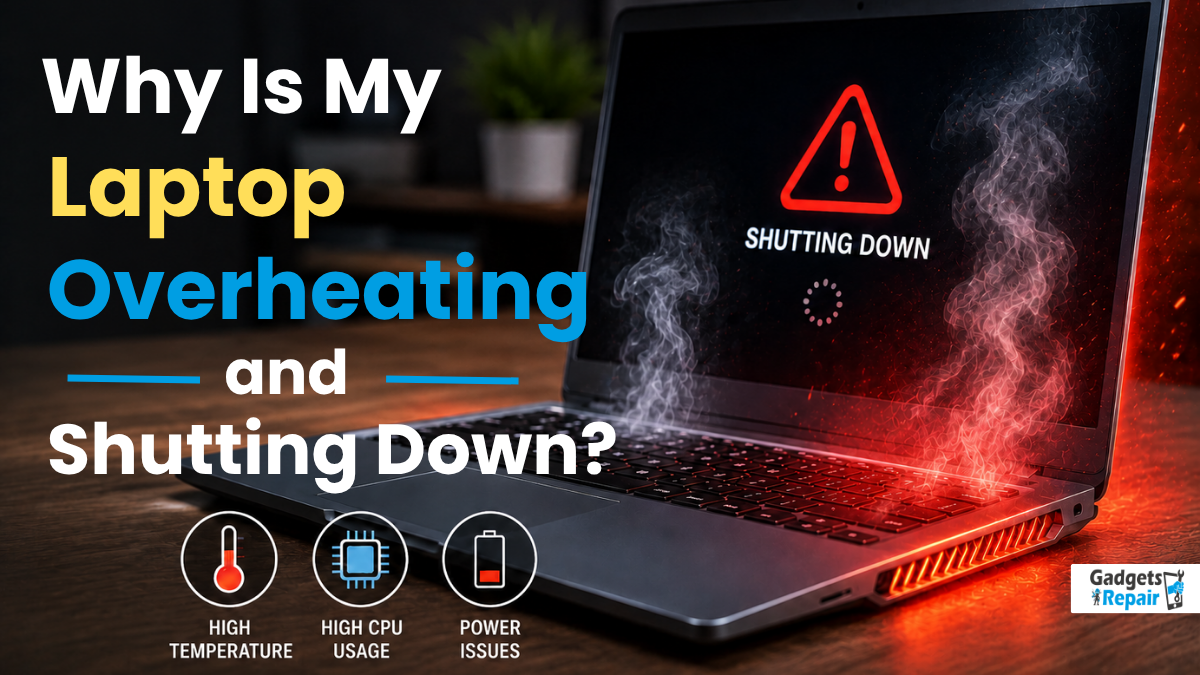
If your laptop overheating and shutting down problem keeps happening, it is a warning sign you should not ignore. A laptop that runs too hot can slow down, freeze, restart unexpectedly, or shut down completely to protect its internal components. Although this can feel worrying, many overheating issues can be fixed before they cause permanent hardware damage.
At Gadgets n Repair, customers often ask for help with hot laptops, loud fans, slow performance, thermal issues, blocked vents, fan cleaning, and laptop repair. In many cases, the problem comes from dust buildup, poor airflow, heavy workloads, ageing thermal paste, or a failing cooling system.
This guide explains why your laptop may be overheating, what symptoms to watch for, how to cool it down safely, and when to get professional help.
Identifying Laptop Overheating Symptoms
A laptop usually gives clear signals when it is struggling with high temperatures. These signs may start small, but they can become serious if ignored. Paying attention early can help prevent major hardware failure, data loss, and poor performance.
Physical Signs of Overheating
One of the most obvious laptop overheating symptoms is heat you can feel. If the chassis, bottom area, or area above the keyboard feels unusually hot to the touch, your internal cooling system may be overwhelmed.
The exhaust vents should push out warm air, but the casing should not become excessively hot during normal use. If the laptop feels uncomfortable to touch, heat may not be dissipating properly.
Loud Fan Noise
Your laptop cooling fans spin faster when the CPU and GPU temperature rises. If the fans run at maximum speed for long periods, even when you are not using demanding applications, the system is working hard to cool itself down.
A constant loud whirring sound is often your computer’s warning sign. In some cases, fan noise can also indicate dust buildup, blocked air vents, worn fan bearings, or a failing cooling fan.
Slow Performance and Shutdowns
Performance degradation is another major sign. When a hot processor reaches unsafe temperatures, it may reduce speed to prevent damage. This process is known as thermal throttling.
Thermal throttling can cause system lag, freezing applications, slow loading, and reduced productivity. If the heat continues rising, the laptop may crash, restart, or shut down unexpectedly. This shutdown is a built-in safety measure designed to protect the CPU, GPU, motherboard, storage drive, and other components from catastrophic failure.
Common Causes of Laptop Overheating
To fix overheating professionally, you need to understand the cause. Most laptop overheating problems come from airflow restrictions, demanding workloads, poor workspace habits, or ageing hardware.
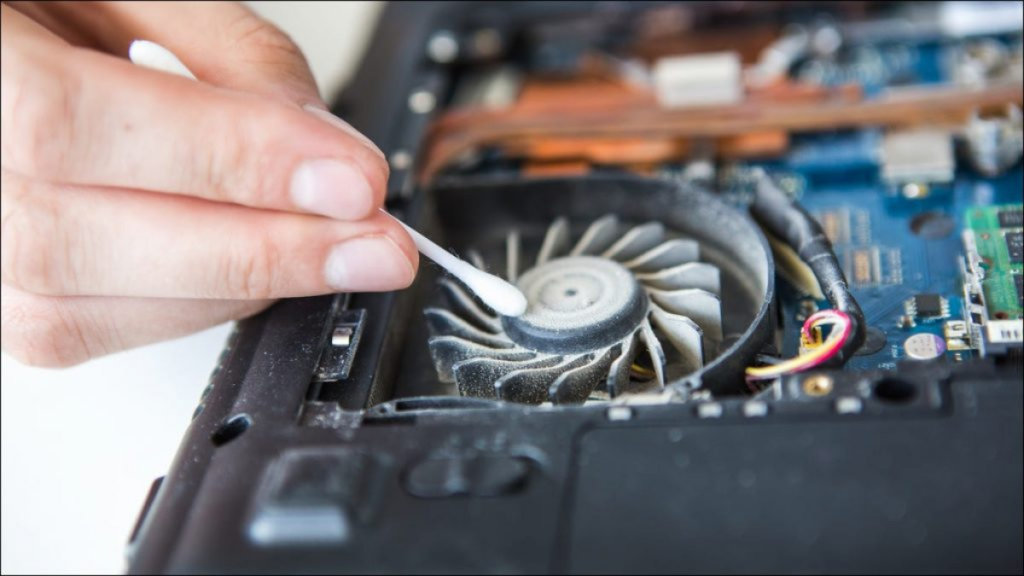
Dust buildup is one of the most common causes of laptop overheating. Over time, laptop fans pull in air to cool internal components. However, they also pull in dust, lint, hair, and debris.
This buildup can clog heatsink fins, intake vents, exhaust vents, and fan blades. When airflow is blocked, hot air becomes trapped inside the chassis. As a result, the cooling system cannot do its job properly, and the laptop temperature rises quickly.
Dust Buildup and Clogged Vents
This is why regular cleaning and maintenance matter. A simple dust removal service can often improve airflow, reduce heat, and restore better system performance.
Poor Airflow From Surfaces and Environment
Where you use your laptop can also affect thermal performance. Soft surfaces such as beds, couches, blankets, and fabric can block intake vents. When the laptop cannot pull in cool air or push out hot air, overheating becomes more likely.
A high ambient room temperature can make the problem worse. If the room is already warm, the fans need to work harder to maintain a safe operating temperature.
Using a laptop on a hard, flat surface such as a desk or table can improve proper ventilation. A laptop stand can also help by lifting the device and improving airflow underneath the chassis.
Heavy Workloads and Demanding Applications
Heavy workloads can generate substantial heat. Tasks such as video rendering, compiling code, data analysis, gaming, and running multiple demanding applications place pressure on the CPU and GPU.
A laptop overheating when playing games is especially common because modern titles can push hardware to its limit. Even a new laptop can overheat if it is under intense workload without adequate ventilation.
If your laptop only overheats during gaming or heavy software use, the issue may be linked to resource-intensive applications, graphics settings, blocked vents, or cooling limitations.
Ageing Components and Cooling System Failure
Over time, laptop cooling systems can lose efficiency. The fan may spin slower, the heatsink may become clogged, and thermal paste may dry out. These ageing components can make your laptop run hotter than it used to.
Thermal Paste Problems
Thermal paste helps transfer heat from the processor to the heatsink. After years of use, it can dry out and lose effectiveness. When heat transfer becomes weak, the CPU and GPU may overheat even if the fans still work.
Replacing old thermal paste can improve thermal conductivity and cooling efficiency. However, this repair should be done carefully because applying too much, too little, or the wrong type of paste can make the issue worse.
Failing Cooling Fans
Cooling fans are essential for heat control. If a fan stops spinning, spins slowly, makes grinding sounds, or fails completely, the laptop may overheat quickly.
A failing fan should not be ignored. If your laptop shuts down soon after startup or becomes hot even during light use, professional fan inspection may be needed.
What to Do When Your Laptop Overheats
When your laptop becomes too hot, immediate action can help prevent damage. The goal is to reduce heat, restore airflow, and stop the system from shutting down repeatedly.
Give Your Laptop a Break
If the laptop is hot and the fans are loud, save your work and shut it down completely. Let it cool for at least 15 to 20 minutes before turning it back on.
While it cools, place it on a hard, flat surface. Avoid beds, sofas, blankets, and carpet. This gives the bottom vents and side vents space to breathe.
Clean the Vents and Fans
Cleaning the vents and fans is often one of the most effective laptop overheating fixes. Before cleaning, power down the device and unplug it from the power source. If the battery is removable, remove it safely.
Compressed air can help blow dust out of vents, fans, and heatsink areas. However, use short, controlled bursts to avoid damaging fan bearings. If the dust is heavy or inside the laptop, professional cleaning is safer.
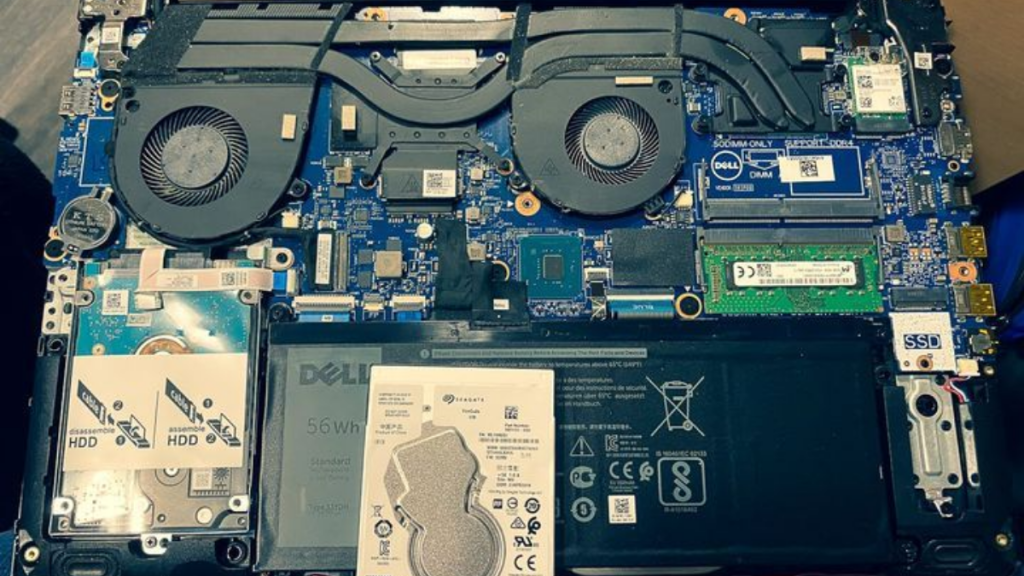
At Gadgets n Repair UK, laptop fan cleaning and dust removal can help improve airflow and reduce overheating without risking damage to internal parts.
Optimize Software and Power Settings
Software settings can also reduce heat. On Windows, Task Manager can help identify unnecessary applications and background processes using high CPU resources. Closing unused apps can reduce processor load and lower temperature.
Switching from a High performance power plan to a Balanced power plan can also help reduce heat. This limits processor output when full performance is not needed. Some laptop overheating fix software can also monitor temperatures and fan speeds, but it should not replace proper hardware maintenance.
Quick Fixes to Cool Down Your Laptop
Try these safe steps before assuming your laptop is failing:
- Shut it down for 15 to 20 minutes, place it on a hard flat surface, clear the vents, close high CPU apps in Task Manager, switch to a Balanced power plan, install Windows updates, update drivers, avoid soft surfaces, and consider using a laptop cooling pad.
Hardware Upgrades That Improve Cooling
If your laptop still overheats after cleaning and software optimization, hardware support may be needed. A laptop cooling pad with built-in fans can improve airflow and reduce operating temperatures, especially during gaming or heavy workloads.
For older laptops, replacing dried thermal paste may dramatically improve heat transfer. In some cases, the fan may need replacement if it is damaged or no longer spinning properly.
Here is a simple guide:
| Issue | Possible Fix |
|---|---|
| Dust buildup | Vent and fan cleaning |
| Poor airflow | Hard flat surface or laptop stand |
| Heavy workload | Lower settings or Balanced power plan |
| Dry thermal paste | Thermal paste replacement |
| Failing fan | Fan inspection or replacement |
| High gaming heat | Cooling pad and internal cleaning |
Preventing Laptop Overheating
The best way to deal with overheating is to prevent it before it becomes a serious issue. Simple maintenance habits can keep your device cooler and extend its lifespan.
Schedule Regular Cleaning
Regular maintenance is one of the best ways to prevent heat accumulation. Cleaning vents and internal fans every three to six months can stop dust and debris from building up.
This is especially important for laptops used daily, gaming laptops, and devices used in dusty environments.
Keep Software and Drivers Updated
Software updates and driver updates can improve performance and efficiency. Graphics card drivers are especially important because they affect GPU performance and heat output.
Keeping Windows, BIOS, and drivers up to date can help reduce unnecessary system strain. Dell users may use tools such as SupportAssist, Dell Power Manager, or Dell Optimizer on supported models to manage thermal performance and system updates.
Use Better Workspace Habits
A better physical workspace can make a big difference. Use your laptop on hard, flat surfaces and avoid blocking vents. A laptop stand can improve airflow underneath the chassis and provide a more ergonomic working position.
A cool device is usually a more productive device. Better ventilation helps maintain stable performance and reduces the risk of unexpected shutdowns.
When Laptop Overheating Means Repair Is Needed
Not every hot laptop needs repair. However, some warning signs should not be ignored. If your laptop repeatedly shuts down, restarts, freezes, becomes extremely hot, or shows startup error messages, it may need professional diagnostics.
On some systems, you may see fan, heat sink, or air temperature-related error messages. Dell laptops may show alerts such as “Air Temperature Sensor Not Detected.” These messages can point to cooling system faults, sensor issues, BIOS problems, or hardware failure.
Professional diagnostics can check fans, heatsinks, vents, thermal paste, CPU temperature, GPU temperature, drivers, BIOS, and hardware health.
Why Choose Gadgets n Repair for Laptop Overheating Help?
If your laptop overheating and shutting down issue keeps happening, Gadgets n Repair can help with practical diagnostics and repair advice. The team can inspect airflow problems, clean clogged vents, check loud fans, test hardware, review performance issues, and advise whether thermal paste replacement or fan repair is needed.
Gadgets n Repair laptop repair support is useful if your device keeps shutting down unexpectedly, gets too hot to touch, or loses performance while playing games or running demanding applications.
For internal linking, connect this blog to your laptop repair page, PC repair page, gaming laptop repair page, fan cleaning service page, thermal paste replacement page, and contact page.
Final Thoughts
A laptop that overheats and shuts down is not just an inconvenience. It is a clear warning that the cooling system is struggling. Dust buildup, clogged vents, poor airflow, heavy workloads, outdated drivers, ageing thermal paste, and failing fans can all contribute to the problem.
Start with safe steps first. Move the laptop to a hard, flat surface, give it time to cool, close unnecessary apps, update drivers, and clean the vents. If the issue continues, contact Gadgets n Repair for expert laptop overheating diagnostics and repair support.
FAQs About Laptop Overheating and Shutting Down
Why is my laptop overheating and shutting down?
Your laptop may be overheating and shutting down because of dust buildup, clogged vents, poor airflow, heavy workloads, outdated drivers, dry thermal paste, or a failing cooling fan.
Can overheating damage my laptop?
Yes, excessive heat can damage internal components over time, including the CPU, GPU, motherboard, battery, and storage drive. Repeated overheating should not be ignored.
Why does my laptop fan sound so loud?
A loud fan usually means the laptop is trying to remove excess heat. Dust buildup, high CPU usage, gaming, blocked vents, or a failing fan can make the fan run at maximum speed.
Can dust cause laptop overheating?
Yes, dust can clog fans, heatsink fins, intake vents, and exhaust vents. This blocks airflow and traps hot air inside the chassis.
What should I do if my laptop gets too hot?
Shut it down, let it cool for 15 to 20 minutes, place it on a hard flat surface, close demanding apps, and check the vents for dust or blockage.
Does a cooling pad help with laptop overheating?
A cooling pad can help improve airflow and reduce operating temperatures, especially during gaming or heavy workloads. However, it may not fix internal dust or fan problems.
When should I get laptop overheating repair?
You should get repair help if your laptop keeps shutting down, becomes extremely hot, makes unusual fan noises, freezes often, or continues overheating after basic cleaning and software checks.
Can Gadgets n Repair fix laptop overheating?
Yes, Gadgets n Repair can help diagnose and repair laptop overheating issues, including dust buildup, clogged vents, fan problems, thermal paste issues, driver problems, and hardware faults.