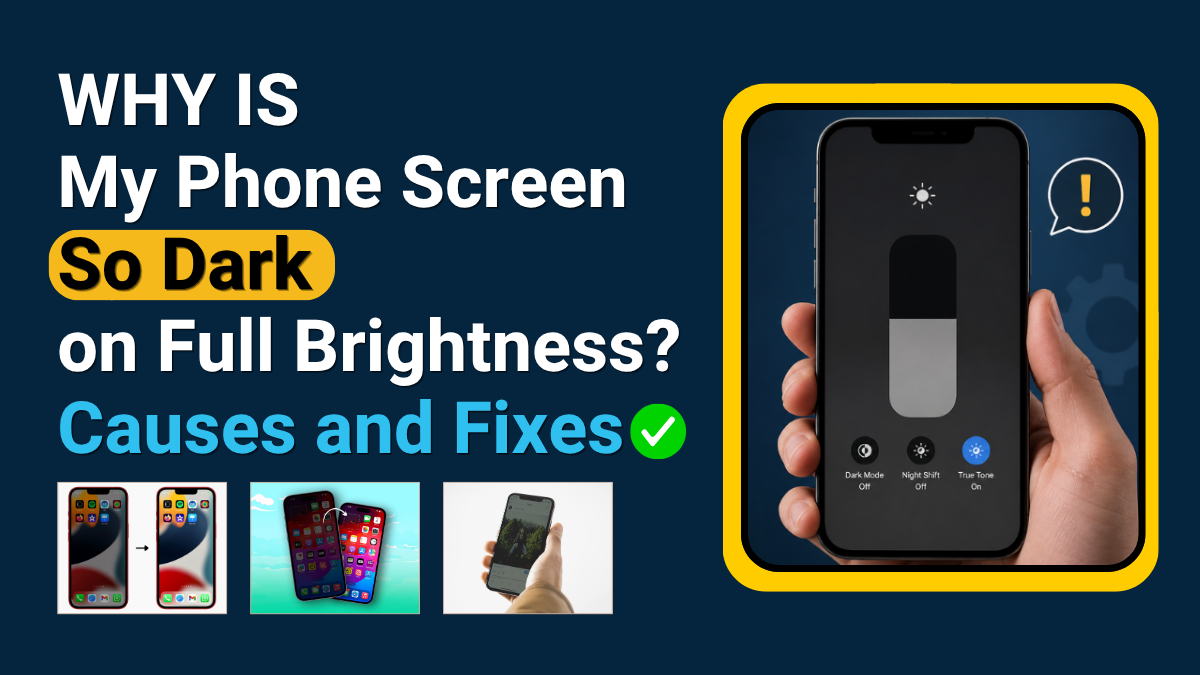
Why is your phone screen dark on full brightness? It could be a setting, overheating, battery saver or a display issue.
If your phone brightness is turned all the way up but the screen still looks dark, there is usually a reason behind it. Sometimes it is a simple setting, such as auto-brightness or power-saving mode. Other times, it can be a screen fault, water damage, battery issue or display backlight problem.
A dark phone screen on full brightness can happen on both iPhone and Android devices. The good news is that many causes can be checked at home before you book a repair.
This guide explains why your phone screen is so dark on full brightness, what you can try first, and when it may be time to get the screen checked by a repair specialist.
Quick Answer: Why Is My Phone Screen So Dark on Full Brightness?
Your phone screen may look dark on full brightness because of auto-brightness, night mode, low power mode, screen protector issues, overheating, software glitches, damaged display parts, water damage or battery-related problems.
If changing the settings does not help, the issue may be linked to the display hardware. In that case, the phone may need a professional screen inspection or repair.
Common Reasons Your Phone Screen Is Dark on Full Brightness
A phone screen can become too dark for many reasons. Some are easy to fix, while others need proper repair.
1. Auto-Brightness May Be Reducing Your Screen Light
Auto-brightness is one of the most common reasons a phone screen looks dark even when brightness is set high. Your phone uses light sensors to adjust the display based on your surroundings. If the sensor is blocked, dirty or not reading light properly, the screen may stay darker than expected.
On iPhone, auto-brightness can sometimes make the screen look dim even when you manually increase the brightness. On Android phones, adaptive brightness can behave in a similar way.
Try turning auto-brightness off and then manually increase the brightness again.
For iPhone, check:
Settings > Accessibility > Display & Text Size > Auto-Brightness
For Android, check:
Settings > Display > Adaptive Brightness
After turning it off, test the screen in a bright room and outdoors. If the display becomes normal again, the issue was most likely a brightness setting.
2. Low Power Mode Can Make the Screen Dimmer
Low power mode or battery saver mode can reduce screen brightness to save battery life. This feature is useful when your battery is low, but it can also make your phone screen look too dark.
On iPhone, Low Power Mode may reduce background activity and affect screen behaviour. On Android, Battery Saver can limit display brightness, background apps and performance.
Turn off low power mode and check the display again.
For iPhone:
Settings > Battery > Low Power Mode
For Android:
Settings > Battery > Battery Saver
If your screen becomes brighter after switching it off, there is probably nothing wrong with your phone display.
3. Night Shift, Eye Comfort or Blue Light Filter May Be On
Many phones have features that reduce blue light and make the screen warmer. These settings are helpful at night, but they can make the display look darker, yellowish or dull during the day.
On iPhone, this feature is called Night Shift. On Android phones, it may be called Eye Comfort Shield, Reading Mode, Night Light or Blue Light Filter. Turn these features off and check the screen again.
If the colour and brightness improve, the issue was caused by display comfort settings.
4. Reduce White Point May Be Enabled on iPhone
If you are using an iPhone and the screen is very dark on full brightness, check the Reduce White Point setting. This feature lowers the intensity of bright colours. If it is turned on, your iPhone screen can look dim even when brightness is at maximum.
To check it:
Settings > Accessibility > Display & Text Size > Reduce White Point
Turn it off and increase the brightness again. This simple setting often fixes the problem for iPhone users.
5. A Screen Protector Can Make the Display Look Dark
A thick, scratched, tinted or low-quality screen protector can make your phone display look darker than it really is. Privacy screen protectors are especially common for this issue because they are designed to limit viewing angles. They can reduce brightness and make the screen harder to see in daylight.
If your phone screen became dark after applying a new protector, remove it and check the screen again.
Also check for:
- Dust under the protector
- Scratches on the surface
- Privacy glass tint
- Air bubbles
- Poor-quality tempered glass
- Dark edges covering the display
If the display looks normal after removing the protector, your phone screen is fine. You only need a better-quality screen protector.
6. Your Phone May Be Overheating
Phones can automatically dim the screen when they become too hot. This protects the battery and internal parts. It can happen during gaming, video recording, charging, using GPS, or keeping the phone in direct sunlight.
If your phone feels hot and the screen becomes dark on full brightness, let it cool down.
Try this:
- Remove the case
- Stop heavy apps
- Move the phone away from sunlight
- Unplug the charger
- Leave it for a few minutes
- Restart it after cooling
Do not put your phone in a fridge or freezer. Sudden temperature change can cause moisture inside the device.
If the screen becomes normal after cooling, overheating was probably the cause. If the phone keeps overheating again and again, it may need a battery or internal inspection.
7. A Software Glitch Can Affect Brightness
Sometimes, the phone screen becomes dark because of a software bug. This can happen after an update, app crash, failed setting change or system error.
Try restarting the phone first. A restart can refresh the display system and fix temporary brightness issues.
You can also try:
- Updating the phone software
- Closing background apps
- Resetting display settings
- Checking recently installed apps
- Removing suspicious apps
- Freeing up storage space
If the problem started after a software update, another update may fix it later. If the issue started after installing a specific app, uninstall the app and test the screen again.
8. The Display May Be Damaged
If your phone screen is still dark on full brightness after checking all settings, the display itself may be damaged.
This can happen after:
- Dropping the phone
- Pressing the screen too hard
- Water exposure
- Screen replacement with poor-quality parts
- Battery swelling
- Internal connector damage
- OLED or LCD failure
On some phones, the screen may still turn on, but the brightness looks weak. On others, the display may flicker, show lines, have dark patches or become almost impossible to see in daylight.
If your screen has been cracked, replaced before, or exposed to water, the dark display may be a hardware issue.
9. Water Damage Can Make the Screen Dim
Water damage does not always stop a phone immediately. Sometimes, the phone continues to work, but the screen becomes dark, flickers or loses brightness later.
Moisture can affect the display connector, motherboard, backlight circuit or internal screen layers. Even a small amount of liquid can cause display problems over time.
Signs of possible water damage include:
- Screen dimming suddenly
- Flickering display
- Green or white lines
- Touchscreen problems
- Phone heating up
- Charging issues
- Speaker or microphone problems
- Face ID or fingerprint issues
If your phone was exposed to water, avoid charging it until it has been checked. Charging a water-damaged phone can make the damage worse.
10. Battery Problems Can Affect Screen Brightness
A weak or faulty battery can sometimes affect display performance. If your phone cannot provide stable power, the screen may dim, flicker or behave strangely.
This is more common in older phones or phones with poor battery health.
Check your battery health if your phone supports it. On iPhone, go to:
Settings > Battery > Battery Health & Charging
If the battery health is very low, or your phone shuts down randomly, the dark screen may be linked to battery performance.
Battery swelling can also push against the screen and damage the display. If your phone screen is lifting, the back cover is opening, or the device feels swollen, stop using it and get it checked quickly.
iPhone Screen Dark on Full Brightness
If your iPhone screen is dark on full brightness, check these settings first:
- Auto-Brightness
- Reduce White Point
- Low Power Mode
- Night Shift
- True Tone
- Zoom filter
- Screen protector
- Battery health
The most important iPhone setting to check is Reduce White Point because it can make the display look very dim even when brightness is full.
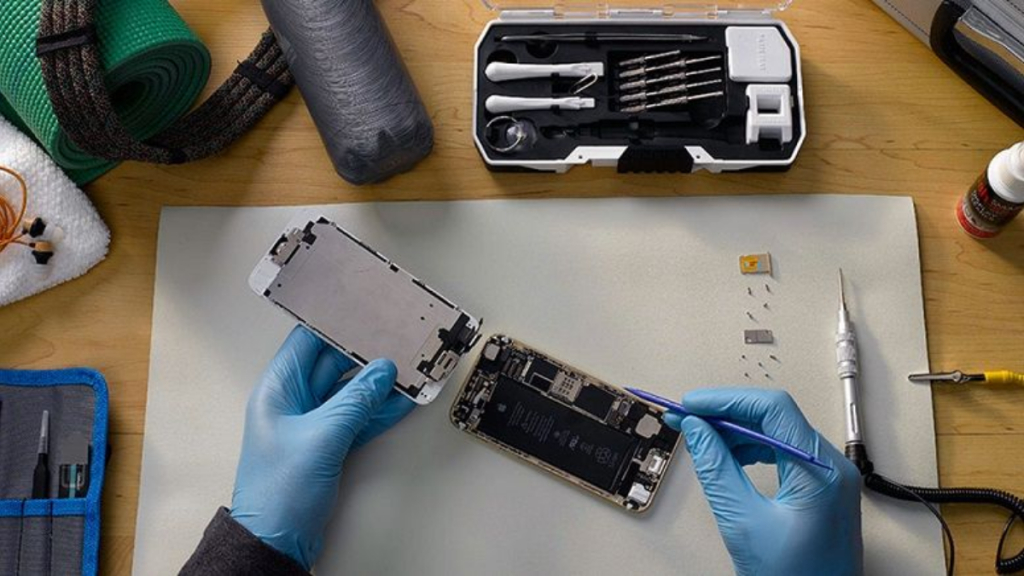
If all settings are normal and the iPhone screen is still dark, the issue may be related to the OLED display, screen connector, battery or water damage.
Android Phone Screen Dark on Full Brightness
If your Android phone screen is dark on full brightness, check:
- Adaptive Brightness
- Battery Saver
- Eye Comfort Shield
- Extra Dim mode
- Dark mode
- Screen timeout settings
- Display colour mode
- Screen protector
- Overheating
- Software update
Some Android phones also have an “Extra Dim” feature. If this is turned on, your screen can look too dark even when brightness is set high.
Search for “Extra Dim” in your phone settings and turn it off if available.
When Should You Get Your Phone Screen Repaired?
You should consider a repair if your phone screen stays dark after checking all brightness settings, restarting the phone and removing any screen protector.
A repair may be needed if:
- The phone was dropped
- The screen is cracked
- The display has dark patches
- The screen flickers
- The phone was exposed to water
- Brightness changes by itself
- The display is visible only under strong light
- The phone overheats often
- The screen was replaced before
- Touch is not working properly
If the screen is physically damaged, changing settings will not solve the problem. A repair technician can check whether the issue is with the screen, connector, battery, backlight or motherboard.
Can a Dark Phone Screen Be Fixed Without Replacing the Screen?
Yes, sometimes a dark phone screen can be fixed without replacing the screen. If the issue is caused by auto-brightness, low power mode, night mode, Reduce White Point, Extra Dim mode or a software glitch, you may be able to fix it yourself.
However, if the problem is caused by display damage, water damage, a faulty connector or internal hardware failure, screen repair or part replacement may be needed.
The best approach is to try the simple checks first. If nothing works, get the phone inspected before the problem gets worse.
If you are asking, “Why is my phone screen so dark on full brightness?”, the answer could be simple or serious. Start by checking display settings, battery saver mode, eye comfort features, screen protector quality and software issues. These are quick fixes and often solve the problem.
If your phone screen is still dark after trying all basic steps, the issue may be linked to display damage, water damage, battery problems or internal hardware failure. In that case, a professional repair check is the safest option.
A dark phone screen should not be ignored, especially if it started after a drop, water exposure or overheating. The sooner you find the cause, the easier it is to protect your phone and avoid bigger repair costs.