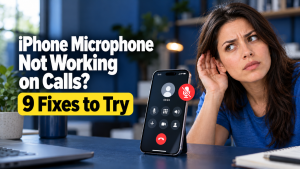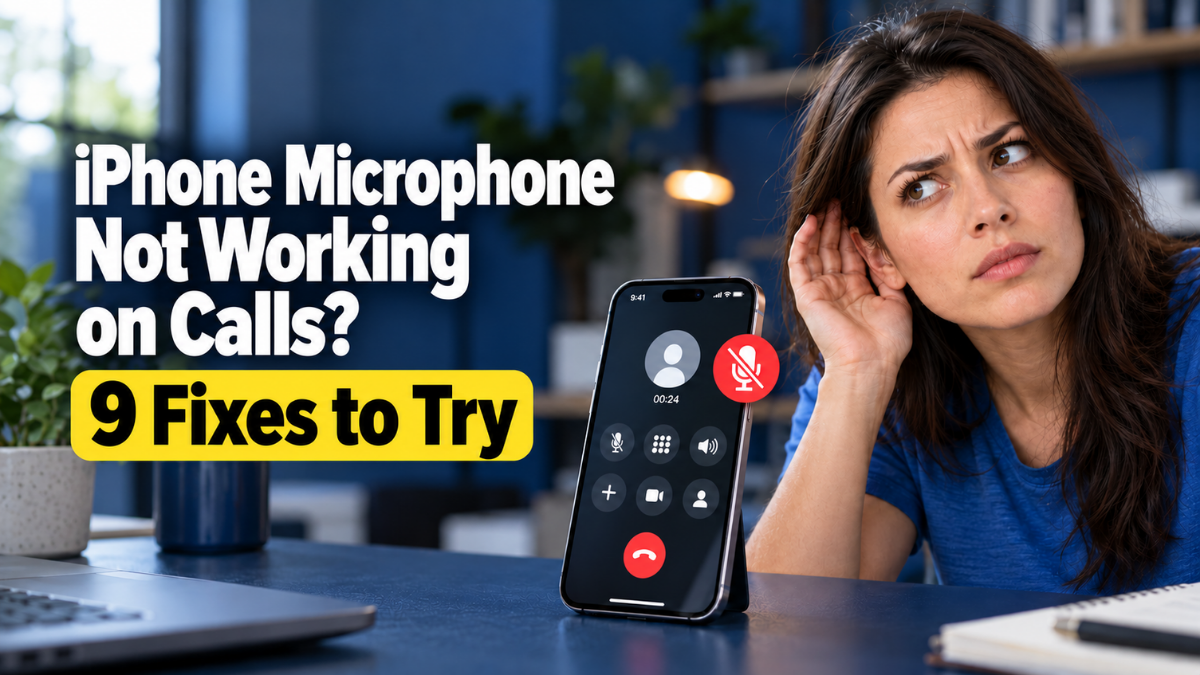
You’re in the middle of an important phone call when the person on the other end suddenly says, “I can’t hear you.” You speak louder, move your iPhone closer to your mouth and try calling again, but nothing changes. Sometimes your voice sounds muffled, while other times the caller cannot hear anything at all.
An iPhone microphone not working on calls can be caused by blocked microphone openings, Bluetooth audio connections, software glitches or damaged internal components. In some cases, the microphone works perfectly when recording videos or voice notes but fails during ordinary phone calls.
The good news is that not every microphone problem requires an expensive repair. Several common issues can be identified through simple checks at home.
In this Gadgets N Repair troubleshooting guide, we’ll explain why your iPhone microphone may stop working during calls, share nine practical fixes and help you identify when professional iPhone microphone repair in St Helens may be necessary.
Why Is My iPhone Microphone Not Working During Calls?
If your iPhone microphone is not working during calls, first check whether the problem occurs on every call or only in certain situations. This distinction can help identify whether the issue involves the microphone hardware, audio routing, mobile network or a specific calling app.
Modern iPhones use multiple microphones for different recording and communication functions. Depending on the model and activity, your device may use different microphones or audio-processing features.
For example, your iPhone might record a clear Voice Memo but produce muffled sound during a speakerphone call. This does not necessarily mean that the entire microphone system has failed.
Common reasons for microphone problems include:
- Dust, debris or protective accessories obstructing a microphone opening.
- Bluetooth headphones or another connected device taking over call audio.
- Temporary software or audio-routing problems.
- Incorrect microphone permissions in third-party calling apps.
- Poor mobile network conditions affecting call quality.
- Liquid exposure or physical damage affecting internal components.
Before arranging a mobile phone repair in St Helens, it is worth checking which of these situations matches your symptoms.
How to Fix iPhone Microphone Not Working on Calls: 9 Fixes
The following troubleshooting methods cover common microphone problems on compatible iPhone models. Start with the simplest checks and test your microphone after each step.
1. Remove Your iPhone Case and Check the Microphone Openings
A protective case or screen protector can sometimes cover part of a microphone opening, particularly if the accessory is damaged, incorrectly fitted or not designed for your exact iPhone model.
Dust, pocket lint and other debris can also accumulate around microphone openings, making your voice sound quiet or muffled.
Remove your iPhone case and inspect the microphone areas. Their location varies by model, but they are commonly found around the bottom edge and camera or earpiece areas.
Check for visible dirt or anything obstructing the openings. Gently clean accessible exterior surfaces using a soft, dry, lint-free cloth, following Apple’s cleaning recommendations.
Avoid inserting pins, needles or other sharp objects into microphone openings. Do not pour liquid into the ports or use compressed air to force debris deeper into the device.
After removing the obstruction, make another call to see whether the other person can hear you clearly.
2. Test Your iPhone Microphone Using Voice Memos
One of the most useful ways to investigate a microphone problem is to record your voice using Apple’s built-in Voice Memos app.
Apple recommends this test when people cannot hear you clearly during ordinary phone calls.
Open Voice Memos, start a new recording and speak normally towards the bottom of your iPhone. Record a short sentence, stop the recording and play it back.
Pay attention to the sound quality.
If your voice sounds clear in Voice Memos, the microphone used for that recording is functioning during the test. Your call problem may involve audio routing, network conditions, another microphone or software.
If the recording is silent, unusually quiet or heavily distorted, the problem may involve an obstruction, the microphone hardware or another part of the recording system.
Remember: A successful Voice Memos test does not guarantee that every microphone in your iPhone works correctly.
Apple explains this diagnostic process in its official iPhone microphone troubleshooting guidance.
3. Disconnect Bluetooth Devices and Check Call Audio
Your iPhone may be using an external microphone without you realising it.
Wireless earbuds, Bluetooth headsets and some car audio systems can become the active input and output devices during calls.
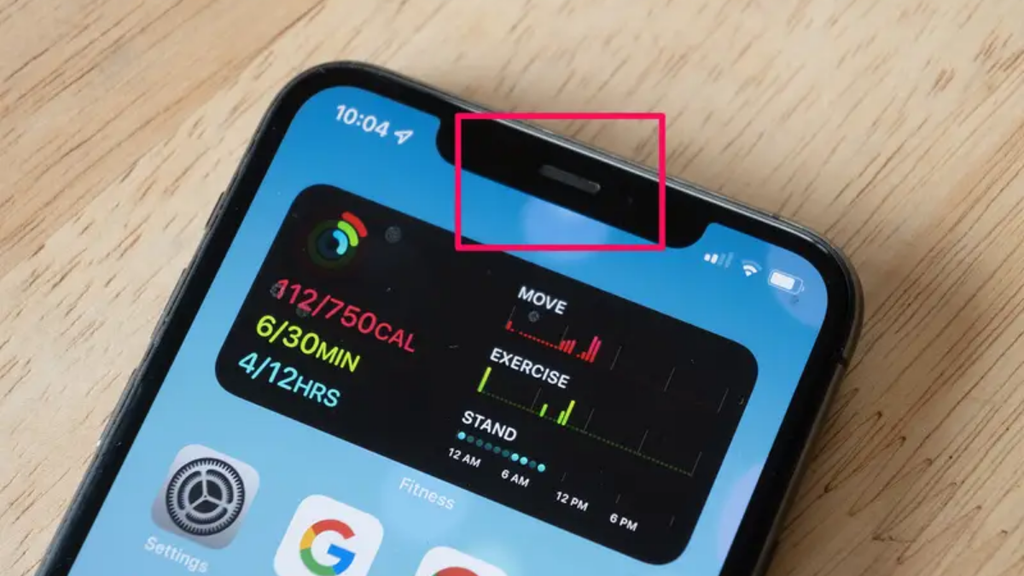
If a connected accessory has a defective or obstructed microphone, the person on the call may struggle to hear you even though your iPhone’s built-in microphones are working correctly.
During a call, check the audio-routing control and select your iPhone if another device is active. You can also temporarily disconnect Bluetooth accessories through Settings → Bluetooth and test another call without them.
If the microphone works after disconnecting an accessory, the problem is more likely related to the external device or audio routing. Try cleaning or testing the accessory separately before assuming that your iPhone needs repair.
4. Restart Your iPhone to Clear Temporary Software Problems
Temporary system glitches can sometimes interrupt audio input or cause calling features to behave unexpectedly.
Restarting your iPhone allows the operating system and connected services to initialise again. On most iPhones with Face ID, press and hold the side button and either volume button until the power-off slider appears.
Drag the slider to switch off your phone. Once it has shut down, press and hold the side button until the Apple logo appears. If your iPhone has a Home button, the exact restart method may differ depending on the model. After the device restarts, make a test call and check whether your voice can be heard.
If restarting temporarily resolves the problem but it repeatedly returns, further software or hardware diagnosis may be necessary.
5. Check Microphone Permissions for Calling Apps
If your microphone works during normal mobile calls but fails in WhatsApp, FaceTime or another calling app, the problem may involve app permissions or app-specific settings.
On your iPhone, open Settings → Privacy & Security → Microphone.
You should see compatible apps that have requested microphone access. Check whether the affected app has permission to use your microphone.
If access is disabled, enable it and test the application again. You should also check for app updates and restart the affected app if the issue continues.
Microphone permissions are particularly relevant when a problem occurs in only one third-party application. They are not usually the explanation for microphone failure during ordinary cellular calls.
If an app already has permission and its microphone still does not work, Apple’s guidance recommends contacting the app developer where appropriate.
6. Test the Microphones Using Video Recording
If Voice Memos works but your microphone fails during speakerphone calls, another recording test may help identify which microphone or audio mode is affected.
Apple recommends using the Camera app to test microphone behaviour associated with speakerphone problems.
Open the Camera app and record a short video while speaking towards the top of your iPhone.
Switch between the front and rear cameras, recording a short clip with each. Play back both recordings and listen to the audio carefully.
If one video contains clear audio but the other sounds distorted or silent, the results may help a technician narrow down the issue. However, the exact microphones used can vary between iPhone models and recording modes.
If both videos sound normal but callers still cannot hear you, investigate audio routing, software and network conditions before assuming that a microphone component has failed. For a persistent hardware-related problem, a technician providing iPhone repair services in St Helens can assess the device rather than relying on a single recording test.
7. Check Your Mobile Signal and Test Another Calling Method
Sometimes the person on the other end cannot hear you because the call connection is unstable rather than because the microphone has stopped working.
Poor mobile coverage, temporary network congestion and interruptions in call transmission can cause audio to break up or disappear.
Check your signal strength and move to an area with better coverage if necessary. You can also compare an ordinary mobile call with a call through another supported service, such as FaceTime Audio or WhatsApp.
If your voice is clear on internet-based calls but consistently breaks up on cellular calls, the mobile connection, network service or cellular calling configuration may be involved.
However, different calling apps use different audio-processing and connection methods, so a successful call through one service does not completely rule out a device issue. If the problem happens only in one location or with one mobile network, contact your mobile provider before arranging hardware repair.
8. Update iOS and Check Available Software Fixes
An outdated operating system can occasionally contribute to compatibility problems or unexpected application behaviour.
Installing the latest compatible iOS update is a reasonable troubleshooting step when microphone problems continue after basic checks.
Open Settings → General → Software Update.
If an update is available for your device, review the information and install it when convenient. Before updating, back up important data, connect to a reliable network and ensure that your iPhone has sufficient battery charge.
Once the update is complete, restart the device if necessary and test the microphone again.
Software updates may resolve software-related issues, but they cannot repair damaged microphone hardware or internal electrical components. If the problem began immediately after your iPhone was dropped, exposed to liquid or repaired, pay particular attention to possible physical damage.
9. Get a Professional Microphone Diagnosis
If your iPhone microphone remains silent, distorted or unreliable after troubleshooting, professional inspection may be the next appropriate step.
Persistent failure across Voice Memos, video recordings and phone calls can suggest a hardware-related problem, although these tests do not identify a specific faulty component on their own.
Possible causes include damaged microphone hardware, corrosion following liquid exposure, connection faults or problems with other audio-related components.
A technician should examine the symptoms and identify the underlying cause before recommending replacement parts.
At Gadgets N Repair, we provide phone microphone repair in St Helens as part of our mobile phone repair services. Customers can contact our team to discuss microphone faults and available diagnostic options.
Avoid opening the iPhone yourself unless you have the necessary training and equipment. Incorrect disassembly can cause additional damage to sensitive internal components.
Why Can Nobody Hear Me on My iPhone but I Can Hear Them?
This is one of the most common and confusing call-audio problems.
During a phone call, your iPhone handles incoming and outgoing audio through different functions. The speaker or earpiece lets you hear the caller, while the active microphone captures your voice.
If you can hear the other person clearly but they cannot hear you, the problem may involve your outgoing audio rather than the speaker you are listening through.
A blocked microphone, damaged component, Bluetooth audio routing or poor call transmission could explain this behaviour.
The simplest starting point is to disconnect external audio devices and perform a Voice Memos test. If your recording sounds clear, compare calls using different applications and mobile connections. If recordings are consistently silent or distorted, arrange further diagnosis.
If you are experiencing other audio issues as well, our phone speaker and microphone repair services may be relevant when professional inspection is required.
iPhone Microphone Works on Speakerphone but Not on Normal Calls
If callers can hear you on speakerphone but not during ordinary calls, the problem may be associated with a particular microphone, audio-processing mode or call-routing configuration.
Modern iPhones have multiple microphones, and their use can differ depending on the model and recording or calling activity.
For this reason, switching to speakerphone can change how your voice is captured and processed. However, this behaviour does not prove that the bottom microphone has failed.
You should first remove any case or obstruction, disconnect Bluetooth devices and compare audio recordings using Voice Memos and the Camera app. If the problem remains, a technician can use the pattern of symptoms to identify which hardware or software checks are appropriate.
iPhone Microphone Works in Voice Memos but Not During Calls
A clear Voice Memos recording is useful evidence that the microphone used for that recording can capture sound.
However, normal phone calls also depend on audio routing, software processing and a stable connection.
If your recordings sound normal but callers cannot hear you, investigate Bluetooth devices, mobile network performance and whether the problem occurs on all calls. Try making a call from another location and compare the results with a supported internet-calling application.
If the issue happens only in a particular app, check that application’s microphone permissions and update status. When the problem continues across different calling services, a professional diagnosis may help determine whether the fault involves hardware or system behaviour.
Why Does My iPhone Microphone Sound Muffled During Calls?
A muffled microphone does not necessarily mean that the component is completely broken.
Dust, protective accessories and debris around microphone openings can interfere with how sound enters the device.
Liquid exposure may also affect microphones or nearby components, while poor call transmission can make your voice sound compressed or unclear to the other person. Start by checking the case and microphone openings. Then record your voice using Voice Memos and listen for distortion.
If the recording is clear but phone calls sound muffled, compare different connections and calling methods.
If recordings remain muffled after safe cleaning and troubleshooting, avoid inserting tools into the openings. Professional assessment is preferable to risking further damage.
Can Water Damage Cause an iPhone Microphone to Stop Working?
Yes. Liquid exposure can affect microphone components, internal connectors and other electronics inside an iPhone.
Although many modern iPhones have water-resistance ratings, resistance can reduce over time through wear, previous repairs and physical damage.
If microphone problems begin after liquid exposure, avoid attempting to force water out with compressed air or inserting objects into the openings. Do not charge a device while its charging connector is wet. Follow Apple’s current liquid-exposure guidance and allow the device to dry appropriately.
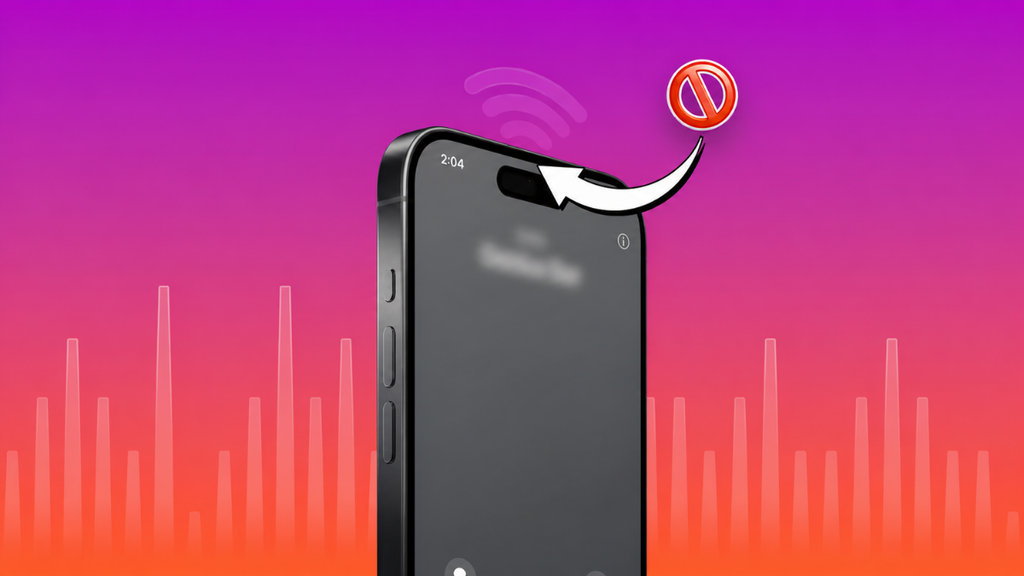
If your iPhone continues to experience microphone problems, or you suspect liquid entered the handset, professional water-damaged phone repair assessment may help establish the extent of the damage.
Not every liquid-damaged component can be restored, and repair outcomes depend on the severity and location of the damage.
Is It a Microphone Problem or an iPhone Speaker Problem?
Microphone and speaker faults are often confused because both affect phone calls.
However, the symptoms usually point to different parts of the audio system.
| Symptom | More likely area to investigate |
|---|---|
| Other people cannot hear you | Microphone, audio routing or outgoing call connection |
| You cannot hear the caller | Speaker, earpiece or incoming audio |
| Your voice sounds muffled in recordings | Microphone obstruction or recording-related fault |
| Calls work with earbuds but not the built-in microphone | Internal microphone or device audio routing |
| Voice Memos works but mobile calls fail | Network, call handling or another audio mode |
| Audio fails in one calling app only | App permissions, settings or app-specific fault |
These are starting points rather than definitive diagnoses.
A reliable repair assessment should identify the affected function before replacing hardware.
How Much Does iPhone Microphone Repair Cost in the UK?
The cost of iPhone microphone repair depends on the model, the cause of the fault and the work required.
A microphone problem caused by a removable obstruction may not need replacement parts. However, internal damage, liquid exposure or connection faults can require a more involved repair.
Some models have microphone-related components integrated with other assemblies, which can influence the repair procedure and cost.
| Possible cause | Potential repair requirement |
|---|---|
| Case or screen protector obstruction | Remove or reposition the accessory |
| Debris around microphone openings | Safe cleaning and inspection |
| Bluetooth audio-routing problem | Connection or settings correction |
| App or software issue | Troubleshooting or software update |
| Faulty microphone-related hardware | Model-specific component assessment |
| Liquid or internal damage | Diagnostic inspection and possible component repair |
There is no reliable single price that applies to every iPhone microphone fault.
Before paying for a repair, ask whether the quoted amount includes diagnosis, replacement components, labour and any applicable warranty.
For an assessment of an iPhone with call-audio problems, Gadgets N Repair provides iPhone repair in St Helens and can discuss available repair options based on the device and symptoms.
When Should You Repair or Replace an iPhone With Microphone Problems?
A faulty microphone does not automatically mean you need a new phone.
If your iPhone works normally apart from outgoing call audio, repairing the underlying issue may be more economical than replacing the entire device.
However, the decision depends on factors such as the phone’s age, condition, repair cost and whether other components are also damaged.
For example, a relatively recent iPhone with a single repairable audio fault may be worth keeping. An older handset with extensive liquid damage and several hardware problems requires a different assessment.
Before deciding, ask a repair provider to identify the fault and explain the expected repair cost.
A clear diagnosis can help you avoid replacing a functioning device unnecessarily.
How to Prevent iPhone Microphone Problems
Although not every hardware failure is avoidable, good device care can reduce the risk of microphone obstruction and certain types of physical damage.
Keep your iPhone case and microphone openings free from visible debris. Choose accessories designed for your particular model so that microphone and speaker openings remain unobstructed.
Avoid exposing the phone to unnecessary moisture and protect it against drops that could damage internal components. When cleaning the device, follow Apple’s recommended procedures rather than using sharp tools or aggressive cleaning methods.
It is also sensible to keep iOS updated and investigate repeated audio problems before they become more disruptive. If your phone has recently been repaired, check microphone recording and call quality before leaving the repair provider whenever practical.
iPhone Microphone Repair in St Helens – Gadgets N Repair
If people regularly tell you that they cannot hear your voice, or your iPhone microphone produces distorted recordings, it may be time to arrange a professional assessment.
Gadgets N Repair provides mobile phone repair services in St Helens, including enquiries relating to microphone and speaker faults on supported iPhone and Android devices.
Whether your problem occurs during ordinary calls, speakerphone conversations or voice recordings, explaining the symptoms clearly can help the repair team determine which checks are needed.
When contacting us, provide your iPhone model, describe when the issue started and mention whether your microphone works in Voice Memos or video recordings.
If the fault began after a drop, liquid exposure or previous repair, include that information as well.
Explore our phone repair services in St Helens or contact Gadgets N Repair to enquire about available diagnostic and repair options.
Frequently Asked Questions
Why is my iPhone microphone not working during calls?
Your iPhone microphone may stop working during calls because of blocked microphone openings, Bluetooth audio routing, software problems, poor network conditions or damaged internal hardware. Testing Voice Memos and comparing different calling methods can help narrow down the cause.
Why can I hear callers but they cannot hear me on my iPhone?
If you can hear callers but they cannot hear you, your outgoing audio may not be reaching them correctly. The problem could involve the microphone, an external Bluetooth accessory, audio routing or call transmission.
How do I test whether my iPhone microphone is broken?
Open Voice Memos, record a short message while speaking towards the bottom of your iPhone and play it back. You can also test video recordings with the front and rear cameras. Persistent problems across these tests may require further diagnosis.
Why does my iPhone microphone work on speakerphone but not on normal calls?
Different calling modes may use different microphone inputs or audio processing. If your microphone works only on speakerphone, check for obstructions, disconnect Bluetooth accessories and compare recordings before assuming a particular microphone has failed.
Can I fix an iPhone microphone without replacing it?
Yes. Problems caused by cases, debris, Bluetooth connections, app permissions or temporary software faults may be resolved without hardware replacement. Physical damage to microphone components may require professional repair.
Does restarting an iPhone fix microphone problems?
Restarting can resolve some temporary software or audio-routing issues. However, it cannot repair physically damaged hardware or remove debris obstructing microphone openings.
Why is my iPhone microphone not working on WhatsApp calls?
If the microphone works during ordinary calls but fails in WhatsApp, check Settings → Privacy & Security → Microphone and confirm that WhatsApp has permission. Also check the app’s update status, active audio device and internet connection.
Can water damage make an iPhone microphone stop working?
Yes. Liquid exposure can affect microphones, connectors and other internal components. If the microphone stops working after exposure to liquid, follow appropriate drying guidance and arrange professional assessment if symptoms continue.
Is iPhone microphone repair expensive in the UK?
The price varies according to the iPhone model and the cause of the fault. Some problems need only settings changes or safe cleaning, while damaged internal components may require replacement or more specialised work. Request a diagnosis before accepting a repair quote.
Should I repair my iPhone if the microphone is not working?
If your iPhone is otherwise functioning well, a repair may be more economical than replacing the phone. The best decision depends on the diagnosis, estimated cost, device age and overall condition.
Final Thoughts
An iPhone microphone not working on calls can make everyday communication difficult, but it does not automatically mean that your phone needs a major hardware repair.
Start by checking the microphone openings, recording a Voice Memo, disconnecting Bluetooth devices and reviewing software or app-related settings. These simple checks can help distinguish minor problems from faults that need professional attention.
If your microphone remains silent or distorted across calls and recordings, arrange a diagnosis rather than attempting risky repairs yourself.
For iPhone microphone problems and other mobile phone repair services in St Helens, contact Gadgets N Repair to discuss your device and the available next steps.