You’ve dropped your iPhone, and now the screen is cracked, flickering or completely black. Your first concern might not be the cost of replacing the display. It could be the photos, contacts, messages and important files stored on the device. What happens if you cannot access them before the phone goes in for repair?
The good news is that you can sometimes back up an iPhone with a broken screen, even when the display is damaged. However, the available methods depend on whether the touchscreen still works, whether iCloud Backup was enabled and whether your computer has already been authorised to access the iPhone.
A cracked screen that still responds to touch is relatively straightforward to work with. A black or completely unresponsive screen can be more difficult because Apple’s security features may require you to unlock the device or approve a computer connection.
In this Gadgets N Repair guide, we’ll explain four practical ways to protect or retrieve your iPhone data, what to do when the screen is unusable and how to prepare for a professional screen replacement without unnecessarily risking your information.
Can You Back Up an iPhone With a Broken Screen?
Yes, backing up an iPhone with a broken screen is possible in some situations, but the severity of the damage determines which options are available.
If the screen is cracked but the display and touchscreen still function, you can usually create an iCloud backup or connect the phone to a Mac or Windows computer.
If the touchscreen is unresponsive, an existing trusted-computer connection or previously enabled automatic iCloud Backup may help. However, neither guarantees that a new backup can be completed.
When the screen is completely black and the phone cannot be unlocked, repairing the display may be necessary before you can access the data.
The most important step is identifying your phone’s condition before attempting a backup.
Which Backup Method Is Best for Your Broken iPhone?
| iPhone condition | Best option to investigate | Important limitation |
|---|---|---|
| Cracked screen, touch working | iCloud or computer backup | Screen must remain usable |
| Display working, touch partly damaged | iCloud or previously authorised computer | You may be unable to enter the passcode |
| Completely black screen | Existing automatic backup or trusted computer | Unlocking and authorisation may still be required |
| Screen completely unresponsive | Existing backup, then professional assessment | New computer authorisation may be impossible |
| iPhone no longer switches on | Existing iCloud or computer backup | A new backup normally requires a functioning device |
| Screen broken before repair | Back up using any accessible supported method | Verify the backup before handing over the phone |
If your iPhone is badly damaged, avoid repeated attempts to force it to operate. Preserve its current condition until you know whether your data has already been backed up.
Method 1: Back Up an iPhone With a Broken Screen Using iCloud
iCloud is usually the simplest option when the iPhone screen remains usable.
Apple’s iCloud Backup service stores eligible device information and settings in your Apple Account, allowing you to restore them later if your phone needs replacement or certain repairs.
You do not need a computer to create an iCloud backup, but the device must be operational and able to connect to the required network.
Steps to Back Up Your iPhone to iCloud
If you can still use the touchscreen, follow these steps:
- Connect your iPhone to a reliable Wi-Fi network.
- Open the Settings app.
- Tap your name at the top of the screen.
- Select iCloud.
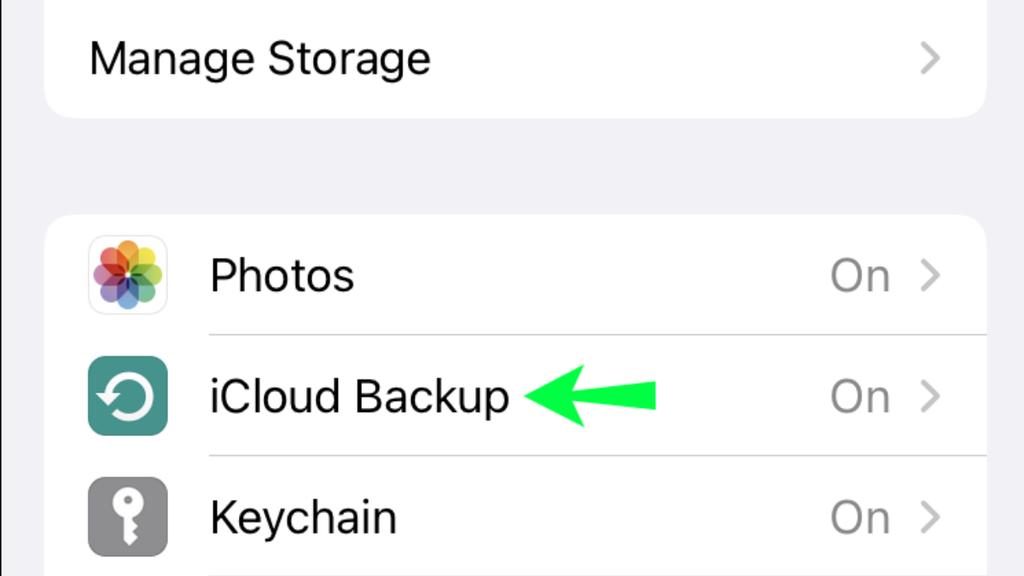
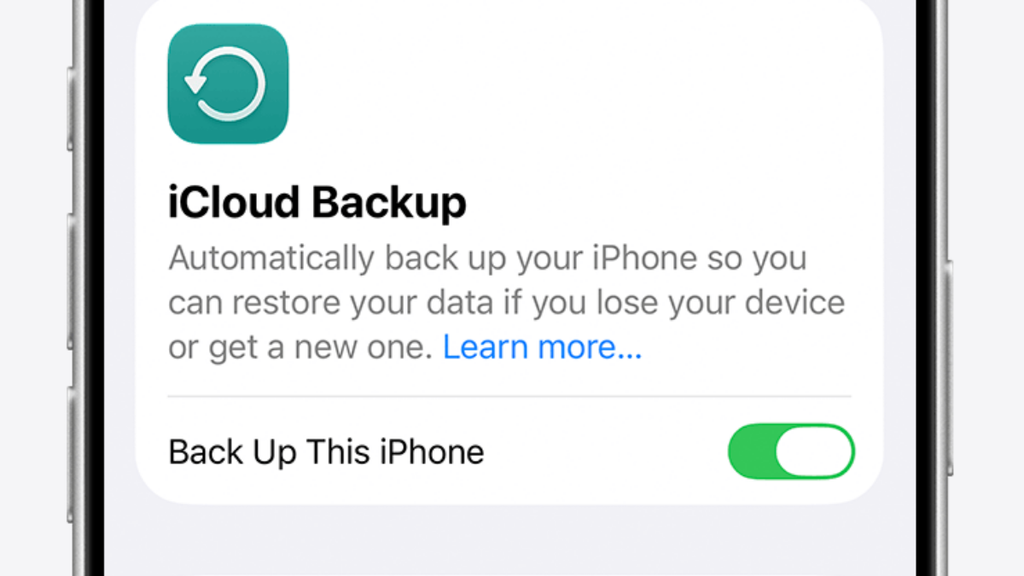
- Open iCloud Backup.
- Enable Back Up This iPhone if necessary.
- Tap Back Up Now.
- Keep the device connected to Wi-Fi until the backup completes.
Once finished, check the last successful backup date and time shown in iCloud Backup settings.
This is particularly useful if you are planning an iPhone screen replacement and want to protect your data before handing over the device.
What If the Screen Is Broken and You Cannot Tap Back Up Now?
If iCloud Backup was already enabled, your iPhone may continue performing automatic backups under the appropriate conditions.
Apple states that automatic iCloud backups ordinarily require the iPhone to be connected to power, connected to Wi-Fi and locked.
However, automatic backup is not guaranteed simply because those conditions appear to be present. There must also be sufficient iCloud storage, and the device must be functioning properly.
If your screen is unusable, you may be unable to check whether a new backup has completed. Do not assume that connecting a broken iPhone to power has created a successful backup. If you suspect battery damage, liquid exposure or overheating, do not charge the device merely to trigger a backup. Arrange professional assessment first.
What If There Is Not Enough iCloud Storage?
An iCloud backup can fail if there is insufficient available storage.
When your screen is working, open iCloud settings to check the available capacity and the estimated next backup size. You may need to remove unnecessary stored information or increase your iCloud storage allowance.
If your screen is completely unresponsive, you might not be able to manage these settings from the affected device. In that situation, check whether a usable backup already exists before considering repair.
Method 2: Back Up Your Broken iPhone Using a Mac
A Mac can create a local backup of an iPhone using Finder.
This method is useful when you prefer storing the backup on a computer instead of relying entirely on cloud storage.
However, the iPhone may need to be unlocked and authorised to communicate with the Mac. This is a major limitation when the screen is completely broken.
Steps to Back Up an iPhone Using Finder
For Macs running macOS Catalina or later:
- Connect the iPhone to your Mac using a compatible USB cable.
- Open Finder.
- Locate your iPhone in the Finder sidebar.
- Select the device.
- If prompted, approve the connection on your Mac and tap Trust on the iPhone.
- Enter your iPhone passcode if requested.
- Open the General tab.
- Select the option to back up your iPhone’s data to the Mac.
- Enable Encrypt local backup if you need an encrypted backup containing eligible sensitive information.
- Select Back Up Now and allow the process to finish.
Once the backup is complete, check its recorded date and time. For Macs using macOS Mojave or earlier, Apple provides the backup process through iTunes rather than Finder.
Can a Mac Back Up an iPhone With an Unresponsive Screen?
Possibly, but only when the required security and connection conditions can be satisfied.
If the Mac has already been trusted by your iPhone, you may be able to access backup options without approving an entirely new trust relationship. Nevertheless, iOS may still request your passcode or another confirmation, even when the computer was previously trusted.
If your screen cannot display the prompt or accept passcode input, the backup may not proceed.
There is no legitimate general-purpose method to bypass Apple’s passcode or device trust protections simply because the screen is broken.
Should You Encrypt the Computer Backup?
For a more comprehensive local backup, consider enabling encryption.
Apple explains that encrypted computer backups can include certain sensitive information, such as saved passwords, Wi-Fi settings, Health information and call history, that may not be included in an unencrypted backup.
Make sure you create a strong password and store it securely. If you lose the encryption password, you may be unable to recover the encrypted backup.
Gadgets N Repair St Helens recommends checking the backup’s completion status before arranging a repair whenever the device remains accessible.
Method 3: Back Up an iPhone With a Broken Screen Using Windows
You can also create an iPhone backup using a Windows computer.
Apple’s current Windows backup instructions support the Apple Devices app. iTunes remains relevant in certain configurations where the Apple Devices app is unavailable.
The main requirement is the same as on a Mac: your computer must be able to communicate with the iPhone, and any required security prompts must be completed.
Steps to Back Up an iPhone on Windows
- Install or open the Apple Devices app on your Windows PC.
- Connect your iPhone using a suitable USB cable.
- Open the Apple Devices app.
- Select your iPhone when it appears.
- Unlock the phone and approve Trust This Computer if prompted.
- Open the General section.
- Choose the appropriate local backup settings.
- Select Encrypt local backup if you want an encrypted backup.
- Click Back Up Now.
- Leave the device connected until the backup completes.
If you are using iTunes instead, select your iPhone, open the Summary section and choose Back Up Now. When the process finishes, check the most recent backup date.
What If Windows Does Not Recognise the Broken iPhone?
A damaged screen does not necessarily prevent a computer from detecting the phone.
However, several issues can interfere with the connection, including a damaged USB port, faulty cable, unapproved trust request or a phone that has not booted properly.
First, try a known-good cable and an appropriate USB connection. If the device appears in Windows but asks for confirmation on the iPhone, the broken touchscreen may prevent you from approving access. Avoid installing unverified applications that promise to bypass Apple’s security restrictions.
If the screen cannot be used to complete required authorisation, professional repair may be the most practical way to restore access.
Method 4: Recover Data Already Saved in iCloud or an Existing Backup
If your iPhone screen is completely black or the device no longer works, the safest starting point may be to check information that was already saved elsewhere.
This is not the same as creating a new backup, but it may help you recover important information without interacting with the damaged iPhone.
Check Photos and Files Already Synced to iCloud
On a trusted computer or another device, sign in to your own Apple Account through Apple’s official services.
Visit iCloud.com and check whether your photos, notes, contacts or files are available.
The information you see depends on which iCloud services were enabled before your iPhone became damaged. For example, if iCloud Photos was enabled, photographs may already have been synchronised and accessible from another device.
However, seeing some photos or contacts in iCloud does not prove that a complete iPhone backup exists.
Check for an Existing iCloud Backup
If you have another trusted Apple device signed in to the same account, you may be able to review iCloud backup information for your devices.
Where accessible, check the last successful backup date and the relevant device. A recent backup may allow you to restore supported data and settings to another iPhone later. Do not erase the damaged handset just because an older backup appears to exist. Some newer information may not be included.
Check Existing Computer Backups
If you previously used a Mac or Windows PC for backups, check whether a local backup of the affected iPhone already exists.
An older backup may contain valuable information even when a new backup is impossible. Be aware that iCloud synchronisation and device backups store different types of information.
Some content may already be available through iCloud syncing, while other device settings and application data require an actual backup. Before restoring or replacing the phone, identify which information you already have and what may still exist only on the damaged device.
How to Back Up an iPhone With a Completely Black Screen
A completely black display is one of the more difficult situations because you cannot easily confirm whether the iPhone is operating normally.
Start by checking whether the phone still rings, vibrates or responds to incoming notifications.
These symptoms can suggest that the handset is running even though the screen is not displaying an image. However, they do not confirm that the storage, software or other internal components are functioning correctly.
If the device is otherwise responsive, consider whether you previously enabled iCloud Backup or connected it to a trusted computer. A computer that has already been authorised may offer a possible backup route, but you could still be asked to unlock the device.
If no accessible backup exists and you cannot interact with the screen, a professional display repair may be required. Our iPhone screen repair cost UK guide explains how repair options vary by model and the extent of display damage.
How to Back Up an iPhone When the Touchscreen Does Not Work
A working display with an unresponsive touchscreen creates a different problem from a completely black screen.
You might be able to see the iPhone’s home screen, but you cannot enter the passcode, open Settings or approve connection requests. If iCloud Backup was already enabled, an automatic backup may still be possible under the required conditions.
A previously trusted computer may also be worth checking. However, neither method should be treated as guaranteed.
You may find online guides suggesting external keyboards, adapters or third-party unlocking software. Such methods have device-specific limitations and do not reliably bypass passcode or trust requirements.
Rather than risking accidental data loss, check for existing backups and consider professional iPhone touchscreen repair if you cannot access important information. If your phone contains data that has not been backed up, explain this to the repair provider before authorising any work.
Can You Back Up an iPhone Without Entering the Passcode?
In certain circumstances, an existing automatic backup may run without you manually entering a passcode at that moment.
However, creating a new computer connection or changing backup settings generally requires authorised access to the device. Apple’s security protections are designed to prevent unauthorised access to personal information.
If an iPhone requests its passcode before allowing a computer backup, there is no legitimate universal workaround that removes that requirement while preserving all data.
This is particularly important if the screen is broken and you cannot enter the code. Avoid repeatedly guessing your passcode, as incorrect attempts can trigger security delays and potentially other consequences depending on device settings.
If you know the passcode but the screen is unusable, repairing the screen may restore the ability to enter it and complete the backup normally.
Will Replacing an iPhone Screen Delete Your Data?
A standard physical screen replacement does not normally require deleting the information stored on your iPhone.
Your photos, contacts and apps are generally stored separately from the display assembly. Nevertheless, a repair is never an absolute guarantee that data will remain accessible.
Additional faults, unexpected repair complications, device restoration or serious damage can create risks. For this reason, backing up before a screen replacement remains a sensible precaution whenever possible.
If you are comparing repair options, our phone screen repair cost UK guide discusses the factors affecting repair prices and whether repairing a damaged screen is worthwhile.
Before handing over your device, ask whether the repair involves any software restoration, whether data preservation is expected and what happens if unexpected damage is discovered.
What Should You Avoid When Trying to Recover Data From a Broken iPhone?
When important information is at risk, it can be tempting to try every available recovery method.
However, some actions can make the situation worse.
Do Not Factory Reset the Device
Restoring an iPhone to factory settings erases the device’s information and settings.
Do not select Restore in Finder, Apple Devices or iTunes when your intention is to create or preserve a backup.
If the phone is detected in recovery mode, read the options carefully before proceeding.
Avoid Unverified Data-Recovery Software
Some third-party tools advertise the ability to recover every photo or bypass a locked screen.
Their capabilities vary, and not all claims are reliable. Be particularly cautious about applications requesting your Apple Account credentials, device passcode or payment before they clearly explain their limitations.
Do Not Attempt Risky Screen Repairs Yourself
Opening a modern iPhone without suitable tools or experience can damage internal cables, sensors or the battery. A temporary display replacement may be an option in some professional repair situations, but it should be assessed by a qualified technician.
Do Not Ignore Battery Damage
If the iPhone is swollen, unusually hot, badly bent or physically damaged around the battery, stop using or charging it. Personal safety is more important than attempting another backup. Arrange a professional assessment before connecting the phone to power.
How to Prepare Your iPhone for Screen Repair Without Losing Data
If your screen still works, take a few precautions before booking a repair.
First, create an iCloud or computer backup and verify that it completed successfully. Next, make sure you know your Apple Account credentials and device passcode. Do not share your passwords unnecessarily with the repair provider.
Check that important photographs, documents and contacts are included in your backup or synchronised to the appropriate account.
If your iPhone uses an encrypted computer backup, store the encryption password somewhere safe. Finally, explain any unusual device behaviour to the technician, particularly if the screen is black, touch input is unreliable or the device has suffered liquid damage. A repair provider should clarify the intended work and any relevant data risks before proceeding.
Can a Repair Shop Help Back Up an iPhone With a Broken Screen?
A professional repair shop may be able to help restore access to an iPhone whose display is damaged but whose internal storage and other essential components remain functional.
For example, repairing the screen could allow the owner to unlock the device, approve a computer connection and create a normal backup. However, no repair shop can guarantee data recovery from every damaged iPhone. The outcome depends on the device’s condition, previous backup settings and whether the phone can be made functional enough to access its information.
At Gadgets N Repair, we understand that personal data can be more valuable than the device itself. If your iPhone screen is damaged, contact our team to discuss phone screen repair in St Helens and available device assessment options.
Tell us whether the phone still switches on, whether its touchscreen responds and whether you have an existing backup. If data preservation is your priority, make this clear before any repair is started.
iPhone Screen Repair in St Helens – Gadgets N Repair
A broken iPhone screen can interrupt everyday life, but it can become even more stressful when you cannot access important photos, messages or documents.
Gadgets N Repair provides mobile phone repair services in St Helens, including assistance with damaged iPhone screens and touchscreen problems.
Whether your display is cracked, partially responsive or completely black, the first step is understanding the damage and the available repair options. If you have not backed up your device, tell the repair team before agreeing to any work.
We recommend preserving existing backups and understanding the risks before changing device software or replacing components. Explore our iPhone repair services in St Helens or contact Gadgets N Repair to discuss your damaged screen and available inspection options.
Frequently Asked Questions
Can I back up my iPhone if the screen is completely broken?
Sometimes. If iCloud Backup was already enabled or you have a previously trusted computer, a backup may still be possible. However, if you cannot unlock the iPhone or approve required security prompts, repairing the screen may be necessary.
How can I back up an iPhone with a black screen?
First, check whether the phone still operates and whether a recent backup already exists. You can also investigate a previously trusted computer, but a new backup may still require passcode entry or confirmation on the iPhone.
Can I back up an iPhone without using the touchscreen?
Possibly, if an existing backup system can operate without further interaction. However, a completely unresponsive touchscreen can prevent you from entering your passcode, changing iCloud settings or trusting a new computer.
Will iCloud automatically back up my broken iPhone?
It may, if iCloud Backup was previously enabled and all required conditions are met. These ordinarily include power, Wi-Fi, a locked device and sufficient iCloud storage. A damaged iPhone is not guaranteed to complete an automatic backup.
How do I back up an iPhone with a broken screen to a computer?
Connect the device to a Mac or Windows PC and use Finder, Apple Devices or iTunes as appropriate. If your iPhone asks for its passcode or requires you to approve Trust This Computer, you must complete those steps before the backup can proceed.
Can I recover photos from an iPhone that will not turn on?
You may be able to retrieve photographs that were already synchronised to iCloud Photos or saved in an existing backup. If the photos exist only on the non-functioning iPhone, professional assessment may be necessary, and recovery cannot be guaranteed.
Does replacing a broken iPhone screen erase photos?
A normal physical display replacement does not generally erase stored photos or other personal information. However, unexpected faults or software restoration may create data-loss risks, so a backup is recommended whenever possible.
Can I use iTunes to back up an iPhone with an unresponsive screen?
You may be able to use iTunes in supported configurations if the device is recognised and the required authorisation steps can be completed. A broken touchscreen can prevent backup when passcode entry or trust approval is required.
Can a repair shop recover data from a broken iPhone?
A repair shop may be able to restore enough device functionality for you to access and back up your information. However, recovery depends on the underlying damage, and no technician can guarantee success.
Should I repair the screen before trying to back up my iPhone?
If the screen is completely unusable and no accessible backup route exists, display repair may be necessary. Explain that preserving your data is the main priority before authorising the repair.
Final Thoughts
Learning how to back up an iPhone with a broken screen can help you protect important information before arranging a repair.
If the screen still responds to touch, iCloud and computer backups are usually the most straightforward options. When the display is black or unresponsive, existing backup settings and computer authorisation become much more important.
Remember that retrieving information already synchronised to iCloud is different from creating a new full-device backup. Avoid factory resets, unverified unlocking tools and risky DIY repairs when important data has not been saved.
If your iPhone screen is damaged and you need professional advice about repair options, contact Gadgets N Repair for mobile phone repair in St Helens and explain your data-preservation concerns before proceeding.