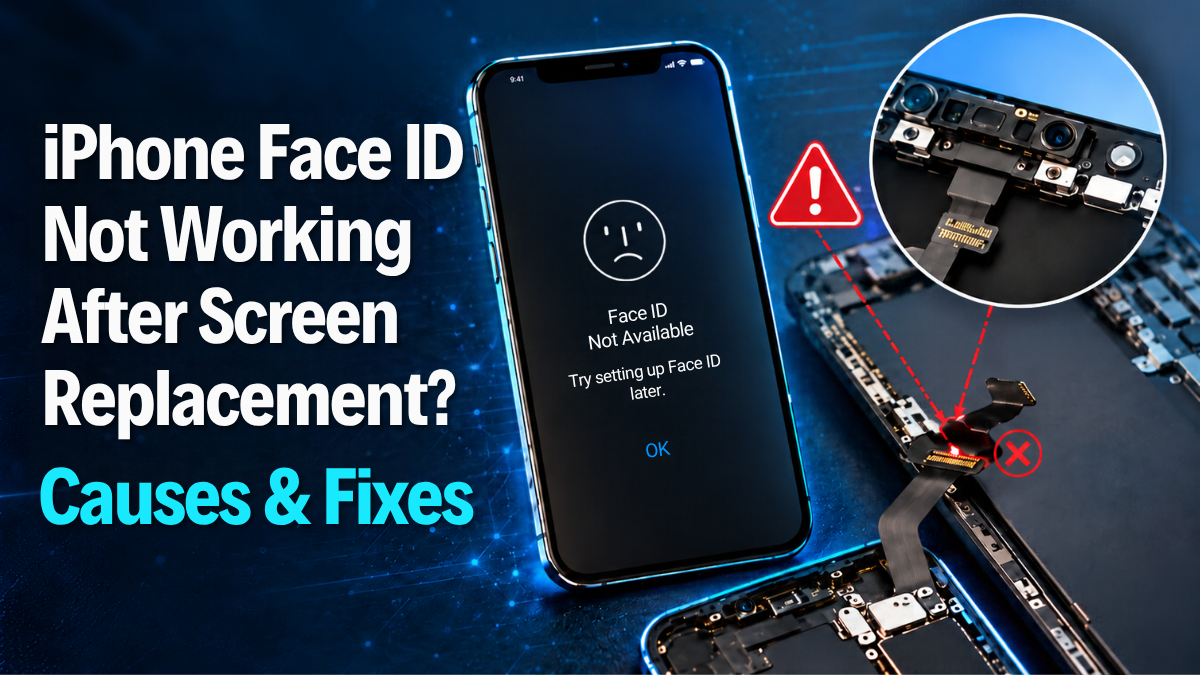
You have just had your iPhone screen replaced, and the display looks as good as new. But when you try to unlock your phone, something is wrong. Face ID no longer recognises your face, refuses to complete setup or displays a message saying that facial recognition is unavailable.
If your Face ID is not working after screen replacement, the problem could involve the TrueDepth camera, a disturbed internal connection, incomplete repair calibration or something as simple as a screen protector blocking the sensors.
While some problems can be resolved through basic troubleshooting, others need professional attention. At Gadgets N Repair, we understand how frustrating it can be when one problem appears to be fixed but another develops after a repair.
This guide explains why Face ID may stop working after an iPhone screen replacement, how to identify the possible cause and which fixes are worth trying before arranging a professional inspection.
Can Replacing an iPhone Screen Cause Face ID to Stop Working?
Yes, Face ID can stop working after an iPhone screen replacement, but replacing the display does not automatically disable Face ID.
Apple’s facial recognition technology relies on the TrueDepth camera system rather than the display panel alone. This system uses specialised hardware to capture and analyse facial depth information.
During a screen replacement, technicians must follow the correct procedures for handling sensitive components around the front camera and sensor area. If these components are damaged, disturbed or incorrectly reassembled, Face ID may stop working even when the replacement display functions normally.
However, the screen replacement itself is not necessarily responsible. A software issue, sensor obstruction or incomplete repair procedure could also explain the problem.
If Face ID worked before your screen was replaced but stopped working immediately afterwards, it is sensible to contact the original repair provider before paying for additional work.
Why Is Face ID Not Working After Screen Replacement?
There are several possible explanations for an iPhone losing facial recognition functionality after a display repair. Understanding these causes can help you avoid unnecessary repairs and identify when a technician needs to examine the device.
1. The TrueDepth Camera System Was Damaged
The TrueDepth camera system is responsible for Face ID authentication. It includes specialised components that work together to recognise your face securely.
If the system suffers physical damage during a repair, your iPhone might display a TrueDepth camera warning or refuse to complete Face ID setup.
Unlike ordinary software problems, physical sensor damage cannot be fixed simply by restarting your phone or resetting its settings.
Depending on the iPhone model and affected component, resolving the problem may require a supported replacement procedure or specialist diagnostic work.
2. An Internal Connection Was Disturbed
During a screen replacement, internal connectors and nearby components must be handled carefully.
A damaged or improperly connected component can affect a feature such as Face ID without causing the replacement screen to stop working.
For example, the touchscreen may respond normally while the phone reports that facial recognition is unavailable.
If this happens immediately after repair, the original technician should examine whether the work has affected any relevant connections or components.
Attempting to open the device yourself could introduce additional damage and may affect any repair warranty.
3. The Screen Protector Is Blocking the Face ID Sensors
Sometimes the cause is simpler than an internal hardware fault.
A screen protector that covers part of the TrueDepth camera area can interfere with facial recognition. Privacy glass, incorrectly positioned protectors, dirt or adhesive residue may prevent the sensors from operating correctly.
This is especially worth checking if a new screen protector was installed alongside the replacement display.
Carefully inspect the front camera area, remove visible obstructions and test Face ID again.
4. Repair Calibration Is Incomplete
Certain supported iPhone repairs require a calibration or repair-completion process.
Apple provides Repair Assistant for supported devices and replacement components. Depending on the model and repair, an incomplete process involving the TrueDepth camera can affect Face ID functionality.
You can check available repair information under Settings → General → About → Parts and Service History.
If the device displays a message such as “Finish Repair”, contact the repair provider or follow Apple’s applicable instructions.
Remember that a display-related status message does not automatically prove that the replacement screen is the cause of a Face ID failure.
5. Face ID Settings or iOS Are Causing Problems
Not every problem that appears after a repair is related to hardware.
An outdated version of iOS, incorrect Face ID settings or a temporary software issue may interfere with facial recognition.
Although software troubleshooting is worth trying, it should not replace a professional inspection when Face ID stopped working immediately after the display was replaced.
How to Fix Face ID Not Working After Screen Replacement
Before considering another hardware repair, try the following safe troubleshooting steps. They can help resolve common obstructions and settings issues without opening your iPhone.
Step 1: Clean and Inspect the Front Camera Area
Start by checking the area around your iPhone’s front camera and sensors.
Look for dust, adhesive residue, a misaligned screen protector or anything obstructing the TrueDepth camera.
Use a clean, soft, lint-free cloth to wipe the exterior glass gently. Avoid using sharp objects or allowing moisture to enter openings.
If a recently installed screen protector covers the sensor area, remove it carefully if practical and try Face ID again.
Step 2: Restart Your iPhone
Restarting your device may resolve a temporary software issue.
On most Face ID-equipped iPhones, press and hold the side button and either volume button until the power-off slider appears. Switch the device off, then turn it back on using the side button.
Enter your passcode after restarting and test Face ID.
If facial recognition still fails, continue with the next check.
Step 3: Check Face ID Settings
Open Settings → Face ID & Passcode and enter your device passcode.
Check whether Face ID is enabled for iPhone Unlock and any other supported features you use.
If Face ID has been disabled in the settings, enable the relevant options.
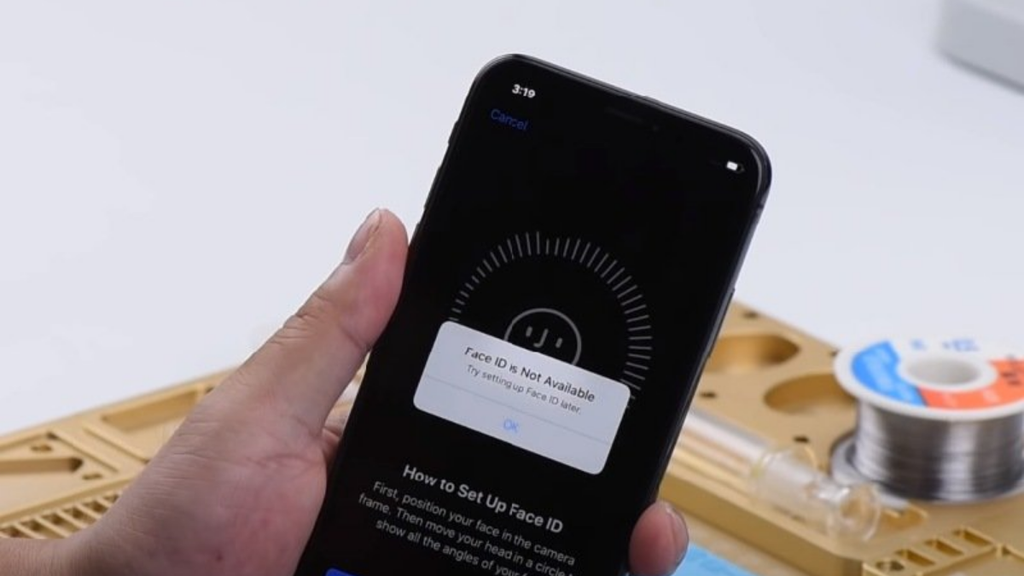
However, if the settings screen displays a warning such as “Face ID Is Not Available”, note the exact message before attempting further troubleshooting.
An error referring to the TrueDepth camera can indicate that a professional assessment is required.
Step 4: Update Your iPhone to the Latest Compatible iOS Version
Apple recommends keeping your iPhone software updated when troubleshooting Face ID.
Open Settings → General → Software Update and check whether an update is available.
Before installing an update, back up important data and ensure your device has sufficient battery charge.
A software update might resolve a software-related issue, but it will not repair physically damaged Face ID components.
Step 5: Check Parts and Service History
If your model supports the feature, navigate to Settings → General → About → Parts and Service History.
This section may contain information about replaced components, their status and whether supported repairs have been completed.
Depending on the iPhone model and component, you may encounter messages such as:
| Message | What it may indicate |
|---|---|
| Genuine | Apple has verified the relevant part and completed repair process |
| Used | A previously used supported Apple component has been recognised |
| Unknown | The component could not be verified or may have another reported issue |
| Finish Repair | A supported repair procedure still needs to be completed |
| Face ID Issue | The TrueDepth system or its repair status requires attention |
Not every message or component appears on every iPhone model.
If you see a repair-related warning, contact the technician who replaced your screen and explain the problem.
Step 6: Reset Face ID
If the Face ID settings remain accessible and there is no clear indication of a hardware fault, try resetting the facial recognition configuration.
Go to Settings → Face ID & Passcode → Reset Face ID.
Afterwards, select Set Up Face ID and follow the instructions to register your face again.
This removes the previous Face ID enrolment, so you must complete setup again.
If the setup process repeatedly fails or Face ID remains unavailable, further resets are unlikely to help. The next step should be a proper diagnosis.
Step 7: Contact the Original Repair Provider
If Face ID stopped working immediately after screen replacement, explain the problem to the company that performed the repair.
Tell them when Face ID last worked, which iPhone model you own and whether the device displays a particular error.
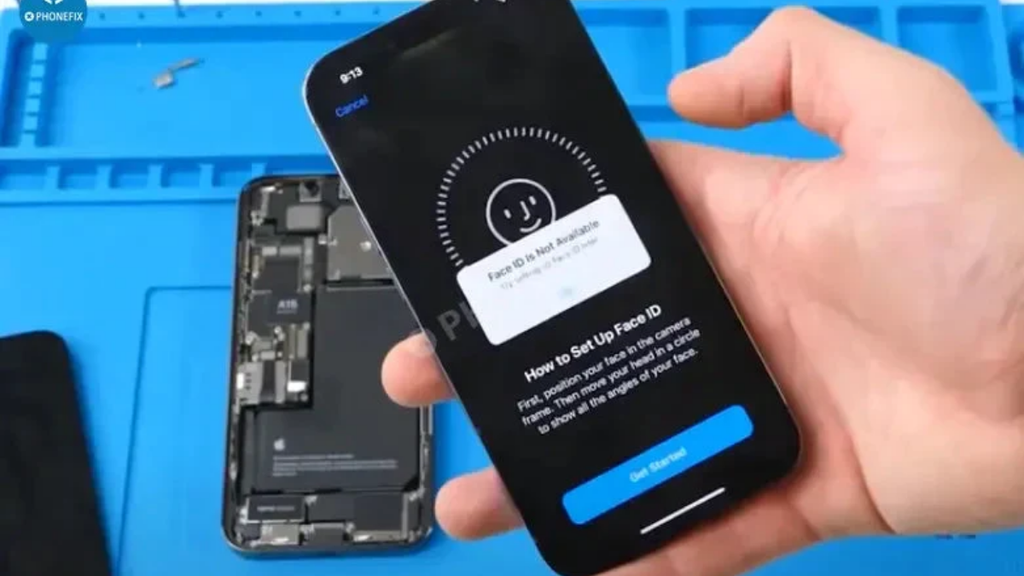
Ask whether they can inspect the handset and whether any corrective work is covered under the original repair terms.
If you are looking for professional iPhone repair in St Helens, Gadgets N Repair offers mobile phone repair services and can discuss available inspection and repair options.
Common Face ID Problems After iPhone Screen Replacement
Different symptoms can indicate different underlying issues. Recognising the warning signs can help you explain the problem clearly when contacting a repair specialist.
| Face ID problem | Possible explanation | Recommended action |
|---|---|---|
| Face ID Is Not Available | Software, hardware or calibration issue | Check settings and arrange diagnosis if unresolved |
| Problem Detected With TrueDepth Camera | TrueDepth hardware or repair-related issue | Seek professional assessment |
| Face ID setup fails repeatedly | Obstruction or sensor malfunction | Remove obstructions and request inspection |
| Face ID stopped immediately after screen repair | Possible repair-related problem | Return to the original repair provider |
| Face ID works occasionally | Intermittent obstruction or hardware issue | Document when failures occur |
| Finish Repair notification | Incomplete supported repair process | Complete the required procedure |
These symptoms do not identify the exact faulty component. Accurate diagnosis depends on the device model, repair history and hardware condition.
Does an Aftermarket iPhone Screen Disable Face ID?
One common misconception is that installing an aftermarket screen automatically disables Face ID.
This is not necessarily true.
The display and TrueDepth camera system perform different functions. A compatible aftermarket display may work while Face ID continues to function normally.
However, poor repair procedures, damaged components or incomplete calibration can cause problems regardless of whether the replacement display is genuine or aftermarket.
Apple also warns that non-genuine displays may affect features such as brightness, colour accuracy, touch response and True Tone.
If you are considering another screen repair, ask the technician about the replacement display’s quality, compatibility and applicable testing procedures.
You can also read our iPhone screen replacement cost UK guide to understand the factors that influence repair pricing and the decision between repairing and replacing a device.
Can Face ID Be Repaired Without Replacing the Screen Again?
Yes, some Face ID problems can be resolved without replacing the screen a second time.
The outcome depends on the underlying fault.
If the replacement display works correctly and the problem concerns settings, sensor obstruction or a supported calibration requirement, replacing the screen again may be unnecessary.
However, if the TrueDepth camera system has suffered physical damage, the repair could require additional parts or specialist procedures.
For this reason, a technician should diagnose the fault before recommending another display replacement.
Gadgets N Repair recommends confirming the cause of a post-repair problem before committing to unnecessary replacement parts.
If your iPhone has several issues after a repair, professional phone repair services in St Helens may help you establish which problems require attention.
How Much Does Face ID Repair Cost in the UK?
Face ID repair prices vary because several different problems can prevent the feature from working.
A software settings issue may require no replacement parts. An obstructed sensor might need only a simple correction, while damaged TrueDepth hardware can involve a more complex repair.
The cost also depends on the iPhone model, the damaged component and the repair options available for that device.
| Possible issue | Potential solution |
|---|---|
| Screen protector obstruction | Remove or reposition the protector |
| Face ID configuration problem | Adjust settings or reconfigure Face ID |
| Incomplete repair calibration | Complete the supported process |
| Damaged internal connection | Professional inspection and correction |
| Damaged TrueDepth camera hardware | Model-specific diagnosis and potential part replacement |
It would be misleading to provide one fixed repair price without knowing which component is affected.
Before accepting a quote, ask the provider whether the quoted price covers diagnosis, replacement components, calibration and any applicable warranty.
If Face ID failed immediately after a recent screen repair, contact the original provider first and ask whether the issue can be assessed under the existing repair terms.
For local repair enquiries, the Gadgets N Repair team can discuss your device symptoms and the available mobile phone repair options in St Helens.
Will a Factory Reset Fix Face ID After Screen Replacement?
A factory reset is rarely the best first step when Face ID fails immediately after screen replacement.
Resetting the entire iPhone erases personal data and settings, but it cannot repair a broken internal connector or physically damaged TrueDepth component.
If facial recognition is unavailable because of a hardware fault, restoring the phone may leave the problem unchanged.
Instead, begin with the safer checks described earlier, including reviewing Face ID settings, clearing the camera area and checking Parts and Service History.
Only consider more extensive software troubleshooting when there is a specific reason to suspect a software issue. Back up important information before any action that could erase your data.
How to Prevent Face ID Problems During Future Screen Repairs
Choosing an appropriate repair service and checking your device before and after the repair can make it easier to identify new problems.
Before handing over your iPhone, confirm that Face ID unlocks the device normally. It is also useful to test the front camera, touchscreen and proximity sensor.
Ask the repair provider about the replacement display, the repair procedure and any calibration requirements for your iPhone model.
Once the repair is complete, test Face ID before leaving the shop whenever possible.
Confirm that the display responds properly to touch, the front camera functions and no unexpected repair-related warnings have appeared.
Keep your repair receipt and report new problems promptly.
A reliable repair process should include appropriate functional testing, clear communication about parts and an explanation of the available warranty terms.
When Should You Seek Professional iPhone Face ID Repair?
Some minor Face ID issues can be resolved through basic troubleshooting, but persistent errors require further investigation.
You should consider professional help when Face ID worked before a screen replacement but stopped immediately afterwards, when your iPhone reports a TrueDepth camera issue or when facial recognition setup repeatedly fails.
Professional diagnosis is also appropriate if the handset suffered physical damage, developed several problems after repair or displays an unresolved repair-status notification.
Avoid trying to dismantle the TrueDepth camera system yourself. The system contains sensitive components, including laser-related hardware that requires appropriate safety procedures.
A qualified technician can assess the device and explain whether the problem involves software, calibration or hardware.
iPhone Screen and Face ID Repair Enquiries in St Helens
A screen replacement should restore your iPhone’s display without creating additional problems. If Face ID stops working afterwards, identifying the cause is more useful than immediately replacing the screen again.
At Gadgets N Repair, we provide iPhone screen repair in St Helens alongside other mobile phone repair services.
Whether your device is showing a TrueDepth camera warning, refusing Face ID setup or experiencing additional problems after screen replacement, you can contact our team to discuss your symptoms and available repair options.
When making an enquiry, provide the iPhone model, the approximate date of the previous repair and any messages displayed in Face ID settings.
Contact Gadgets N Repair for iPhone repair enquiries in St Helens and find out what assessment options are available for your device.
Frequently Asked Questions
Why is my iPhone Face ID not working after screen replacement?
Face ID may stop working after screen replacement if the TrueDepth camera system was disturbed, an internal component was damaged, a screen protector blocks the sensors or required repair calibration remains incomplete. Software and settings problems are also possible, so the exact cause should be investigated.
Does changing an iPhone screen automatically disable Face ID?
No. Replacing the display does not automatically disable Face ID. When compatible components are installed correctly and applicable repair procedures are completed, Face ID can continue working.
Can Face ID work with a non-genuine replacement screen?
Yes, Face ID can continue working with a compatible non-genuine display. However, display quality, repair procedures and the condition of the TrueDepth system can affect the overall outcome.
What does Face ID Is Not Available mean after a screen repair?
The message indicates that your iPhone cannot currently use Face ID. Possible causes include software problems, damaged TrueDepth components or incomplete repair calibration. If the error started immediately after the repair, contact the original provider.
Can I repair Face ID without replacing the screen?
In some cases, yes. If the screen works properly and the cause is unrelated to the display, another screen replacement may not be necessary. The correct solution depends on the diagnosis.
Can Apple Repair Assistant restore Face ID?
Repair Assistant can complete calibration for certain supported replacement parts on compatible iPhone models. However, it cannot repair damaged hardware, and the requirements depend on the specific device and component.
How do I check if my iPhone’s TrueDepth camera has a problem?
Check Face ID settings for warning messages and review Parts and Service History if available. Repeated Face ID setup failures and TrueDepth camera errors may indicate a problem, but a professional diagnosis is needed to establish the cause.
Should I return to the shop if Face ID stopped working after screen replacement?
Yes. If facial recognition worked before the repair and stopped immediately afterwards, contact the original repair provider and request an assessment. Ask whether the issue is covered under the service’s repair terms.
Final Thoughts
If Face ID is not working after an iPhone screen replacement, the problem does not necessarily mean that your new display is defective or that facial recognition is permanently damaged.
A blocked sensor, incorrect settings or incomplete calibration may explain the issue. However, damage to the TrueDepth camera system or its associated components can require professional attention.
Start with safe troubleshooting, check the device’s repair history and return to the original repair provider if the fault appeared immediately after the screen replacement.
For iPhone screen repairs and other mobile phone repair enquiries in St Helens, Gadgets N Repair can help you discuss the available next steps and determine whether a professional inspection is appropriate.