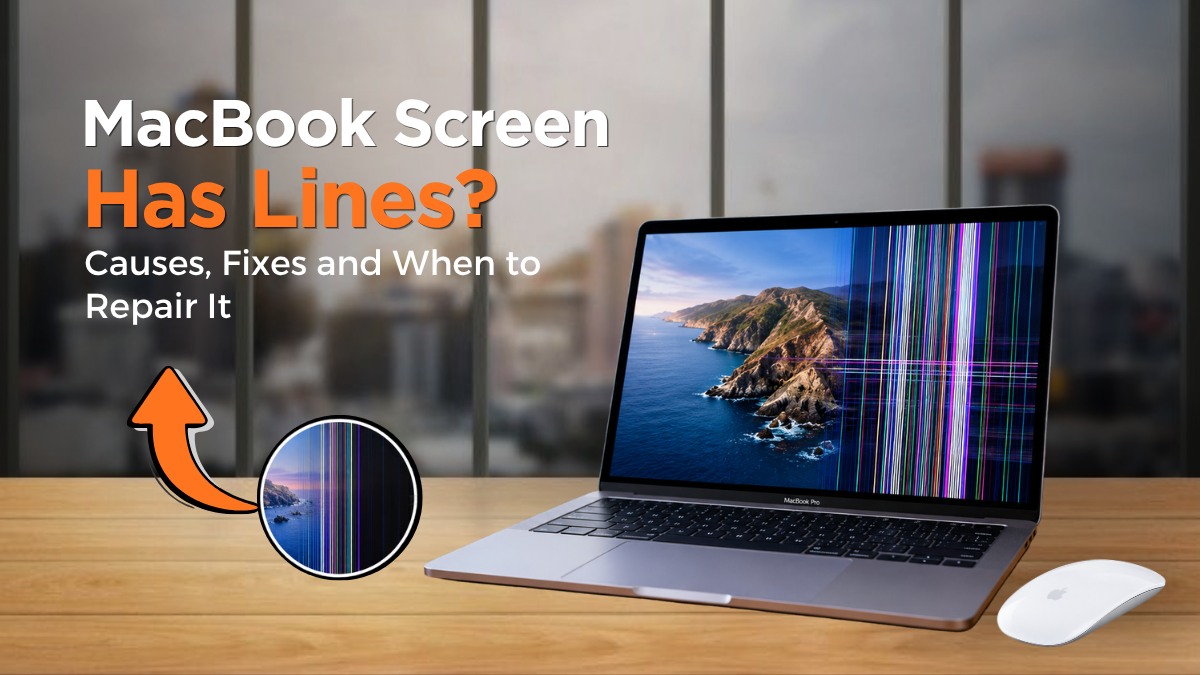
Have you suddenly noticed green, pink, black or white lines appearing across your MacBook display? Whether it is a single vertical line or several horizontal lines that flicker when you move the screen, the problem can make your laptop difficult to use. More importantly, it can leave you wondering whether the screen is permanently damaged or whether a simple fix could solve the issue.
Lines on MacBook screen displays can appear because of software glitches, damaged display panels, faulty internal connections or graphics-related problems. Some issues disappear after a restart, while others require professional attention. However, the appearance of the lines alone does not always reveal the exact cause.
In this guide, Gadgets N Repair explains why MacBook screen lines appear, what different colours and patterns may indicate, how to troubleshoot the problem safely and when professional repair becomes necessary.
Why Does My MacBook Screen Have Lines?
If your MacBook screen suddenly develops lines, the problem usually involves either the software controlling the display or the hardware responsible for producing the image. Sometimes, the issue begins after a macOS update, a minor impact or repeated opening and closing of the laptop lid.
The lines may appear vertically, horizontally or in different colours. They can remain visible all the time or disappear temporarily when you restart your MacBook. Although these patterns provide useful clues, proper troubleshooting is necessary to identify the underlying fault.
Vertical Lines on MacBook Screen
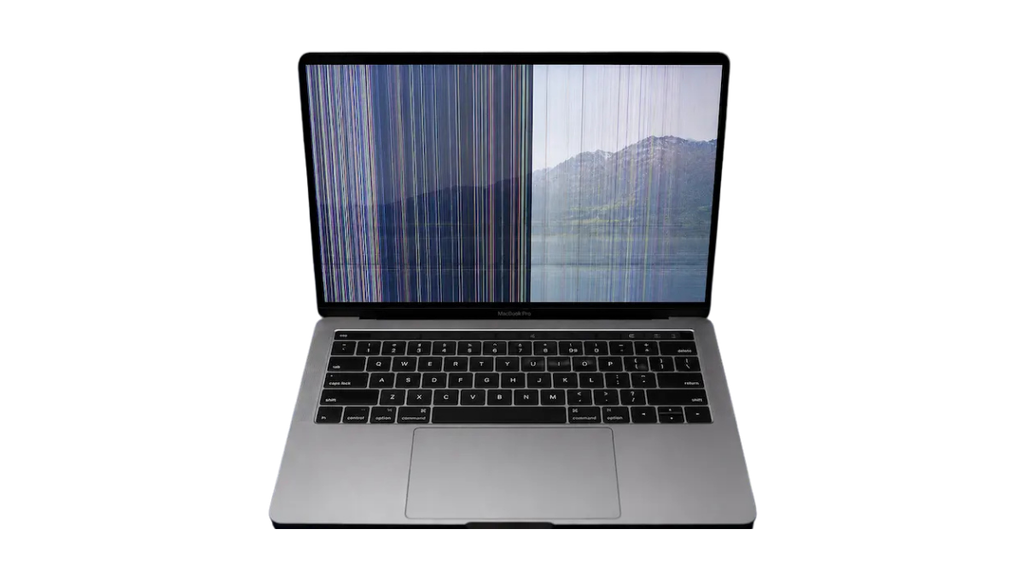
Vertical lines on a MacBook screen run from the top of the display to the bottom. They may appear as thin green, pink, white or black stripes, affecting one section of the screen or extending across the entire display.
Possible causes include a damaged LCD panel, faulty display connections or graphics-related issues. If the vertical lines remain visible after restarting your MacBook, hardware damage becomes more likely, although further diagnosis is still necessary.
Horizontal Lines on MacBook Screen
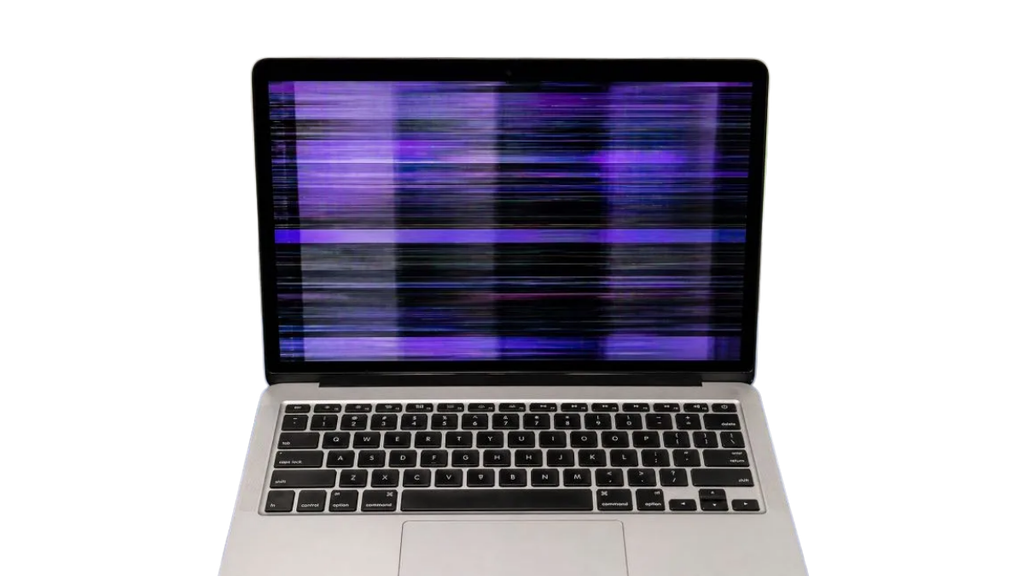
Horizontal lines stretch from left to right across the MacBook display. Some remain fixed in one position, while others flicker, move or appear alongside distorted colours.
These symptoms can develop because of display panel faults, connection problems or software-related graphics issues. If horizontal lines appear during startup and continue after macOS loads, the problem may require professional inspection.
Green Lines on MacBook Screen
A green line on a MacBook screen can appear suddenly, even when the laptop has not been dropped. Some users notice a single bright green stripe, while others experience several lines accompanied by flickering.
A green line may indicate a display panel problem, damaged connection or graphics-related fault. However, the colour itself cannot confirm which component has failed, so replacing the screen without diagnosis is not always the right approach.
Pink, Purple, Black or White Lines
Pink and purple lines may result from display signal problems, panel faults or graphics issues. Meanwhile, black or white lines can appear when certain sections of the display stop rendering images correctly.
If these lines remain in exactly the same position across different applications, the display hardware deserves closer attention. Nevertheless, software and graphics problems should still be ruled out before deciding on a repair.
What Causes Lines on a MacBook Screen?
Several issues can cause display lines, ranging from temporary software problems to damaged internal components. Understanding these possibilities can help you determine whether basic troubleshooting is worthwhile.
1. Physical Damage to the Display
MacBook screens are relatively thin and can be damaged by drops, pressure or objects trapped between the keyboard and display when the lid closes. Even when the outer glass appears undamaged, the internal LCD panel may have suffered an impact.
This damage can cause permanent vertical lines, coloured patches, flickering or sections of the screen that no longer display images correctly. If the problem started immediately after dropping your MacBook, physical damage should be considered.
In such cases, professional broken screen repair may be necessary. A technician can inspect the display and determine whether the screen assembly or another component requires attention.
2. Faulty Display Cable or Internal Connections
MacBook displays rely on internal connections to transmit image signals and power between the laptop and its screen assembly. When these connections become damaged, display lines or flickering may appear.
Some connection faults become more noticeable when the laptop lid moves. For example, the display may work normally at one angle but show coloured lines when opened further.
The exact display connection design varies between MacBook models. Therefore, identifying the model and examining the relevant components is important before recommending repairs.
3. macOS Software Glitches
Not every MacBook display problem involves damaged hardware. Occasionally, macOS bugs, incompatible applications or graphics-related software issues can produce unusual visual effects.
If the lines appear only while using a particular application, software troubleshooting may help. Restarting the MacBook, updating the application or installing a compatible macOS update can sometimes resolve the issue.
However, persistent lines across multiple applications should not automatically be attributed to software.
4. Damaged LCD Display Panel
The LCD panel produces the images displayed on your MacBook screen. When its internal circuitry or pixel-driving components fail, vertical or horizontal lines may appear.
These lines often remain in the same position regardless of which application is open. In some cases, the affected area gradually becomes larger or develops additional distortion.
If the panel itself is damaged, replacing the affected display assembly is commonly necessary. Software troubleshooting cannot repair physically damaged display components.
5. Graphics Hardware Problems
The graphics hardware processes the images shown on your MacBook display. If a graphics-related component develops a fault, you may notice coloured artefacts, distorted images, freezing or unusual screen behaviour.
Unlike some built-in display faults, graphics-related problems may also affect an external monitor. However, similar symptoms can result from software issues, so further testing is necessary before identifying a hardware failure.
6. Liquid Damage or Moisture Exposure
Spilling water, coffee or another liquid near your MacBook can damage electronic components and display connections. Moisture-related corrosion may also develop over time, meaning symptoms can appear days or weeks after the original incident.
If screen lines appear after liquid exposure, shut down your MacBook, disconnect external power and avoid switching it back on until it has been assessed.
Professional water damage repair can help identify affected components and determine whether the laptop can be safely repaired.
How to Fix Lines on a MacBook Screen
If your MacBook has not suffered obvious physical damage or liquid exposure, several safe troubleshooting steps can help narrow down the problem.
These methods are intended to identify possible software or hardware faults. They cannot guarantee that damaged display components will recover.
1. Restart Your MacBook
Restarting is one of the simplest troubleshooting steps and may clear temporary software or graphics-related glitches.
Save your work, open the Apple menu and select Restart. Once your MacBook starts again, check whether the lines remain visible. If they disappear, continue monitoring the display. However, if the lines return frequently, further investigation may be necessary.
2. Update macOS
Outdated software or graphics-related bugs can occasionally cause display problems. Installing compatible macOS updates may resolve certain issues and improve system stability.
Open System Settings, select General and choose Software Update. Back up your important files before installing major updates. If the lines remain after updating, the problem may involve hardware or another underlying issue.
3. Check Whether the Lines Appear in Every Application
Open different applications and observe whether the lines remain in the same position.
If the problem occurs only in one application, check for available updates or application-specific display settings. If the lines appear across the desktop, browser and other applications, the issue may be more widespread. Also, note whether the lines appear during startup, as this can provide additional diagnostic clues.
4. Connect Your MacBook to an External Monitor
Testing an external monitor can help distinguish certain built-in display problems from broader graphics-related issues. Connect your MacBook to a compatible external display using the appropriate cable or adapter. Then compare the image on both screens.
If the external monitor works normally while the MacBook screen shows lines, the built-in display or its connections may be responsible. If both displays show similar distortion, graphics hardware or software issues become more plausible. However, this test is not conclusive because different displays may use different output paths and settings.
5. Start Your MacBook in Safe Mode
Safe Mode helps identify whether software loaded during normal startup is contributing to the display problem.
For a MacBook with Apple silicon, shut down the laptop and hold the power button until startup options appear. Select your startup disk, hold Shift and choose Continue in Safe Mode. For an Intel-based MacBook, restart the device and immediately hold Shift until the login screen appears.
If the lines disappear in Safe Mode, investigate installed applications, login items and software-related problems. However, Safe Mode changes the startup environment, so the result does not conclusively rule out hardware faults.
6. Run Apple Diagnostics
Apple Diagnostics can help identify certain hardware-related problems.
On Apple silicon MacBooks, shut down the computer, hold the power button until startup options appear and then press and hold Command-D to start diagnostics. On Intel-based MacBooks, restart and immediately hold the D key. Follow the instructions and record any reference codes displayed.
Keep in mind that Apple Diagnostics cannot identify every possible display fault. An undetected problem may still require professional assessment.
7. Avoid Pressing or Bending the Display
If your MacBook screen has lines, avoid pressing the panel, twisting the lid or repeatedly adjusting the screen angle to make the problem disappear.
These actions can worsen existing damage to the display or its internal connections. If the lines change when the lid moves, note the behaviour and arrange an inspection rather than continuing to manipulate the screen.
Why Do MacBook Screen Lines Appear When Opening the Lid?
Some MacBook users notice that display lines appear only when the lid reaches a particular angle. The screen may look normal when partially open but develop flickering, coloured lines or distortion as the lid moves.
This behaviour can indicate a problem involving the display assembly or internal connections that move with the lid. Certain MacBook designs have experienced display flex-cable issues, although not every model or symptom has the same cause.
If the problem changes with the lid angle, avoid forcing the screen into a particular position. A technician should identify the exact MacBook model and inspect the relevant components before recommending replacement parts.
How to Tell if Your MacBook Screen Is Damaged
The way display lines appear can provide clues about the possible fault. However, no single symptom confirms which component needs repair.
| MacBook screen symptom | Possible cause | Recommended action |
|---|---|---|
| Vertical lines after a drop | LCD panel or connection damage | Arrange a display inspection |
| Horizontal lines across the screen | Display or graphics-related fault | Test an external monitor |
| Green or pink lines remain fixed | Possible display panel fault | Seek professional diagnosis |
| Lines change when opening the lid | Display connection or assembly problem | Avoid repeated lid movement |
| Lines appear only in one application | Software or application issue | Update and troubleshoot the application |
| Lines also appear on an external monitor | Graphics hardware or software problem | Run further diagnostics |
| Display lines after liquid exposure | Moisture or corrosion damage | Shut down and arrange an assessment |
If the screen is cracked, has black patches or becomes increasingly difficult to read, professional screen repair services may be required.
Can MacBook Screen Lines Be Fixed Without Replacing the Screen?
Yes, some MacBook display-line problems can be resolved without replacing the screen. If the issue is caused by software, an incompatible application or a temporary graphics glitch, troubleshooting may restore normal operation.
Certain internal connection faults may also be repairable, depending on the MacBook model and the availability of suitable components.
However, when the LCD panel itself is damaged, replacing the affected display assembly is often necessary. A professional diagnosis can help prevent unnecessary replacement costs.
When Should You Get Your MacBook Screen Repaired?
Professional repair becomes more important when display lines remain after troubleshooting, interfere with everyday use or appear alongside other screen problems.
You should consider arranging an inspection if the lines are spreading, the display becomes difficult to read, the problem started after physical damage or the screen behaves differently when opening the lid.
If your MacBook still works normally apart from the display, back up your important files while it is safe to do so. This is especially important if the issue may involve graphics hardware or other internal components.
Getting professional MacBook repair services can help identify the underlying problem and determine whether screen replacement, connection repair or further diagnostics are necessary.
Is It Worth Repairing a MacBook Screen With Lines?
Whether repairing a MacBook screen is worthwhile depends on the device’s age, model, condition and the cost of the required parts and labour.
A newer MacBook with a damaged display may be worth repairing, particularly if the rest of the laptop works properly. Meanwhile, an older MacBook with several existing faults may require a closer comparison between repair and replacement.
For more information, read our MacBook Screen Repair Cost UK – 2026 Price Guide, which explains the factors affecting display repair prices.
You can also explore Is It Worth Repairing an Old MacBook in the UK? to understand when repairing an ageing MacBook makes financial sense.
Professional MacBook Screen Repair in St Helens
If troubleshooting has not resolved your MacBook display problem, Gadgets N Repair can help you explore the available repair options.
At Gadgets N Repair, we understand how frustrating screen problems can be, particularly when your MacBook is essential for work, education or everyday activities. Persistent display lines, flickering and distorted images can make even simple tasks difficult.
Our Mac & PC repair services in St Helens provide a local option for customers experiencing MacBook display faults and other computer problems. Contact our team to discuss your MacBook model, describe the symptoms and confirm the available diagnostic and repair services.
Whether your MacBook has vertical lines, horizontal distortion or an intermittent display fault, identifying the underlying cause is the first step towards choosing an appropriate repair.
Frequently Asked Questions
Why does my MacBook screen have vertical lines?
Vertical lines can appear because of a damaged LCD panel, faulty internal connections, software glitches or graphics-related problems. If the lines remain after restarting, further diagnosis may be necessary.
How do I fix horizontal lines on my MacBook screen?
Start by restarting your MacBook, installing compatible macOS updates and testing an external monitor. If the lines persist, the display or another hardware component may need professional inspection.
Why is there a green line on my MacBook screen?
A green line can indicate a display panel fault, damaged connection or graphics-related issue. The colour alone cannot confirm which component is responsible.
Can MacBook screen lines go away on their own?
Temporary software-related lines may disappear after restarting or updating macOS. However, lines caused by physical damage or failing display hardware are unlikely to resolve permanently without repair.
Why do MacBook screen lines appear when I open the lid?
Lines that change with the lid angle can suggest a problem involving the display assembly or its internal connections. Avoid forcing the lid and arrange an inspection if the issue continues.
Can I fix MacBook screen lines without replacing the display?
Sometimes. Software problems may respond to troubleshooting, while certain connection faults may be repairable. However, a damaged LCD panel often requires replacement of the affected display assembly.
Does Apple warranty cover lines on a MacBook screen?
Warranty coverage depends on the cause of the problem, warranty status and applicable consumer rights. Manufacturing defects may be covered, while accidental damage is generally treated differently. Check your coverage and arrange an assessment before assuming a repair will be free.
How much does it cost to repair lines on a MacBook screen in the UK?
Repair costs depend on the MacBook model and the component that has failed. Display replacement, connection repairs and graphics-related work can involve different costs. A professional diagnosis can help determine the appropriate repair.
Final Thoughts
Lines on a MacBook screen can result from software glitches, damaged display panels, faulty internal connections or graphics-related problems. Understanding the pattern of the lines and performing safe troubleshooting can help narrow down the cause.
If the problem continues, worsens or follows physical damage, professional diagnosis is usually the safest next step. For customers in St Helens and surrounding areas, Gadgets N Repair offers a local point of contact for discussing MacBook display problems and available repair options.
Identifying the issue early can help you make an informed decision about whether to repair the display, investigate another component or consider replacing the device.