A sudden blue screen can make any PC or gaming laptop user panic. One moment your computer is working normally, and the next you see a Windows crash screen, an error code, or a forced restart. So, can a blue screen error fixed issue be solved, or is your PC failing completely?
The good news is that many Blue Screen of Death problems can be repaired. A BSOD does not always mean your computer is dead. In many cases, the cause is a driver conflict, faulty RAM, software corruption, malware infection, overheating, or a hardware issue that needs proper diagnosis.
At Gadgets n Repair, customers often ask for help with Windows blue screen errors, gaming PC crashes, laptop freezing, hardware diagnostics, driver issues, and data recovery. This guide explains what causes the Blue Screen of Death, how to troubleshoot it, and when professional PC repair may be the safest option.
What Is the Blue Screen of Death?
The Blue Screen of Death, often called BSOD, is a Windows error screen that appears when your system experiences a critical and unrecoverable system error. When Windows cannot continue safely, it stops the system to protect your computer from further damage.
A blue screen may appear with an error message, stop code, QR code, or restart prompt. Newer versions of Windows usually provide more information than older versions, but the message can still feel confusing if you do not know what it means.
A BSOD can happen on a desktop PC, prebuilt PC, gaming laptop, work laptop, or custom gaming PC. It may happen once and never return. However, if your computer keeps blue-screening, the issue needs attention.
What Causes a Blue Screen Error?
A blue screen error can happen for several reasons. Sometimes it is caused by software conflicts, while other times the problem comes from hardware failure or driver inconsistencies. Malware infections, corrupted system files, failed Windows updates, and incompatible components can also trigger a system crash.
Software Conflicts and Windows Problems
Software conflicts can happen after installing new programs, updating Windows, changing system settings, or running applications that do not work well together. If the BSOD started after a new software installation, that program may be causing system instability.
Windows updates can also create problems if the update fails, installs incorrectly, or conflicts with existing drivers. In some cases, missing or corrupted system files can compromise Windows integrity and lead to repeated crashes.
Driver Inconsistencies
Outdated drivers are one of the most common BSOD causes. Drivers help Windows communicate with hardware such as the graphics card, sound card, motherboard, storage drive, and network adapter. If a driver is outdated, corrupted, or incompatible, your system may crash.
This is especially common with graphics drivers on gaming PCs and gaming laptops. A graphics-intensive game can push the GPU harder, exposing driver problems or hardware weaknesses.
Hardware Problems
Hardware problems can also cause blue screen errors. Faulty RAM modules, overheating, a failing hard drive, unstable power delivery, or a damaged GPU can all lead to Windows crashes.
If your PC blue-screens during gaming, rendering, or heavy multitasking, the system may be under hardware stress. The problem may not be the game itself. Instead, the game may simply reveal an underlying issue.
Why Your PC Keeps Blue-Screening While Gaming
Gaming can expose problems that normal browsing or office work may not show. When you play a graphics-intensive game, your CPU, GPU, RAM, cooling system, and power supply work harder. If one part is weak, overheating, unstable, or incompatible, the system may crash.
For example, a gaming PC may blue-screen because the graphics card driver is outdated, the GPU is overheating, or the RAM is unstable. A gaming laptop may also crash if dust blocks airflow or the cooling system cannot handle the heat.
If the BSOD happens only during games, pay attention to temperature, fan noise, graphics settings, and recent driver updates. These clues can help identify whether the issue is software-related or hardware-related.
BSOD Troubleshooting Checklist
Before assuming your PC is failing, it helps to follow a basic troubleshooting process. A blue screen can often be fixed by checking memory, scanning for malware, reviewing logs, updating drivers, or repairing system files.
Here is one useful checklist to follow:
- Restart the computer and note the BSOD error code
- Run Windows Memory Diagnostic to check RAM
- Scan for malware using trusted antivirus software
- Review Event Viewer System and Application logs
- Update Windows and device drivers
- Disconnect external devices except mouse and keyboard
- Boot into Safe Mode to test software conflicts
- Run SFC /scannow to repair corrupted system files
This is the only checklist you need at the start. If the problem continues after these steps, a professional diagnostic may be needed.
How to Check Memory and Hardware
Faulty or inconsistent RAM modules can cause blue screen errors. Windows includes a tool called Windows Memory Diagnostic, which can test your computer memory for issues. If the memory test finds problems, the RAM may need reseating, replacement, or further testing.
Hardware diagnostics are also useful. A PC’s components directly affect stability. Problems with the CPU, GPU, hard drive, SSD, motherboard, or power supply can all cause crashes. On Windows 10 and Windows 11, troubleshooting tools can help identify certain hardware-related issues.
Event Viewer and Error Logs
Event Viewer can provide useful clues. It stores System logs and Application logs that show warnings, errors, and crash events. If your PC keeps blue-screening, the Event Viewer may show what happened before the crash.
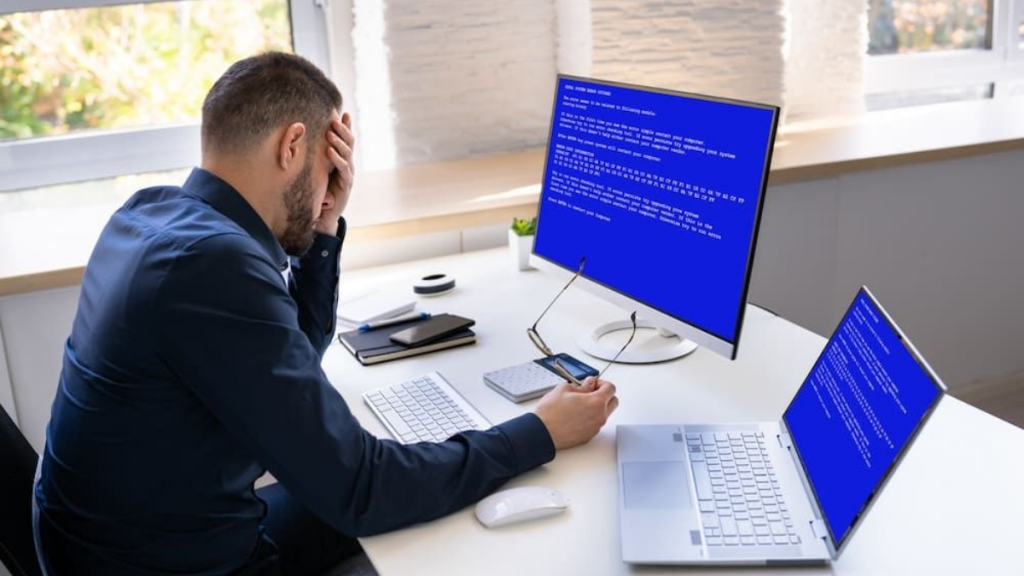
These logs can be technical, but they are helpful for repair technicians. At Gadgets n Repair, PC repair diagnostics can include reviewing error logs, testing hardware, checking software conflicts, and identifying the cause of repeated BSOD problems.
How to Fix a Blue Screen Error
The right fix depends on the cause. Some Blue Screen of Death issues are simple, while others need deeper repair. Restarting the computer may solve a one-time crash, but repeated crashes require proper troubleshooting.
Restart the Computer
A restart can terminate ongoing processes and allow Windows to run automatic troubleshooting. If the system restarts too quickly, you may want to turn off automatic restart so you have more time to read the BSOD error code.
The error code can help identify whether the issue is linked to memory, drivers, storage, system files, or hardware.
Disconnect External Devices
External devices can sometimes cause conflicts. A faulty USB device, external drive, printer, controller, or adapter can trigger a crash. Disconnect everything except the mouse and keyboard, then restart the PC.
If the blue screen stops, reconnect devices one at a time to identify the faulty device.
Restart in Safe Mode
Safe Mode starts Windows with minimal drivers and services. This helps identify software-related issues without interference from third-party programs. If your PC works normally in Safe Mode, the issue may be linked to drivers, startup apps, or recently installed software.
Safe Mode is also useful when uninstalling problematic programs or rolling back drivers.
Updating Drivers and Removing New Programs
Outdated drivers can cause compatibility problems, especially after Windows updates or hardware changes. Updating drivers can reduce the risk of system crashes and improve PC stability.
Graphics drivers, chipset drivers, network drivers, and storage drivers are especially important. If your gaming PC started blue-screening after a driver update, you may need to roll back the driver instead.
New programs can also trigger BSOD errors. If the problem started after installing software, uninstall the program and test the computer again. Similarly, if the issue began after adding new hardware, remove the hardware and restart the PC.
Repairing Windows System Files
Missing or corrupted system files can cause Windows to crash. System File Checker, also known as SFC, is a Windows repair tool that can scan for and repair system file problems.
To use it, open Command Prompt as administrator, type sfc /scannow, press Enter, and restart the computer after the scan finishes. This can help repair corrupted Windows system files and restore system stability.
If SFC does not solve the issue, Windows System Restore may help. System Restore returns your PC to a point before the BSOD started. This can undo recent changes that may have caused the error.
When Reinstalling Windows May Be Needed
In more serious cases, Windows may need to be reinstalled. This usually applies when the system has deep software conflicts, major system corruption, or repeated errors that cannot be fixed with normal repair tools.
A complete Windows reinstallation gives the system a fresh start. However, it should not be the first option unless other fixes fail. Before reinstalling Windows, back up important files where possible.
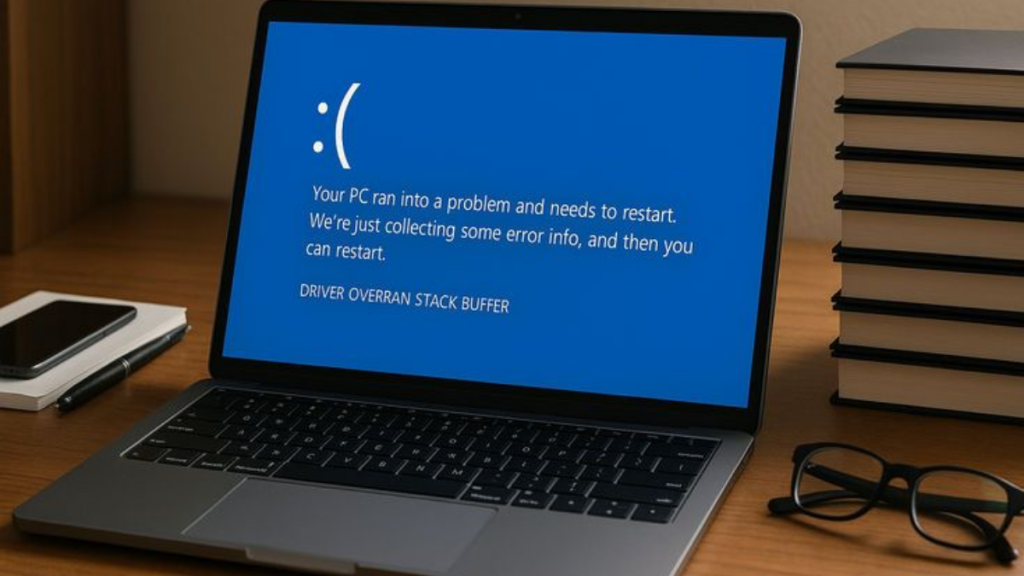
If your system will not boot or the BSOD causes data loss, professional data recovery may be needed. Tools such as data recovery software can sometimes help, but if the drive is failing, expert recovery is safer.
Is Your PC Failing or Is It Repairable?
A blue screen does not automatically mean your PC is failing. If the issue is caused by a driver, software conflict, malware infection, corrupted system file, or Windows update problem, the system may be fully repairable.
However, repeated blue screens can signal failing hardware. If your PC crashes during gaming, overheats, fails memory tests, makes unusual noises, or struggles to boot, the hardware may need inspection.
Here is a simple comparison:
| BSOD Pattern | Possible Meaning |
|---|---|
| One-time crash | Temporary software or driver issue |
| Crash after new software | Program conflict or system corruption |
| Crash during gaming | GPU, RAM, heat, driver or power issue |
| Crash after new hardware | Compatibility or installation problem |
| Crash with data loss | Storage or system corruption concern |
| Repeated random crashes | Hardware fault or deeper Windows issue |
Why Choose Gadgets n Repair for BSOD Help?
If you want a blue screen error fixed properly, Gadgets n Repair UK can help diagnose the real cause instead of guessing. The team can support customers with PC repair, laptop repair, gaming PC issues, Windows crashes, hardware diagnostics, driver problems, malware checks, and data recovery advice.
A proper diagnosis can save time and prevent unnecessary repairs. For example, reinstalling Windows will not fix faulty RAM, and replacing RAM will not solve a corrupted driver problem. That is why checking both software and hardware matters.
For internal linking, connect this blog to your PC repair page, laptop repair page, gaming PC repair page, data recovery page, virus removal page, and contact page.
Final Thoughts
So, can a blue screen error be fixed, or is your PC failing? In many cases, a BSOD can be fixed. The issue may come from drivers, software conflicts, malware, Windows updates, corrupted files, external devices, or system settings. However, repeated blue screens may point to faulty RAM, overheating, GPU problems, hard drive failure, or other hardware issues.
If your PC keeps blue-screening, do not ignore it. Note the error code, try safe troubleshooting, and get expert help if the crashes continue. Gadgets n Repair can help check the cause and recommend the right repair path before the issue gets worse.
FAQs About Blue Screen Errors
Can a blue screen error be fixed?
Yes, a blue screen error can often be fixed. The solution depends on the cause, such as driver issues, software conflicts, malware, corrupted system files, faulty RAM, overheating, or hardware problems.
Does a blue screen mean my PC is failing?
Not always. A single BSOD may be caused by a temporary Windows error or driver issue. However, repeated blue screens may suggest hardware failure or deeper system problems.
Why does my PC blue-screen while gaming?
A PC may blue-screen while gaming because graphics-intensive games stress the GPU, CPU, RAM, cooling system, and power supply. Overheating, outdated drivers, or hardware weaknesses can trigger crashes.
Can faulty RAM cause the Blue Screen of Death?
Yes, faulty or inconsistent RAM modules can cause BSOD errors. Running Windows Memory Diagnostic can help identify memory-related issues.
Can malware cause blue screen errors?
Yes, malware can corrupt system files, create instability, and trigger Windows crashes. A full malware scan with trusted antivirus software can help identify infections.
Should I reinstall Windows to fix BSOD?
Reinstalling Windows may help if the BSOD is caused by deep software corruption. However, you should check drivers, hardware, malware, and system files first.
Can data be recovered after a blue screen crash?
In many cases, data can be recovered after a BSOD. However, if the crash is linked to storage failure, professional recovery advice may be safer.
Can Gadgets n Repair fix blue screen errors?
Yes, Gadgets n Repair can help diagnose and repair blue screen errors, including driver conflicts, Windows issues, malware problems, hardware faults, RAM issues, overheating, and gaming PC crashes.