Is your iPhone plugged in but not charging? The problem may come from the cable, power adapter, charging port, battery, software or internal hardware.
Fortunately, some iPhone charging problems have simple solutions. This guide explains why your iPhone is not charging, what you can safely check at home and when you may need professional iPhone repair in St Helens.
Why Is My iPhone Not Charging?
Your iPhone may not be charging because of a damaged cable, an unsuitable adapter, debris inside the charging port, moisture, high temperature, battery wear or an internal hardware fault.
Before assuming that the charging port needs replacing, test the basic components one at a time. This approach can help you identify whether the problem comes from the charger or the phone itself.
Common iPhone Charging Problems
Quickly compare the symptom, likely cause and recommended next step.
| Charging Problem | Possible Cause | Recommended Action |
|---|---|---|
|
01
No charging symbol
|
Faulty cable, adapter, wall socket or charging port | ✓ Test another compatible cable, adapter and socket |
|
02
Cable feels loose
|
Dust, pocket lint or charging-port damage | ✓ Inspect the port and arrange cleaning if needed |
|
03
Charges only at an angle
|
Worn cable connector or damaged port pins | ✓ Stop forcing the cable and book an inspection |
|
04
Charging starts and stops
|
Unstable power, cable damage, debris or corrosion | ✓ Test each charging accessory separately |
|
05
Stops charging at 80%
|
Optimised charging, charge limit or overheating | ✓ Check battery settings and let the phone cool |
|
06
Charges very slowly
|
Weak adapter, damaged cable or heavy phone use | ✓ Use a suitable adapter and reduce phone usage |
|
07
Liquid warning appears
|
Moisture inside the Lightning or USB-C connector | ✓ Disconnect the cable and let the port dry naturally |
Safety note: Do not insert metal tools or liquids into the charging port. Stop using the phone if the battery is swollen or the device becomes dangerously hot.
1. Check the Wall Socket
The problem may not be your iPhone. Instead, the wall socket, extension lead or power strip may have stopped working.
Connect the charger directly to another wall socket. Make sure the cable fits firmly into the adapter and the adapter sits securely in the socket.
You can also test the socket with another device. If that device does not receive power, the socket or extension lead is probably the cause.
2. Inspect the Charging Cable
A damaged Lightning or USB-C cable is one of the most common reasons an iPhone will not charge.
Check the full length of the cable for:
- Exposed wires
- Bent connectors
- Frayed material
- Dark marks
- Loose ends
- Damaged pins
Try charging your iPhone with another compatible cable. If the second cable works, replace the damaged one rather than continuing to use it.
Low-quality or damaged charging accessories can cause unreliable charging and may create additional electrical problems. Therefore, use a suitable cable from Apple or another reputable manufacturer.
3. Test a Different Power Adapter
Your cable may be working correctly while the power adapter has failed.
Try connecting the same cable to another suitable adapter. You can also test the cable through a computer’s USB port, although charging may be slower than it is through a wall socket.
When possible, test one component at a time. Changing the cable, adapter and socket together will make it harder to identify the faulty part.
4. Check the iPhone Charging Port
Dust, pocket lint and other debris can collect inside the Lightning or USB-C port. As a result, the connector may not sit deeply enough to establish a reliable connection.
Common signs of a blocked or damaged charging port include:
- The cable feels loose
- The iPhone charges only at an angle
- Charging repeatedly starts and stops
- The cable does not fit fully
- The phone does not recognise any charger
Look into the port under good lighting. However, do not insert metal tools, liquids, cotton buds or other objects into it. These may damage the connector pins or push debris further inside.
If you are unsure whether the port needs cleaning or repair, visit Gadgets n Repair for phone repair in St Helens. A technician can inspect the port and recommend cleaning, repair or replacement.
5. Restart Your iPhone
A temporary software fault can stop an iPhone from recognising a charging accessory. Restarting the device reloads the operating system and may clear the problem.
Turn the iPhone off normally, wait around 30 seconds and switch it back on. After restarting it, reconnect the charger and check whether the charging symbol appears.
How to Force Restart a Newer iPhone
For iPhone 8 and later:
- Press and quickly release the volume up button.
- Press and quickly release the volume down button.
- Press and hold the side button.
- Release the button when the Apple logo appears.
A force restart does not normally erase your personal data.
6. Leave the iPhone Charging for 30 Minutes
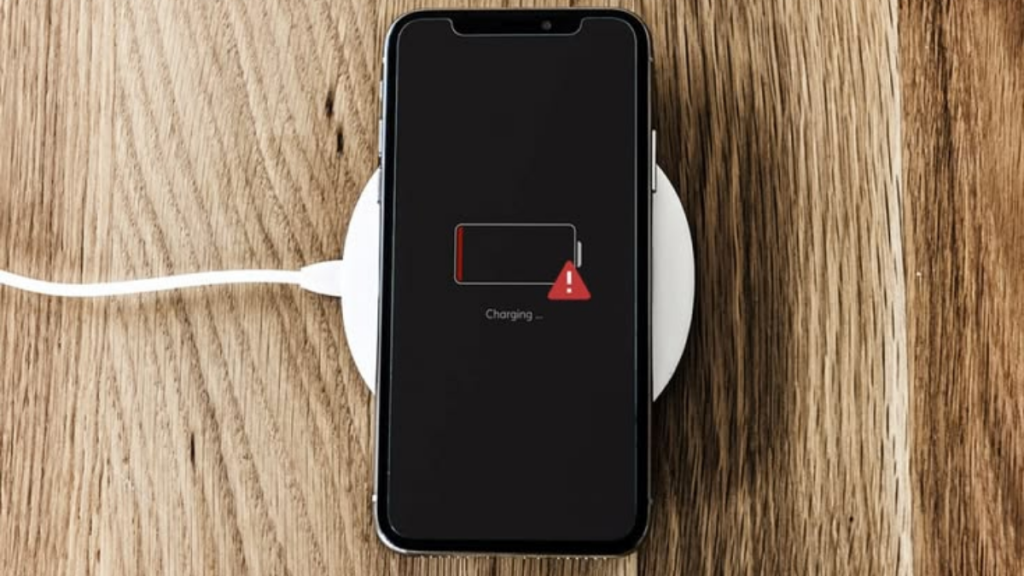
When an iPhone battery is completely empty, the screen may remain black for several minutes after connecting the charger.
Plug the phone into a working wall socket using a tested cable and adapter. Leave it connected for at least 30 minutes without repeatedly pressing buttons.
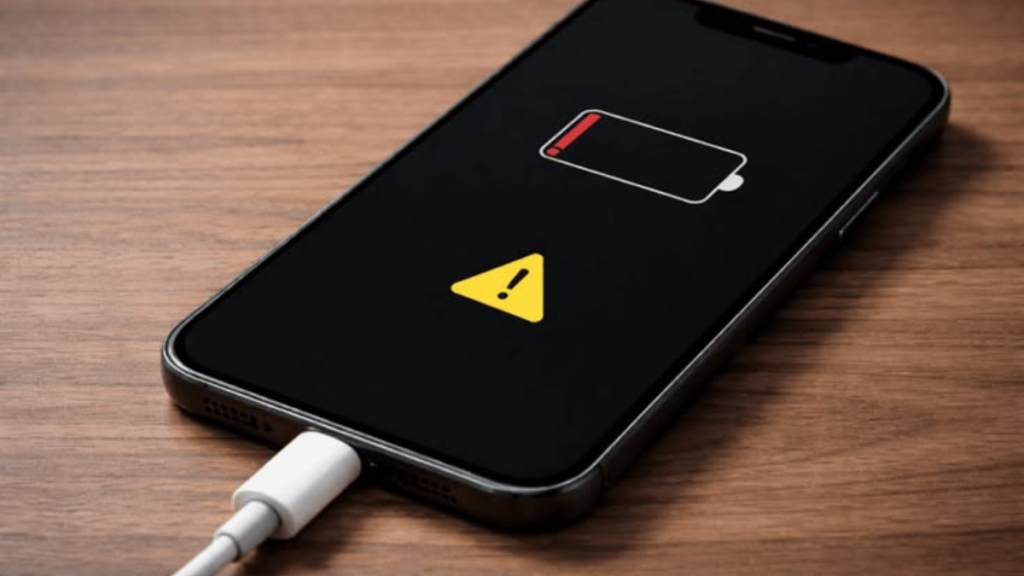
If the low-battery symbol appears, continue charging it. If nothing appears after testing a different charger and socket, the battery or another internal component may need inspection.
7. Check for a Liquid-Detection Alert
Recent iPhones can display a warning when moisture is detected in the Lightning or USB-C connector. Charging is temporarily disabled to reduce the risk of corrosion and permanent connector damage.
If you see a liquid-detection alert:
- Disconnect the cable immediately.
- Hold the iPhone with the charging port facing down.
- Gently tap it against your hand to help remove excess liquid.
- Leave it in a dry area with airflow.
- Wait at least 30 minutes before testing it again.
It can take up to 24 hours for the connector to dry fully.
Do not use a hairdryer, compressed air or external heat. You should also avoid putting the iPhone in rice because small particles may enter and damage the connector.
If your iPhone still will not charge after drying, arrange a water-damage inspection.
8. Let an Overheated iPhone Cool Down
Your iPhone may temporarily limit or pause charging when it becomes too warm. This safety feature helps protect the battery.
Move the phone and charger to a cooler location. Remove a thick case and stop using demanding apps while it charges. Keep the device away from direct sunlight, hot cars and heaters.
Once the temperature returns to a safer level, charging should continue automatically.
9. Check Why Your iPhone Stops Charging at 80%
An iPhone stopping at 80% does not always indicate a charging fault.
Optimised Battery Charging may delay charging beyond 80% based on your routine. In addition, newer models can use a chosen charge limit. High temperature may also make the phone temporarily pause charging above 80%.
Check the available settings under:
Settings > Battery > Charging
The exact wording may vary depending on your iPhone model and iOS version.
If no charge limit is active and the battery repeatedly stops at the same percentage, check its condition under:
Settings > Battery > Battery Health
A heavily worn battery may need professional testing or replacement.
10. Update iOS
An outdated operating system or temporary software bug can sometimes affect accessory detection and charging behaviour.
To check for an update:
- Open Settings.
- Select General.
- Tap Software Update.
- Install an available update.
Back up important data before installing major software updates. After the update finishes, restart the device and test the charger again.
11. Test Wireless Charging
If your iPhone supports wireless charging, place it on a compatible wireless charger.
If wireless charging works but cable charging does not, the fault is more likely to involve:
- The cable
- The power adapter
- Debris in the charging port
- Damage to the charging connector
Remove thick or magnetic cases that may interfere with wireless charging. Make sure the back of the phone and charging surface are clean and dry.
Wireless charging is useful as a temporary test. However, it does not repair a damaged Lightning or USB-C port.
12. Consider Battery or Internal Hardware Damage
If every external component works but your iPhone still does not charge, the fault may be inside the device.
Possible hardware causes include:
- A worn or failed battery
- A damaged charging port
- Liquid corrosion
- A faulty charging circuit
- Internal damage after a drop
- A logic-board fault
Do not repeatedly force the cable into the port or keep moving it until charging starts. This can worsen an existing connector problem.
A professional diagnostic check can identify whether the iPhone needs port cleaning, charging port repair, battery replacement or further board-level investigation.
Why Does My iPhone Only Charge at an Angle?
An iPhone that charges only when the cable is held at an angle often has debris inside the port, a worn cable connector or physical charging-port damage.
First, test a different compatible cable. If the new cable behaves in the same way, stop forcing the connector into different positions.
The port should be inspected before its internal pins or surrounding components suffer further damage.
Why Is My iPhone Charging On and Off?
Intermittent charging normally means the electrical connection is unstable.
Possible causes include:
- A loose wall socket
- A damaged cable
- A failing adapter
- Debris in the charging port
- A worn port connector
- Moisture or corrosion
- Internal charging damage
Test each external component separately. If charging continues to disconnect with several working accessories, the iPhone itself probably needs inspection.
Why Is My iPhone Charging Slowly?
Slow charging may result from an unsuitable power adapter, a damaged cable, high temperature or heavy phone use.
To improve charging speed:
- Use a suitable wall adapter
- Test another compatible cable
- Close demanding apps
- Avoid gaming or video calls while charging
- Move the phone to a cooler area
- Keep the screen off where possible
If the battery also drains quickly, shuts down unexpectedly or becomes unusually hot, it may be worn.
Can a Damaged Charging Port Be Repaired?
Yes, many damaged iPhone charging ports can be cleaned, repaired or replaced. However, the correct solution depends on the cause.
A technician should first determine whether the problem comes from debris, the charging connector, the battery or another internal component. Proper diagnosis avoids replacing a port when only cleaning or a new cable is required.
When Should You Get Professional Help?
Arrange professional help when:
- The iPhone does not charge with several working chargers
- The cable only works at a certain angle
- The charging port looks bent or damaged
- The phone was exposed to liquid
- The device becomes unusually hot
- The battery is swollen
- Charging repeatedly connects and disconnects
- The iPhone will not switch on after extended charging
- Wireless charging works but cable charging does not
Stop using the phone immediately if the battery appears swollen, the screen starts lifting or the device becomes dangerously hot.
iPhone Charging Port Repair in St Helens
If the suggested fixes do not solve the problem, Gadgets n Repair can inspect your iPhone and identify the cause.
Our local team helps with:
- iPhone charging-port inspection
- Charging-port cleaning
- Charging-port repair and replacement
- iPhone battery replacement
- Water-damage diagnostics
- Software and charging checks
Visit our phone repair shop in St Helens for a free quote. Many common charging repairs may be completed the same day, depending on the iPhone model, fault and parts availability.
Gadgets n Repair is located at:
27 Church Street, St Helens, WA10 1AX
Call 01744 345711 or contact Gadgets n Repair to discuss your iPhone charging problem.
Frequently Asked Questions
Why is my iPhone not charging when plugged in?
Your iPhone may not be charging because of a faulty cable, damaged adapter, blocked charging port, moisture, battery wear or internal hardware damage. Test another cable, adapter and wall socket before arranging a repair.
How do I know whether my iPhone charging port is damaged?
Possible signs include a loose cable, charging only at an angle, repeated disconnections or no response with several working chargers. A professional inspection can distinguish port damage from trapped debris.
Can I clean my iPhone charging port myself?
You can visually inspect the port, but inserting tools can damage its delicate pins. Avoid metal objects, liquids, cotton buds and compressed air. Professional cleaning is safer when debris is packed inside.
Why will my iPhone not charge past 80%?
Optimised Battery Charging, a selected charge limit or high temperature may pause charging at 80%. Check your battery charging settings and let the device cool down before testing it again.
How long should I leave a dead iPhone charging?
Leave it connected to a tested wall charger for at least 30 minutes. A deeply discharged battery may take several minutes before showing the charging symbol.
Can water damage stop an iPhone from charging?
Yes. Liquid can trigger the moisture-detection alert, corrode the connector or damage internal charging components. Disconnect the cable and allow the device to dry before seeking professional help.
Does wireless charging work with a broken charging port?
Wireless charging may still work if the port is faulty and the phone supports it. However, it is only an alternative charging method and does not repair the damaged port.
How much does iPhone charging port repair cost?
The cost depends on your iPhone model and whether the port needs cleaning, repair or replacement. Gadgets n Repair currently lists charging-port cleaning from £9.99 and charging-port repair or replacement from £19.99, subject to inspection and the specific device.
Final Thoughts
When asking, “Why is my iPhone not charging?”, begin with the safest checks. Test the socket, adapter and cable, restart the phone and inspect the charging port without inserting objects.
You should also check for moisture warnings, overheating and battery settings. If the iPhone still does not charge with several working accessories, it may need professional diagnosis.
Visit Gadgets n Repair for reliable iPhone repair in St Helens, clear advice and a free quote before any repair begins.