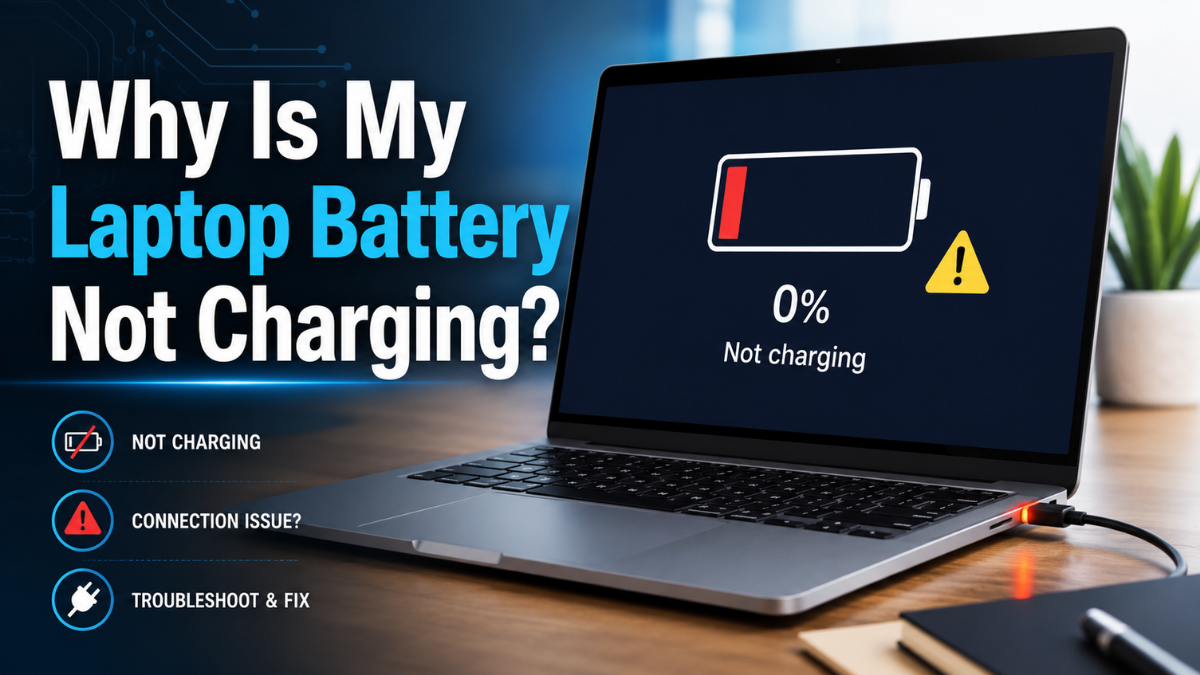
Why Is My Laptop Battery Not Charging?
Is your laptop plugged in but refusing to charge? The problem may come from the charger, charging port, battery settings, overheating or an internal hardware fault. This guide explains what to check safely and when professional repair may be required.
A laptop battery not charging does not always mean the battery has failed. The issue may come from the charger, power socket, charging port, battery settings or a temporary software problem.
Start with the simple checks below before purchasing a replacement battery or power adapter.
Why Is My Laptop Battery Not Charging?
A laptop may recognise the power adapter without adding energy to the battery. In other cases, it may show no charging light or connection at all.
The most common causes include:
- A faulty wall socket or extension lead
- A damaged charger or charging cable
- An incompatible or underpowered adapter
- A loose, blocked or damaged charging port
- Battery protection or smart charging settings
- Excessive laptop temperature
- Outdated battery drivers or firmware
- A worn, failed or swollen battery
- A charging circuit or motherboard fault
Common Laptop Charging Problems at a Glance
Laptop Charging Diagnostic Guide
Compare the symptom, likely cause and recommended next action.
| Charging Problem | Possible Cause | Recommended Action |
|---|---|---|
| 01 No charging light | Faulty socket, charger or charging port | Test another socket and a compatible charger |
| 02 Plugged in but not charging | Heat, battery settings or a driver issue | Restart the laptop and review battery settings |
| 03 Charges only at an angle | Loose connector or damaged charging port | Stop moving the cable and arrange an inspection |
| 04 Stops charging at 80% | Smart charging or battery charge limit | Check the manufacturer battery utility |
| 05 Battery drains while plugged in | Charger does not provide enough power | Use a compatible adapter with the correct wattage |
| 06 Only works when plugged in | Battery has lost most of its capacity | Check battery health and consider replacement |
| 07 Charging starts and stops | Damaged cable, port or internal connection | Test each charging component separately |
| 08 Battery appears swollen | Internal battery failure | Switch off the laptop and stop using it |
Safety note: Stop using the laptop if the battery is swollen, the charger smells burnt or the device becomes dangerously hot.
How to Fix a Laptop Battery That Is Not Charging
Check the Wall Socket and Power Connection
Test the wall socket with another electrical device. Remove extension leads or overloaded power strips and connect the charger directly to the wall.
Also make sure the cable between the plug and power adapter is firmly connected.
Inspect the Laptop Charger
A damaged charger is one of the most common causes of laptop charging problems.
Look for:
- Frayed or exposed wiring
- Bent charging pins
- A damaged USB-C connector
- Cracks around the adapter casing
- Burn marks or unusual smells
- A cable that only works when bent
- An adapter that becomes excessively hot
Check the Charger Wattage
A charger may fit the laptop without supplying enough power. A small USB-C phone charger, for example, may connect successfully but fail to charge the laptop properly.
Use the original charger or a compatible replacement that meets the laptop manufacturer’s power requirements.
Inspect the Laptop Charging Port
A loose or damaged charging port can interrupt the connection between the adapter and the laptop.
Common warning signs include:
- The charging connector feels loose
- Charging stops when the cable moves
- The laptop charges only at an angle
- The charging light flashes
- The port appears bent or pushed inward
Restart the Laptop
A temporary power-management error may prevent Windows or macOS from detecting the battery correctly.
- Shut down the laptop completely.
- Disconnect the charger.
- Remove USB devices and accessories.
- Hold the power button for 15 to 20 seconds.
- Reconnect the charger.
- Start the laptop again.
Allow the Laptop to Cool Down
Excessive heat can cause some laptops to reduce or pause charging. Place the laptop on a hard, flat surface and allow it to cool naturally.
Common overheating causes include:
- Blocked ventilation openings
- Dust inside the cooling system
- Using the laptop on a bed or sofa
- Gaming or intensive software
- A damaged cooling fan
Check Smart Charging Settings
Many laptops intentionally stop charging at 60% or 80% to reduce long-term battery wear.
Look for battery protection options in Lenovo Vantage, MyASUS, Dell Power Manager, HP Support Assistant, Acer Care Centre or Samsung Settings.
Check Battery Health in Windows
Windows users can generate a battery report to compare the original battery capacity with its current full-charge capacity.
- Search for Command Prompt.
- Open it as an administrator.
- Enter the command below.
- Press Enter and open the generated report.
Compare the Design Capacity with the Full Charge Capacity. A large difference may indicate significant battery wear.
Check Battery Health on a MacBook
Open Apple Menu → System Settings → Battery and review the Battery Health section.
A Service Recommended message may indicate that the battery has lost significant capacity.
Reinstall Windows Battery Drivers
- Right-click the Start button.
- Open Device Manager.
- Expand Batteries.
- Uninstall Microsoft AC Adapter.
- Uninstall Microsoft ACPI-Compliant Control Method Battery.
- Restart the laptop.
Windows should reinstall the required drivers automatically.
Install System and Firmware Updates
Check Windows Update, optional driver updates, the manufacturer’s support utility and the official support page for your exact laptop model.
Look for Signs of Battery Failure
A laptop battery may need replacing when:
- The laptop only works while plugged in
- Battery life has become extremely short
- The battery percentage changes unexpectedly
- The laptop shuts down without warning
- The battery does not charge beyond a low percentage
- The operating system recommends battery service
- The battery or laptop casing appears swollen
What Should You Do If the Laptop Battery Is Swollen?
A swollen battery is a safety issue that requires immediate attention.
Possible warning signs include:
- The laptop case is separating
- The keyboard or trackpad is lifting
- The bottom panel appears raised
- The laptop no longer sits flat
- An unusual chemical smell is present
Why Does My Laptop Say Plugged In, Not Charging?
This message means the laptop recognises external power but is not currently adding energy to the battery.
This may happen because:
- Smart charging is enabled
- The battery has reached its selected charge limit
- The charger does not provide sufficient power
- The laptop is overheating
- The battery driver is not responding
- The battery is heavily worn
- The internal charging circuit has failed
Why Does My Laptop Stop Charging at 80%?
A laptop that consistently stops charging at 80% may have a battery protection feature enabled. These features reduce the time the battery spends fully charged and may slow long-term wear.
However, if the battery stops at random percentages or causes sudden shutdowns, the laptop may require inspection.
Why Is My Laptop Battery Draining While Plugged In?
A laptop may continue losing power when the charger supplies less electricity than the computer is consuming.
This often happens when:
- A low-wattage USB-C adapter is being used
- The charger is damaged or failing
- The laptop is running demanding applications
- A docking station limits the charging power
- The charging port has an unstable connection
Does the Laptop Battery Need Repair or Replacement?
Laptop batteries are usually sealed components. Therefore, technicians normally replace the complete battery instead of repairing individual cells.
However, the battery may not be the actual source of the fault. A technician may need to test:
- The charger and charging cable
- The charging port
- The battery connector
- The battery voltage and health
- The internal charging controller
- The motherboard
When Should You Visit a Laptop Repair Shop?
Arrange professional help when:
- Multiple compatible chargers fail
- The charging port feels loose
- The laptop charges only at an angle
- The battery is swollen
- The laptop has suffered liquid damage
- The device becomes dangerously hot
- The charging light does not appear
- The laptop only works while plugged in
- Software troubleshooting has not solved the issue
Laptop Battery and Charging Repair in St Helens
When your laptop battery is not charging, the fault may involve the power adapter, charging port, battery connector, battery or internal charging circuitry.
Gadgets n Repair provides professional laptop, MacBook and PC repair in St Helens for charging faults, battery replacement, damaged ports, overheating and other hardware problems.
Frequently Asked Questions
Why is my laptop plugged in but not charging?
The charger may not provide sufficient power, battery protection may be enabled, the laptop may be overheating or the battery may be worn. Restart the laptop, check the charger specifications and review the battery settings.
How can I tell whether the charger or battery is faulty?
Test the laptop with another confirmed compatible charger. If it starts charging, the original adapter may be faulty. If it still does not charge, the battery, charging port or internal circuit may require inspection.
Can a faulty charger damage a laptop battery?
A damaged, incompatible or poor-quality charger may provide unstable power and can damage charging components. Always use an adapter that meets the manufacturer’s specifications.
Why does my laptop only charge at an angle?
The charger connector or charging port may be damaged. Avoid forcing or moving the cable because repeated movement may worsen the fault.
Why does my laptop stop charging before 100%?
Smart charging or a manufacturer-set battery limit may pause charging below 100% to reduce long-term battery wear.
How long does a laptop battery replacement take?
The time depends on the laptop model, battery availability and how difficult the device is to open. A technician can confirm the expected turnaround after inspection.
Is it safe to use a laptop with a swollen battery?
No. Switch off the laptop, disconnect it from power and arrange professional removal. Never puncture, bend or compress a swollen battery.
Should I replace the battery or buy a new laptop?
Battery replacement is often worthwhile when the rest of the laptop works correctly. Replacement may be less practical when the device also has major motherboard, screen or performance problems.
Final Thoughts
A laptop battery not charging may result from a loose connection, incorrect adapter, battery protection setting, excessive heat or worn battery.
Begin by testing the socket, charger and battery settings. Stop using the laptop immediately if the battery is swollen, the adapter smells burnt or the device becomes dangerously hot.
When basic checks do not solve the issue, professional diagnostics can identify the faulty component and prevent unnecessary replacement costs.