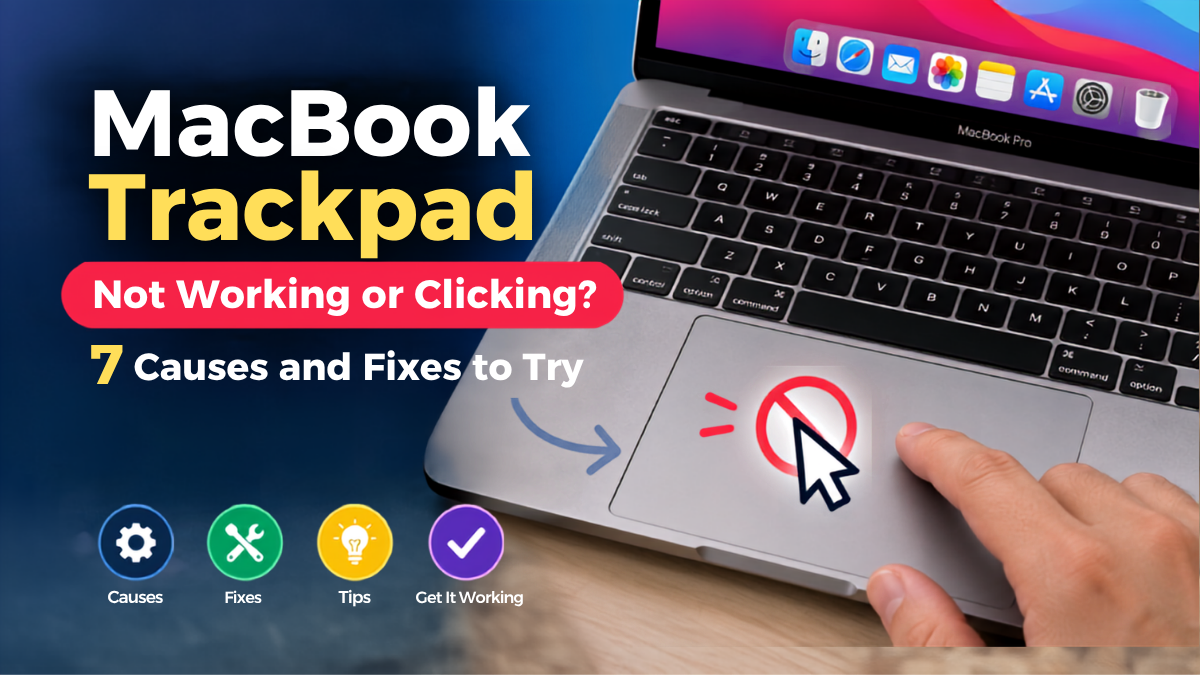
Is your MacBook trackpad not working, refusing to click or responding inconsistently? The problem can range from a simple trackpad setting or temporary macOS issue to Force Touch problems, battery swelling or damaged internal hardware. Some causes are easy to check at home, while physical changes or complete trackpad failure may require professional diagnosis.
Before assuming the trackpad needs replacing, work through these seven common causes and fixes.
Why Is My MacBook Trackpad Not Working or Clicking?
A MacBook trackpad can stop working for both software and hardware reasons. Sometimes the cursor still moves but clicks fail to register. In other cases, gestures stop working, the trackpad becomes completely unresponsive or its clicking action suddenly feels different.
The symptoms can provide useful clues about what is causing the problem.
Common Signs of a MacBook Trackpad Problem
- The cursor does not move normally
- Clicks do not register
- The trackpad feels unusually stiff
- Multi-Touch gestures stop working
- The trackpad works intermittently
If your MacBook trackpad stopped working suddenly, start with the simpler software and settings checks before considering an internal hardware fault.
1. Check Your MacBook Trackpad Settings
Start with the Trackpad options in System Settings. A setting may have changed, particularly if the trackpad still moves the pointer but behaves differently when you click, tap or use gestures.
Open System Settings and select Trackpad. Review the Point & Click options and check settings such as Tap to Click, tracking speed and other available click controls.
Also test different trackpad actions. If normal pointer movement works but a particular gesture does not, the problem may be related to configuration rather than a completely failed trackpad.
This is particularly worth checking when a MacBook trackpad is not responding in the way you expect but still shows some signs of normal operation.
2. Restart Your MacBook to Clear a Temporary Trackpad Issue
A temporary macOS or input-process problem can sometimes cause the trackpad to freeze, respond slowly or behave inconsistently.
Save your work and restart the Mac normally. Once it starts again, test basic cursor movement, clicking and gestures before opening multiple applications.
If the trackpad returns to normal after restarting but the problem repeatedly comes back, do not assume the issue has been permanently fixed. Recurring behaviour may justify further software troubleshooting or hardware diagnosis.
3. Check Force Touch and Haptic Feedback
On compatible MacBook models, the clicking sensation is closely connected to the Force Touch trackpad and its haptic feedback system. Therefore, a trackpad that still moves the cursor but no longer feels or behaves as expected when clicking deserves a closer look.
Go to the Trackpad section in System Settings and review the Point & Click options available for your model. Check whether Force Click and haptic feedback are configured as expected.
It is also important to distinguish between a trackpad that has lost its expected click sensation and one that has become physically difficult to press. The latter can point towards a different hardware problem.
What If the Cursor Moves but the Trackpad Won’t Click?
If the pointer moves normally but clicking does not work, first test Tap to Click and review the available Force Touch settings.
This symptom does not automatically mean the complete trackpad assembly has failed. The cause could involve settings, haptic behaviour or another hardware component, so diagnosis should come before replacement.
4. Disconnect External Devices and Check Input Settings
If you regularly use a Bluetooth mouse, USB mouse or another pointing device, disconnect it temporarily and test the built-in trackpad on its own.
Also review relevant accessibility and pointer-control settings. Depending on the configuration of the Mac, certain options can change how the built-in trackpad behaves when another pointing device is connected.
Testing the MacBook without accessories helps isolate the problem. If the built-in trackpad behaves normally once an external device is disconnected, investigate the accessory and related settings before assuming the MacBook itself needs repair.
5. Check for macOS or Software Problems
Software should also be considered when a MacBook trackpad is not working properly, especially if the problem started after a system change or occurs only under particular conditions.
Check whether an appropriate macOS update is available for your Mac. You can also test whether the trackpad problem occurs consistently across different applications.
Safe Mode can sometimes help determine whether software loaded during normal startup is contributing to unusual behaviour. However, the startup procedure differs between Apple silicon and Intel-based Macs, so follow the correct instructions for your model.
For official model-specific troubleshooting and startup instructions, refer to Apple’s support documentation rather than following outdated instructions written for a different Mac generation.
Does Troubleshooting Differ Between Apple Silicon and Intel MacBooks?
Yes. Some older Mac troubleshooting recommendations apply specifically to Intel-based machines and should not automatically be followed on Apple silicon MacBooks.
Before performing model-specific resets or startup procedures, identify whether you have an Intel Mac or an Apple silicon model. This applies to both MacBook Air and MacBook Pro devices.
Keeping troubleshooting model-specific prevents unnecessary steps and helps narrow down the actual problem more efficiently.
6. Check Whether a Swollen Battery Is Affecting the Trackpad
A trackpad that suddenly feels unusually stiff, raised or physically different should be treated more seriously.
The battery sits inside the MacBook chassis, and battery swelling can place pressure on surrounding components. Depending on the MacBook design and extent of swelling, this can affect the trackpad area and how it feels or operates.
Do not repeatedly press hard on a trackpad that appears raised or unusually difficult to click.
Signs a Swollen MacBook Battery May Be Affecting the Trackpad
Look for physical changes rather than relying on clicking behaviour alone. A trackpad that appears raised, an altered fit between parts of the chassis or unusual deformation of the MacBook can justify immediate attention.
Battery swelling is different from a simple trackpad-setting problem and should not be treated as an ordinary DIY repair.
What Should You Do If You Suspect Battery Swelling?
Stop using the MacBook if there are clear signs of battery swelling or physical deformation and arrange an appropriate professional assessment.
Do not puncture, compress or attempt to flatten a swollen battery. Similarly, avoid forcing a raised trackpad back into position. Lithium-ion batteries require careful handling, and visible swelling should be treated as a safety issue rather than simply a trackpad fault.
7. The Trackpad, Flex Cable or Internal Hardware May Be Damaged
If settings and basic software checks do not solve the problem, an internal hardware issue becomes more likely.
The fault could involve the trackpad itself, an internal connection or another component affecting trackpad operation. Physical impact and liquid exposure can also cause symptoms that initially appear to be a simple input problem.
At this stage, replacing the trackpad without diagnosis may result in unnecessary work if another component is actually responsible.
A professional MacBook repair service can inspect the device and determine whether the problem requires trackpad repair, another component repair or a different solution.
What If the Trackpad Stopped Working After Liquid Damage?
A MacBook trackpad that becomes unreliable after a liquid spill may have internal damage even if the rest of the computer initially appears to work normally.
Avoid repeatedly testing a liquid-exposed MacBook simply to see whether the problem disappears. Liquid can affect internal connections and components beyond the trackpad itself.
Professional inspection is particularly useful in this situation because the visible symptom may not reveal the full extent of the damage.
How to Tell Why Your MacBook Trackpad Is Not Working
Different symptoms can point towards different causes. This quick comparison can help you decide what to investigate first.
| Symptom | Possible Cause | What to Check |
|---|---|---|
| Cursor moves but clicking fails | Settings or Force Touch/haptic issue | Review Trackpad settings |
| Trackpad is completely unresponsive | Software or hardware fault | Restart and troubleshoot |
| Trackpad feels stiff or raised | Possible battery or hardware issue | Check for physical changes |
| Gestures have stopped working | Settings or software | Review gesture settings |
| Trackpad works intermittently | Software or internal connection | Test consistently |
| Problem began after liquid exposure | Possible internal damage | Arrange diagnosis |
These are diagnostic clues rather than definitive diagnoses. Two MacBooks showing similar symptoms can still have different underlying faults.
Can a MacBook Trackpad Be Repaired?
Yes, many MacBook trackpad problems can be resolved, but the correct solution depends on what is causing the fault.
A settings or software issue may not require hardware repair at all. Conversely, a damaged trackpad, internal connection problem, battery issue or liquid-related fault may require physical inspection and repair.
That is why diagnosis should generally come before replacing parts. A professional technician can determine whether MacBook trackpad repair, another component repair or a software solution is appropriate.
When Should You Get Your MacBook Trackpad Professionally Checked?
Consider professional diagnosis when the trackpad remains completely unresponsive after basic troubleshooting, feels physically raised or unusually stiff, stops working after liquid exposure, or shows signs of an internal hardware fault.
You should also consider an inspection when the problem repeatedly returns. An intermittent fault can be frustrating because the trackpad may appear normal during one session and stop responding during another.
Getting the cause identified first can help avoid replacing a functioning component while the real fault remains unresolved.
MacBook Trackpad Repair in St Helens
If basic troubleshooting does not restore normal trackpad operation, Gadgets N Repair St Helens can help identify whether the problem is connected to the trackpad, battery or another internal component.
The local Gadgets N Repair team works with MacBook Air and MacBook Pro faults as part of its MacBook repair in St Helens services. A proper diagnosis is particularly useful when a trackpad is completely unresponsive, has changed physically or stopped working following accidental damage.
Rather than assuming that every unresponsive trackpad needs immediate replacement, the aim should be to identify the underlying fault and determine the appropriate repair.
Frequently Asked Questions
Why is my MacBook trackpad not clicking?
A MacBook trackpad may stop clicking because of trackpad settings, Force Touch or haptic behaviour, a temporary software issue or an internal hardware problem. If the trackpad also feels raised or unusually stiff, check for physical changes and consider professional diagnosis rather than forcing it to click.
Can a swollen MacBook battery stop the trackpad from clicking?
Battery swelling can potentially place pressure on surrounding components and affect how the trackpad feels or operates. If the trackpad appears raised or the MacBook chassis shows physical deformation, stop treating it as a simple settings problem and arrange a safe assessment.
Why is my MacBook trackpad clicking but not moving the cursor?
If clicking appears to work but the cursor does not move normally, check the Trackpad settings, restart the Mac and test the built-in trackpad without external pointing devices. Persistent failure could indicate a software, connection or hardware issue that requires further diagnosis.
Can a MacBook trackpad be repaired or does it need replacing?
It depends on the cause. Some trackpad problems come from settings or software and require no replacement. Hardware damage may require trackpad repair or replacement, while battery or internal connection problems can require a different repair entirely.
How much does it cost to repair a MacBook trackpad?
MacBook trackpad repair costs vary according to the MacBook model, the underlying fault, the parts required and whether another component is causing the problem. A diagnosis is therefore more useful than assuming a standard trackpad replacement price before the device has been inspected.
Final Thoughts
A MacBook trackpad not working or clicking does not automatically mean the trackpad needs replacing. Start with settings, a restart, Force Touch options and software checks. However, pay close attention to physical symptoms such as unusual stiffness, a raised trackpad or problems following liquid exposure.
If straightforward troubleshooting does not solve the issue, diagnosis can establish whether the fault lies with the trackpad, battery or another internal component. For users in St Helens, Gadgets N Repair can provide professional Mac and PC repair in St Helens when a hardware-related MacBook problem needs further investigation.