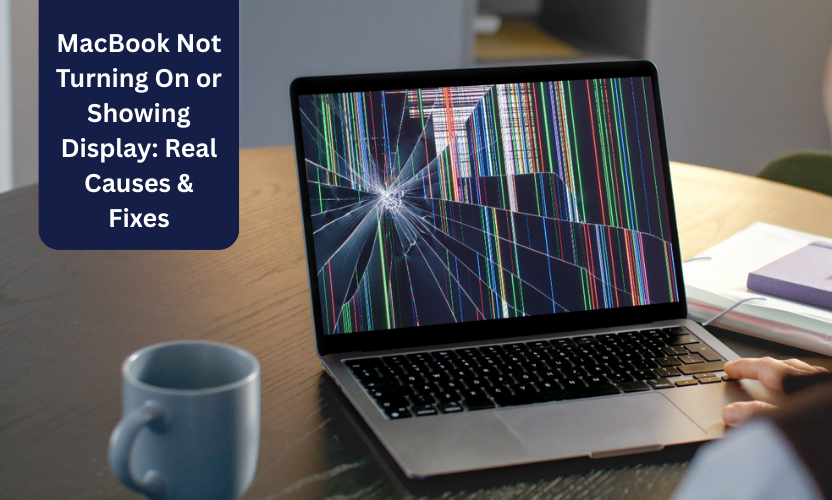
Facing MacBook startup or display issues? Gadgets N Repair explains the real causes and quick professional fixes.
There’s nothing more frustrating than pressing the power button on your MacBook and seeing nothing happen, or worse, a completely black screen with no sign of life. Whether your device shows no display or fails to power on entirely, the root cause can range from something simple to complex.
At Gadgets N Repair, we regularly help customers who’ve searched for MacBook not turning on or showing display and found nothing but confusion online. In this guide, we break down the real causes, practical fixes, and when you should seek professional repair, all explained in clear, user-friendly terms.
Understanding the Problem: Power vs Display
When a MacBook doesn’t power on or show a display, the issue generally falls into one of two broad categories:
- Power-related issues – the system isn’t getting enough power or isn’t managing power correctly
- Display-related issues – the system is on, but the screen isn’t showing anything
Identifying which category your MacBook’s symptom falls into can speed up diagnosis and resolution.
Power-Related Causes
1. Drained or Faulty Battery
Lithium-ion batteries in MacBooks can gradually lose their ability to hold a charge. If the battery is fully drained or worn out, the laptop may not start at all, even when connected to a charger. This typically happens when a MacBook has been unused for a long period, or the battery is simply past its lifespan.
Signs of a battery issue include:
- No response when pressing the power button
- No charging indicator when connected
- Device only works while plugged in
What to Try First
- Connect your MacBook to a genuine Apple charger and leave it to charge for at least 30 minutes
- Try a different compatible adapter and cable
- Press and hold the power button for 10-15 seconds
If nothing happens, the battery may need professional testing or replacement.
2. Faulty Charger or Charging Port
Sometimes the issue isn’t the battery but the hardware that delivers power. A broken charging cable, a damaged adapter, or dirt/debris in the charging port can prevent proper power flow. In these cases, the MacBook may behave as if it’s not receiving power at all.
What to Check
- Inspect the charger for cable frays or bent pins
- Blow out any dust in the USB-C or MagSafe port
- Try connecting to a different power socket
If a different charger doesn’t help, the port itself may need repair or replacement, a service handled professionally at Gadgets N Repair.
Display-Related Causes
1. Black Screen with Power On
A MacBook might power up internally without showing anything on the screen. This often means the issue is with the display hardware, not the power system.
Common signs include:

- Fans or lights turn on, but the screen stays black
- You hear startup sounds but see no image
- An external display works when connected via HDMI/USB-C
This suggests the logic board is active but not driving the internal display.
2. Backlight or Display Cable Problems
Your MacBook’s screen has two essential parts: the LCD panel and the backlight that illuminates it. If the backlight fails, the screen remains dark even though the laptop is running.
You might casually see a very faint image if you shine a torch at the screen, an indication of backlight failure.
Another possibility is a loose or damaged display cable, often caused by drops or previous repairs.
Common Symptoms at a Glance
| Symptom | Most Likely Cause | Typical Resolution |
|---|---|---|
| No power at all | Battery/charger issue | Test charger, battery replacement |
| Powers on but no display | Display/backlight fault | Screen or backlight repair |
| Random shutdowns | Overheating / battery | Clean vents, battery check |
| Lights on, external display works | Internal screen issue | Display cable or logic board fix |
Software & Firmware Troubleshooting Steps
Before concluding it’s hardware, a few software-level steps often resolve issues:
Reset SMC (System Management Controller)
The SMC manages many low-level functions like power, battery, and thermal management. Resetting it (depending on MacBook model) can resolve power symptoms.
Reset NVRAM/PRAM
This resets certain display and startup settings that sometimes corrupt after updates, especially if your MacBook shows no image but seems to power on internally.
Safe Mode & Recovery Boot
Booting in Safe Mode or Recovery Mode helps isolate whether a stopped display is caused by software corruption. From Recovery Mode, tools like Disk Utility can repair file system issues that might prevent normal startup.
When It’s Time to Call in the Experts

If basic troubleshooting doesn’t resolve the issue, your MacBook likely needs professional inspection and repair. Hardware faults, especially those involving the logic board, power circuits, or internal display connections, require specialist tools and experience to fix safely.
At Gadgets N Repair, we perform a thorough diagnostic to pinpoint exactly what’s wrong. Whether it’s a battery replacement, charging port repair, cable re-seating, backlight or screen replacement, or logic board work, our technicians diagnose and fix each issue methodically.
Typical Repair Scenarios and Solutions
Battery Replacement
A worn or failed battery can prevent power. We test battery health and replace it with a high-quality unit that restores full charge cycles.
Charging Port & Power IC Repair
If the MacBook doesn’t respond to any charger, the issue might lie in the charging circuitry. This often requires component-level repair that only trained technicians should attempt.
Screen & Backlight Replacement
If you see faint images with a flashlight or have no display despite power indicators, the screen or backlight likely needs service.
Logic Board and Image Signal Repair
More serious cases, such as corrupted image signal or logic board faults, are repaired at the component level, often saving you money compared to full board replacement.
How to Avoid Future Display/Power Problems
Good habits help prolong your MacBook’s life:
- Keep vents clear to reduce overheating
- Avoid cheap third-party chargers and cables
- Backup your data regularly
- Don’t expose your laptop to moisture or extreme temperatures
Regular software updates also help prevent bugs that can interfere with firmware and startup processes.
Frequently Asked Questions
1. Why won’t my MacBook turn on at all?
If your MacBook doesn’t respond to power button presses, the problem is usually related to the battery, charger, or power circuitry.
2. My MacBook screen is black but I hear sounds, what’s that?
This is often a display issue, such as backlight failure, display cable disconnection, or logic board video output fault.
3. Can software updates cause a blank screen?
Yes, corrupted updates or firmware problems can prevent normal startup. Recovery Mode or Safe Mode may help diagnose this.
4. Is it safe to leave my MacBook charging overnight?
Modern MacBooks manage charge safely, but keeping it in a cool, ventilated spot reduces thermal stress.
5. Should I attempt a DIY screen repair?
No, internal displays and logic board components are delicate. Professional repair reduces risk of permanent damage.
Final Takeaway
A MacBook not turning on or showing display doesn’t always mean disaster. Many causes, from drained batteries to loose display cables, have clear fixes. However, when basic troubleshooting fails, professional repair ensures your MacBook is diagnosed accurately and fixed safely.
At Gadgets N Repair, we combine experienced technicians, quality diagnostic tools, and genuine parts to solve even complex power and display problems. Whether it’s a simple backlight replacement or a deeper logic board repair, we’re here to get your MacBook working again, fast and reliably.
Visit Gadgets N Repair or contact us today for a free diagnostic and expert repair options tailored to your MacBook’s issue.