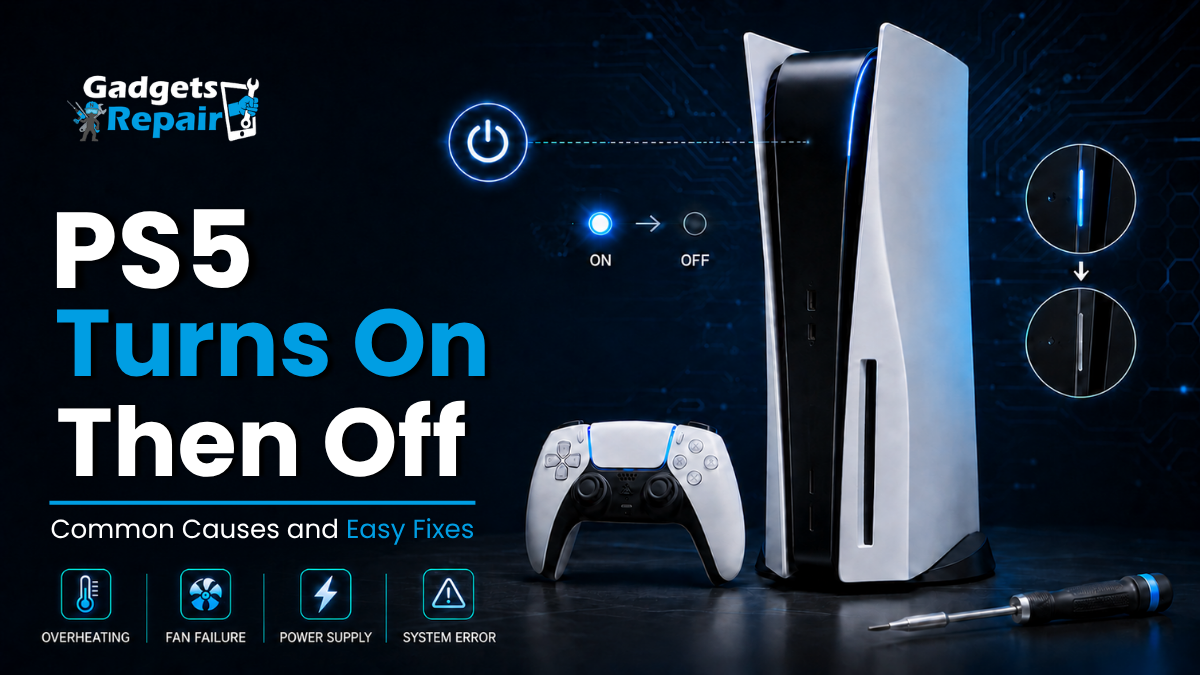
Your PS5 turns on… then dies seconds later. Before you assume it’s “fully broken,” there are a few common causes you can safely rule out in minutes.
If your PS5 turns on then off, it can feel like the console is teasing you, lights flash, maybe you hear a beep, and then… nothing. The good news is that some causes are simple (power or settings). The bad news is that repeated shut-offs can also be a sign of overheating or failing hardware, and the longer you keep forcing it on, the worse it can get.
This guide covers the most common reasons a PS5 turns on then off, the safest fixes to try at home, and when it’s time to book a console repair with Gadgets n Repair in St Helens.
What “PS5 turns on then off” usually means
When a PS5 powers on briefly and then shuts down, it’s typically one of these categories:
- Power delivery issue (socket, cable, extension lead, surge protector)
- Overheating / dust buildup causing an automatic shutdown to protect itself
- Software / system data issue that can sometimes be fixed in Safe Mode
- Hardware fault (power supply, motherboard, HDMI-related damage, liquid damage)
Sony’s official support flow for power issues starts with basic checks and then directs you to their diagnostics/repair path if the issue continues.
Cause 1: Power cable, wall socket, or extension lead problems
This is the most boring cause and also the most common to rule out first.
What to try (safe + quick)
- Plug the PS5 directly into a wall socket (avoid extension leads/power strips for testing).
- Try a different wall socket in the same room.
- Check the power cable fit at the console end and the socket end.
- If possible, try a different compatible power cable (don’t force a loose cable).
If the PS5 stays on when plugged directly into a wall socket, the problem is likely the extension lead, surge protector, or a loose connection.
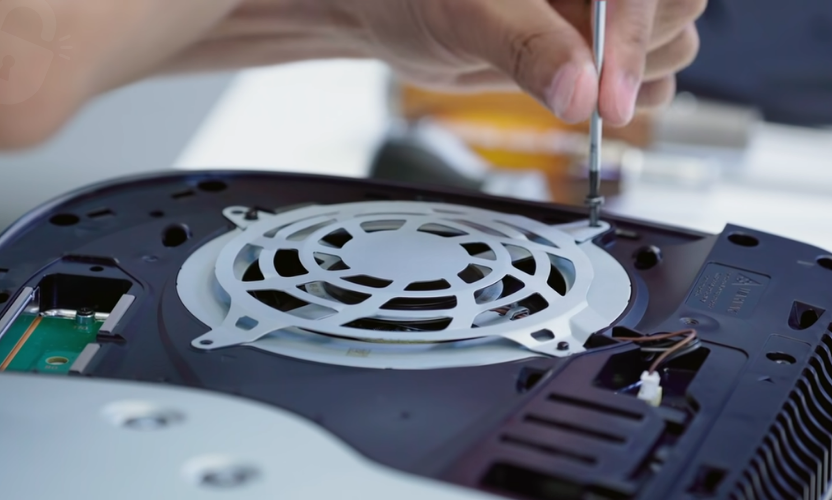
Cause 2: Overheating and dust buildup (PS5 protecting itself)
If your PS5 turns on then off after a short period, especially after gaming sessions or it shuts down more often during demanding games, overheating is a prime suspect.
iFixit’s troubleshooting notes that unexpected shutdowns can be linked to overheating and internal dust buildup.
Common overheating signs
- Console fan gets very loud before shutdown
- Console feels hot around vents
- Shutdown happens during gameplay more than on the home screen
What to do at home
- Move the PS5 to an open area with good airflow (not inside a tight TV unit).
- Clean around vents (light external cleaning only).
- Do not block the intake/exhaust vents with walls, cloth, or stacked items.
If overheating is the cause and the console is dusty internally, you may need a professional clean to fix it properly especially if it shuts down repeatedly.
Cause 3: Rest Mode or HDMI Device Link causing weird power behaviour
Sometimes the console isn’t “broken”, it’s reacting to a setting or to your TV/monitor.
A common culprit is HDMI control features (often called HDMI-CEC) where the TV can influence the console’s power state. Asurion specifically calls out HDMI Link and power settings as things to try when a PS5 turns off by itself.
What to try
- Turn off HDMI Device Link in PS5 settings (System → HDMI).
- Consider disabling Rest Mode temporarily (Power Saving settings).
- Power cycle your TV/monitor and PS5 after changing settings.
If your PS5 only turns off when you turn the TV off or switch inputs, HDMI-CEC behaviour is a strong possibility.
Cause 4: System software or database issues (Safe Mode fixes)
If your PS5 turns on then off quickly, freezes, or crashes after recent updates, power cuts, or interrupted downloads, system data corruption can be involved.
Sony provides official instructions for starting PS5 Safe Mode and lists Safe Mode as a troubleshooting tool for data/display issues.
How to start PS5 in Safe Mode (official method)
- Turn off the PS5 completely (not Rest Mode).
- Press and hold the power button until you hear the second beep.
- Connect the controller with a USB cable and press the PS button.
Safe Mode options worth trying (in this order)
- Update System Software
- Rebuild Database (can help if the system data is messy)
- Reset PS5 (last resort; erases data)
If your PS5 stays on in Safe Mode but turns off during normal boot, that leans toward a software/system issue, but if it still shuts off even in Safe Mode, hardware becomes more likely.
Cause 5: HDMI port damage or display handshake issues
This topic is usually “no display,” but it can sometimes look like power failure when the console boots then cuts out, especially if the port is damaged or the connection is unstable.
If the PS5 has been tugged by the HDMI cable, dropped, or the cable was yanked at an angle, the HDMI port may be compromised. Many repair providers list HDMI issues as one of the most common PS5 hardware faults.
What to check
- Try a different HDMI cable
- Try a different HDMI port on the TV/monitor
- Try a different display (TV/monitor)
- Check the PS5 HDMI port for looseness (don’t poke inside)
If the port feels loose or the console only works when the cable is held at a certain angle, stop testing and get it inspected, continued wiggling can worsen the damage.
Cause 6: Internal power supply or motherboard fault (when it needs a repair)
If you’ve tried:
- a wall socket test,
- ventilation improvements,
- Safe Mode troubleshooting
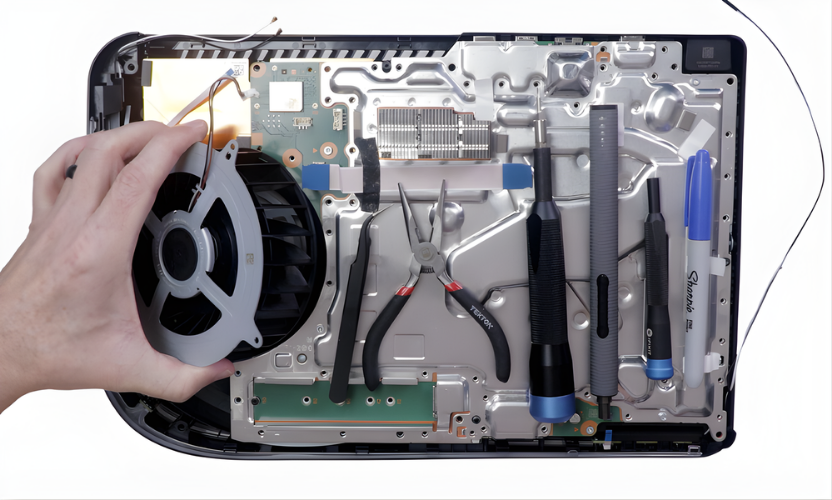
Your PS5 turns on then off immediately (or after seconds), it may be a hardware issue like the internal PSU, power rail fault, or motherboard-level problem. Sony’s official guidance routes persistent power issues toward their repair/diagnostic process.
Strong signs you need a repair
- It shuts off even in Safe Mode
- It shuts off instantly (seconds) every time
- There’s burning smell, visible damage, or evidence of liquid exposure
- You hear unusual beep patterns and it never fully boots (beeps can indicate faults)
What to do before you bring your PS5 in for repair
If you’re booking a PS5 repair in St Helens, these steps help speed things up:
- Note what happens: “blue light then off,” “beeps then off,” “turns off after 10 minutes,” etc.
- Bring your power cable and HDMI cable if you can (helps isolate issues quickly).
- If you use an external drive, mention it, unexpected shutdowns can corrupt storage.
PS5 repair in St Helens: when local help makes sense
A lot of people search “near me” because they want a faster answer than boxing up a console and waiting weeks. If you’re in St Helens town centre or nearby areas like Sutton, Eccleston, Rainhill, Thatto Heath, Haydock, or Newton-le-Willows, a local repair shop can inspect it, tell you what’s likely wrong, and give you a clear next step.
At Gadgets n Repair St Helens, we focus on clear diagnosis first, so you know whether it’s a simple fix, a cleaning/overheat issue, an HDMI fault, or a deeper power problem.
FAQs: PS5 Turns On Then Off
Why does my PS5 turn on then off immediately?
Most often it’s power delivery (socket/cable), overheating protection, system data issues, or a hardware fault. Sony recommends troubleshooting power issues and using their repair diagnostics if the problem continues.
Can overheating cause a PS5 to shut off?
Yes. If airflow is poor or dust buildup is heavy, the PS5 may shut down to protect itself.
How do I boot a PS5 in Safe Mode?
Turn off the PS5, then hold the power button until the second beep. Connect a controller via USB and press PS.
Should I turn off HDMI Device Link?
If your PS5 shuts down or behaves oddly when your TV turns off or switches inputs, disabling HDMI Device Link (HDMI-CEC) is worth trying.
When should I stop trying fixes and book a repair?
If it shuts off even in Safe Mode, shuts off instantly every time, smells burnt, shows liquid damage signs, or the HDMI port is loose, book an inspection.