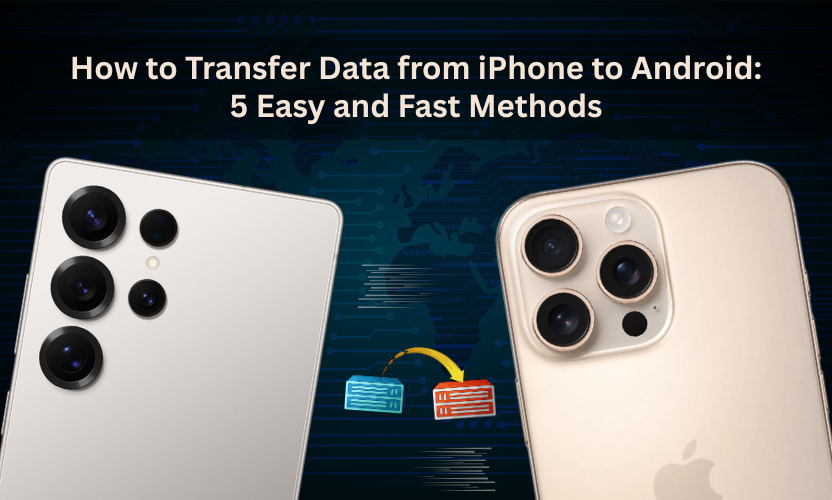
Switching from iPhone to Android? Here’s how to move your data with ease.
Switching from an iPhone to an Android phone? If you’re worried about transferring all your important data, contacts, photos, messages, and documents, you’ve come to the right place.
At Gadgets n Repair, we understand how important your data is, which is why we’ve outlined the 5 easiest and fastest ways to move your information from iPhone to Android without stress.
1. Google Drive: Easy Backup for All Your Data
One of the best methods to transfer data from iPhone to Android is Google Drive. This cloud storage service gives you 15GB of free storage to back up everything you need. Here’s how you can use it:
- Install Google Drive on your iPhone and sign in with your Google account.
- Select the files you want to back up, photos, videos, contacts, documents and upload them.
- Open Google Drive on your Android device and sign in with the same account.
- Download your files onto your new Android device.
At Gadgets n Repair, we recommend Google Drive for a hassle-free transfer. It’s quick and ensures your files are accessible anytime, anywhere.
2. Transfer with Your Computer or Laptop
If you’re not keen on using cloud storage, you can always go for the manual transfer method. This works well if you have a computer or laptop handy and don’t want to rely on internet access. Here’s how to transfer your data:
- Connect both your iPhone and Android phone to your computer via USB cables.
- Copy the files from your iPhone’s storage.
- Paste them into your Android device’s storage.

This method doesn’t need internet and transfers large files quickly, learn how we can help.
3. SHAREit: Wireless and Fast Data Transfer
If you prefer a wireless transfer, SHAREit is an excellent choice. This app is compatible with both iPhone and Android devices and doesn’t need an internet connection, making it a fast and easy solution for moving your data. Here’s how to use SHAREit:
- Install SHAREit on both devices.
- Open the app on your iPhone and select the “send” option.
- On your Android phone, press “receive”.
- Choose the files to send and let the transfer begin.
SHAREit is one of the quickest ways to move large files between iPhone and Android, and it’s perfect if you’re looking for a fast, wireless option.
4. Dropbox: Another Great Cloud Storage Solution
Dropbox is another cloud storage service similar to Google Drive. It’s perfect for transferring documents, photos, and videos between iPhone and Android. To use Dropbox for data transfer:
- Install the Dropbox app on both your iPhone and Android phone.
- Upload your files from your iPhone to your Dropbox account.
- Sign in to the same account on your Android device and download your files.
At Gadgets n Repair, we recommend using Dropbox if you’re already familiar with it. It’s secure, easy to use, and works across multiple platforms.
5. Email: For Small Files, Simple and Effective
For smaller data transfers, email is a quick and easy solution. If you just need to send a few files, like contacts or documents, here’s what to do:
- Attach your files to an email and send them to your own email address.
- Open the email on your Android phone and download the attachments.

This method is perfect for quick, simple transfers, especially when you’re in a hurry.
Data Transfer Comparison
To help you decide which method is best for you, here’s a quick comparison of the five options:
| Method | Pros | Cons | Best For |
| Google Drive | Free cloud storage, easy sync | Requires internet | Photos, contacts, documents |
| Manual Transfer | No internet needed, quick | Requires computer/laptop | Large files, no data limits |
| SHAREit | Fast wireless transfer | Both devices must be on same Wi-Fi | Large files, quick transfers |
| Dropbox | Cloud storage, easy access | Requires internet | Users with Dropbox account, file syncing |
| Simple, no extra apps needed | Limited to small files | Quick transfers for small files |
FAQs
1. How do I transfer my photos from iPhone to Android?
You can use Google Drive or Dropbox to transfer your photos from iPhone to Android. Both services offer cloud storage and allow easy access across devices.
2. Can I transfer my apps from iPhone to Android?
Unfortunately, apps can’t be transferred directly between iPhone and Android. You will need to download them separately from the Google Play Store on your Android device.
3. Do I need a computer to transfer data from iPhone to Android?
Not necessarily. You can transfer data using SHAREit, Google Drive, Dropbox, or email without a computer. The manual transfer method requires a computer, but it’s not your only option.
4. Is transferring data from iPhone to Android safe?
Yes, it’s safe to transfer data using methods like Google Drive and Dropbox as long as you use secure accounts and strong passwords. SHAREit is also safe, as long as both devices are connected to a secure Wi-Fi network.
5. How long does the transfer take?
The time it takes depends on the size of your data and the method you choose. Cloud-based services like Google Drive may take longer if you have a large amount of data and a slow internet connection. SHAREit and manual transfers are faster for large files.
Conclusion
Transferring data from iPhone to Android doesn’t have to be complicated. Whether you choose Google Drive, SHAREit, Dropbox, or manual transfer, each method has its advantages. At Gadgets n Repair, we recommend selecting the method that best suits your needs, based on your available resources and the amount of data you need to transfer.
If you require additional assistance or have any questions, please don’t hesitate to contact our team. We’re here to help you through every step of the process.