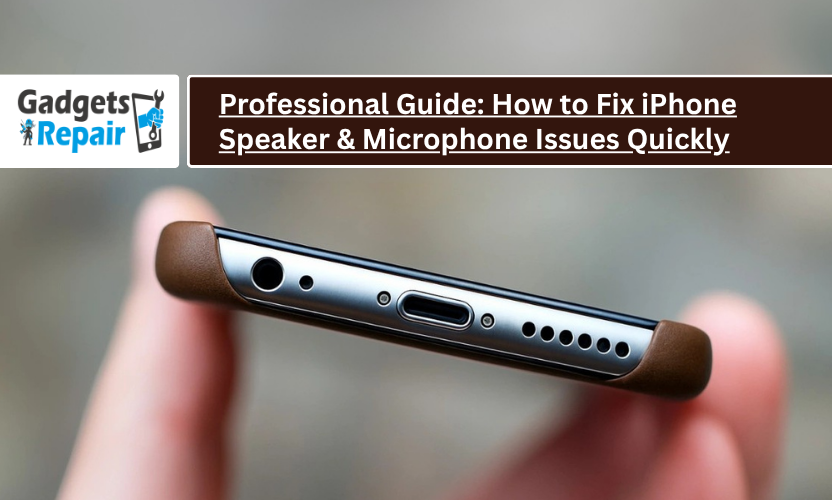
What if the secret to fixing your iPhone’s sound problem takes less than five minutes? Learn how.
Why Clear Sound Matters on Your iPhone
Good sound is essential for making calls, playing music, or watching videos. Your iPhone’s speakers and microphones are responsible for crystal-clear audio during phone calls, video playback, and voice notes. When sound becomes muffled or distorted, it affects everyday use, from loudspeaker calls to FaceTime chats.
Many users think a muffled iPhone means expensive repairs, but in most cases, you can fix iPhone speaker and microphone issues at home with a few easy steps. This guide by Gadgets n Repair will help you test, clean, and restore your iPhone’s audio performance.
Step One: Diagnose the Problem
Start by figuring out whether the problem is hardware or software related.
- Go to your Ringtone Settings and play your ringtone at full volume.
- Listen carefully, is the sound low, distorted, or completely silent?
- Try playing a song or a video to compare sound output through both speakers.
If your sound works through headphones but not the speaker, it could mean dust or blockage in your speaker grille. At Gadgets n Repair, technicians often find lint or debris inside speaker holes as a common cause.
Step Two: Safely Clean Your iPhone Speaker and Microphone
Cleaning is the most effective fix for muffled or low sound. You can use an anti-static brush, a soft toothbrush, or a small paintbrush.
- Remove your iPhone case to expose all ports.
- Gently brush the bottom speaker, earpiece, and pinhole microphone near the camera.
- Never use water, alcohol, or compressed air, these can damage the delicate mesh.
Microphones and speakers work together to balance background noise. Cleaning both ensures clear voice calls and better music playback.
Step Three: Perform a Soft Reset
If cleaning didn’t help, try a soft reset. This process refreshes your phone’s software without deleting any data.
- Go to Settings > General > Shutdown
- Hold the side power button and slide to power off.
After restarting, test the ringtone and call audio again. Many sound problems disappear after a simple restart because temporary software glitches get cleared.
Step Four: Check Accessibility and Audio Balance Settings
Sometimes, incorrect settings can reduce sound quality. Follow these steps:
- Go to Settings > Accessibility.
- Make sure Mono Audio and Noise Cancellation are turned off.
- Under Audio/Visual, check the balance slider and set it to the centre.

If the slider is tilted to one side, only one speaker may produce sound. Balancing ensures full stereo performance.
At Gadgets n Repair, our experts often fix such issues during standard diagnostics before any repair is done.
Step Five: Adjust Your Music EQ Settings
Sound issues may also come from the Music Settings.
- Go to Settings > Music > EQ.
- Choose Off if a preset like Treble Reducer or Bass Booster is selected.
- Turn off Volume Limit and Sound Check for maximum clarity.
These adjustments can restore your iPhone’s natural sound balance and fix distortion in songs or videos.
Quick Comparison: Common Audio Problems and Their Solutions
| Issue | Possible Cause | Recommended Fix |
| Muffled sound during calls | Dust or debris in speaker | Clean speaker and mic with anti-static brush |
| One side not working | Audio balance off | Reset balance slider to centre |
| No sound after update | Software glitch | Perform soft reset or update iOS |
| Speaker crackling or distortion | EQ settings or damage | Turn off EQ; visit repair shop if persists |
| Mic not picking up voice | Blocked pinhole mic | Gently clean mic openings |
Step Six: Hard Reset Your iPhone
If nothing else works, a hard reset restores all system settings to factory defaults.
- Go to Settings > General > Reset > Reset All Settings.
- Enter your passcode and confirm.
Your Wi-Fi passwords and wallpapers will be erased, but your data in iCloud remains safe. After rebooting, test the audio again. A hard reset resolves deeper configuration issues that can affect sound.
Step Seven: When to Seek Professional Help
If you still can’t fix iPhone speaker and microphone issues, the problem may be hardware-related. Internal components like the speaker mesh, microphone, or audio IC chip could be damaged.
At this point, you need a professional technician. Gadgets n Repair offers reliable iPhone speaker and microphone repair services in the UK. Whether your device needs a hardware replacement or deep cleaning, our experts use quality parts and precision tools to restore original sound quality.
You can also compare prices before booking. If your phone is under AppleCare, visit the Apple Store. Otherwise, local specialists like Gadgets n Repair UK provide faster, affordable options with full repair warranties.
Why Choose Gadgets n Repair
Choosing a trusted repair provider ensures long-lasting results. At Gadgets n Repair, we provide:
- Expert diagnostics for iPhone sound and microphone issues
- Genuine replacement parts
- Free consultation and quote
- Same-day service on most repairs
- 12-month repair warranty
Our experienced technicians handle everything from speaker mesh cleaning to microphone replacement, so you can get your iPhone back in perfect condition quickly.
For related services, you can also explore:

Final Thoughts
Your iPhone’s speakers and microphones are vital for smooth performance. Before assuming the worst, try each of the seven steps above to fix iPhone speaker and microphone issues safely. Most sound problems are easy to resolve with proper cleaning, resetting, and settings adjustments.
If the issue persists, let Gadgets n Repair handle it professionally, saving you time, cost, and frustration while restoring your device to its best performance.
Frequently Asked Questions (FAQs)
1. Why does my iPhone sound muffled during calls?
It’s usually caused by dust, dirt, or debris blocking the speaker grille. Clean it gently using an anti-static or soft brush.
2. Can software updates affect iPhone sound quality?
Yes. Updates can reset sound preferences or cause temporary glitches. A soft or hard reset often resolves the issue.
3. Is it safe to use compressed air to clean my iPhone speaker?
No. Compressed air can push debris deeper and damage the internal mesh. Always use a brush instead.
4. How do I know if it’s a hardware issue?
If cleaning and resets don’t help, and there’s no sound at all, it’s likely a hardware fault. A technician at Gadgets n Repair can confirm this with a diagnostic check.
5. How much does it cost to repair iPhone speakers and microphones?
Prices vary by model, but Gadgets n Repair offers affordable rates and free quotes before any work begins.
Need quick help?
Book your iPhone speaker and microphone repair today at Gadgets n Repair and get professional service you can trust.